How to update a grade for a company
Overview
Updating a grade in RMS is quick and ensures grading criteria stay accurate and relevant. After saving, the changes take effect immediately, ensuring consistent grading standards across all warehouse operations.
How to update a grade for a company
- Log in to Returns Management System (RMS).
- On the sidebar menu, click Settings. A dropdown list of setting properties appears below Settings.
- Click Company Configuration. The Settings: Company Configuration page appears on the right.
- In the companies list table, click the Edit (Pen) icon for the company for which you want to create a new grade.
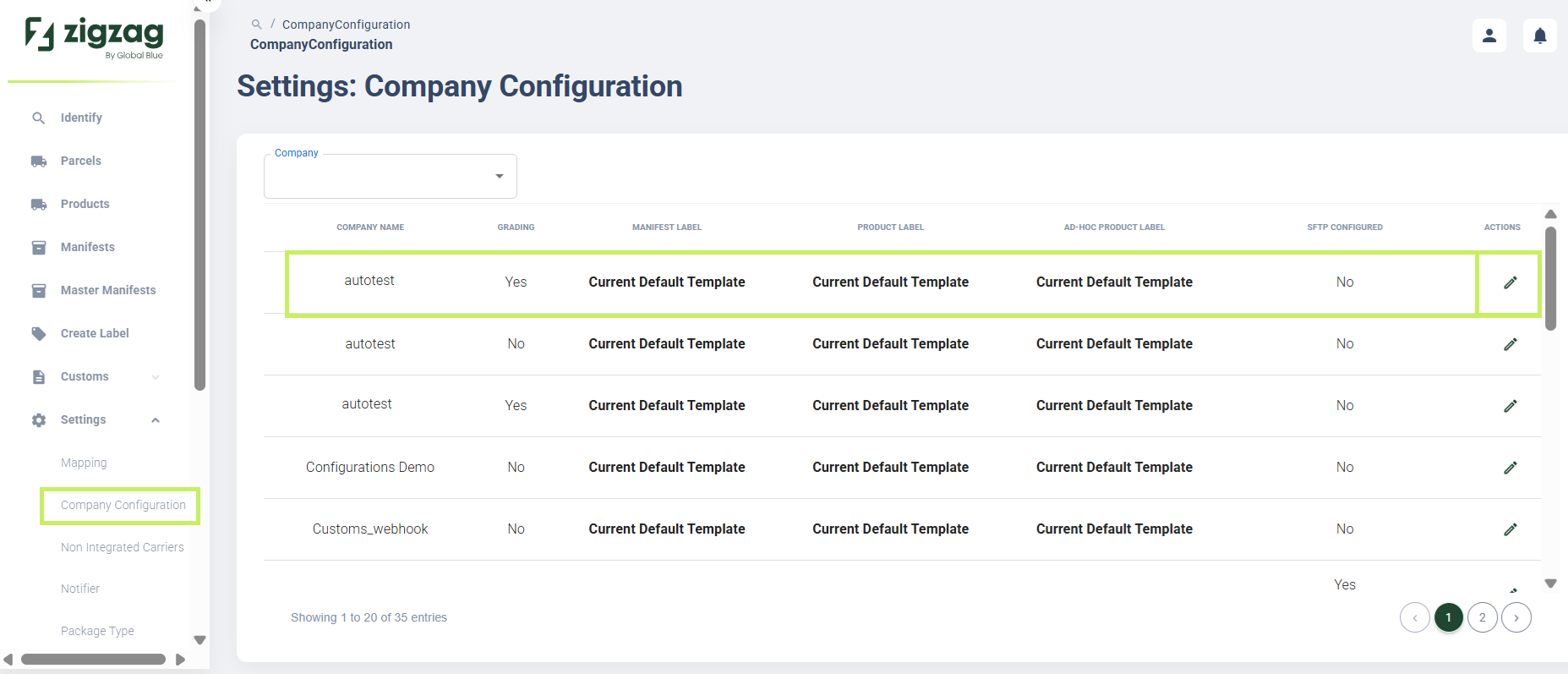
The company page apppears.
5. Select the Grading tab. The Company grading page appears.
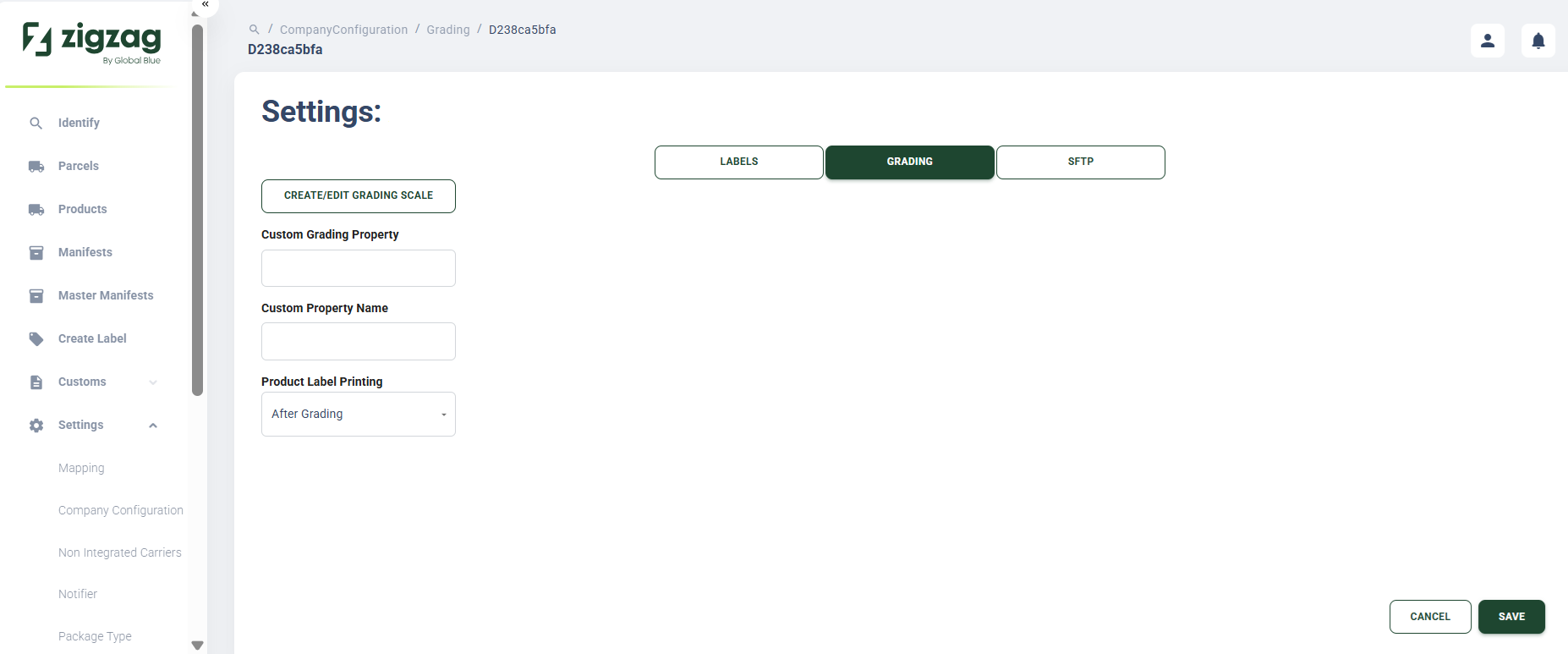
- On the Company grading page, click Create/Edit grading scale button.
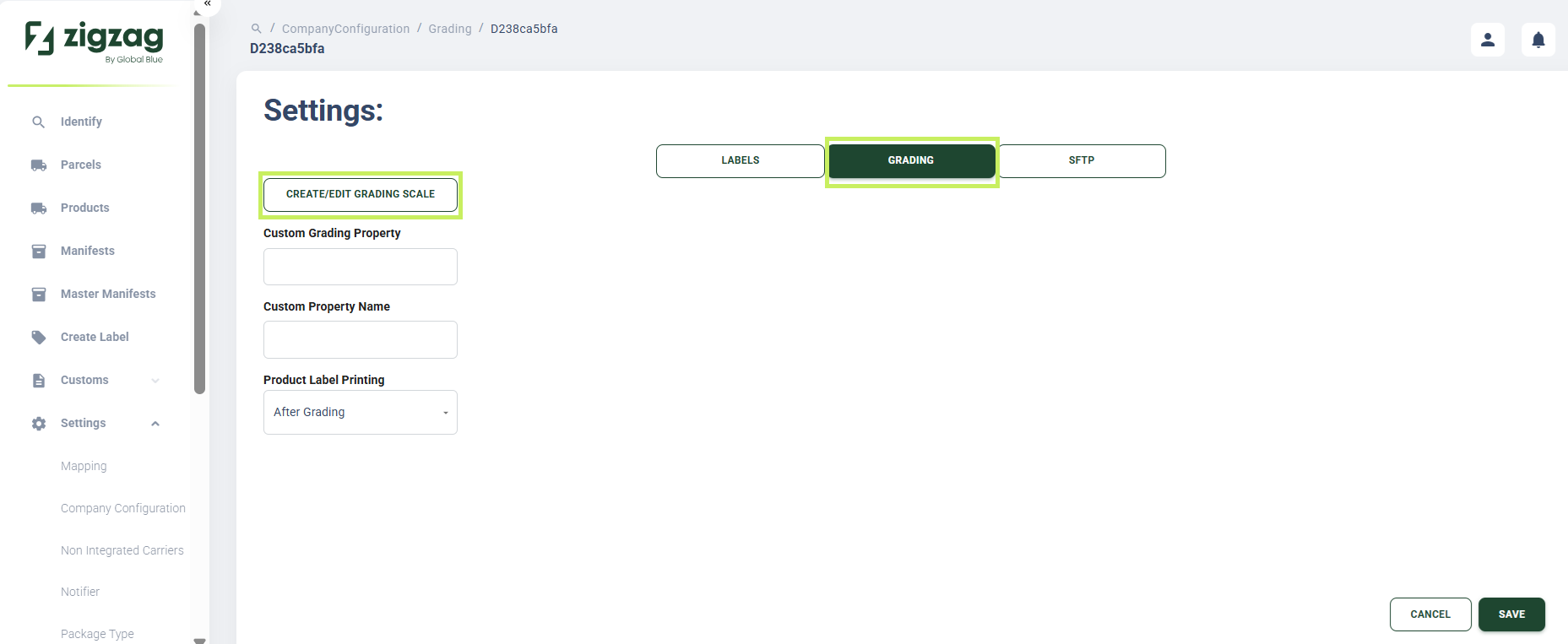
The Settings: Grading page appears.
7. On the Settings: Grading page, click the Edit (Pen) icon for the grading scale you want to update.
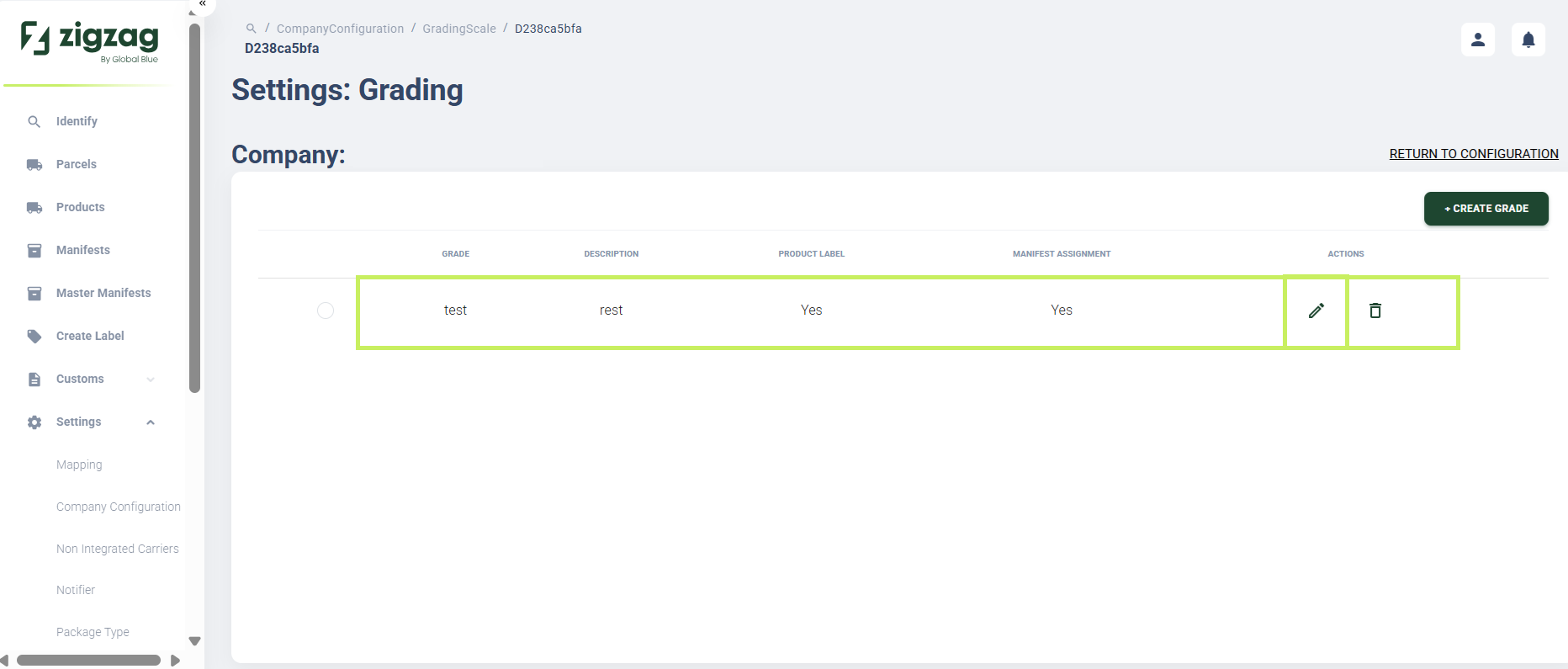
An Edit grade dialog window appears.
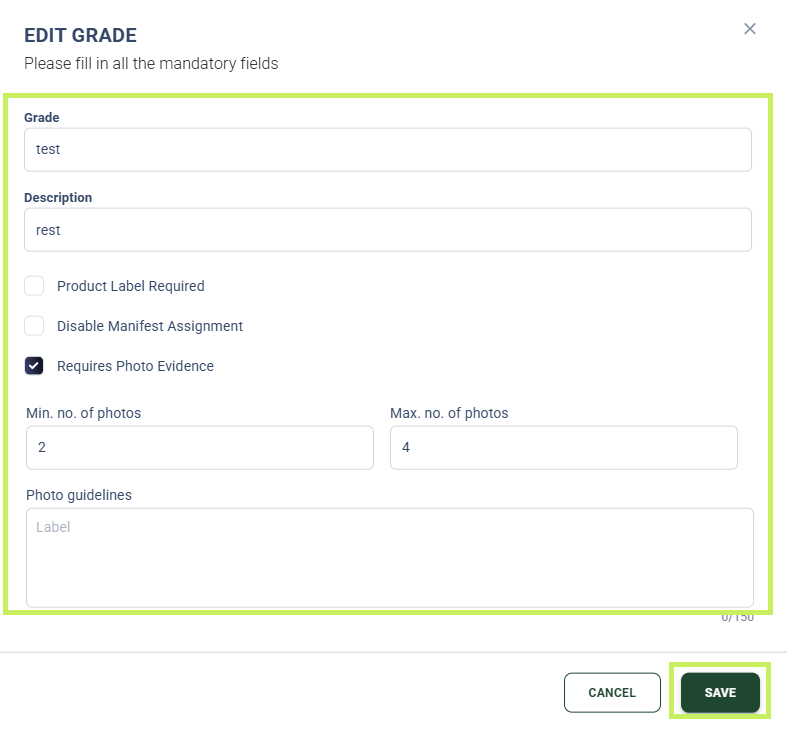
- In the Edit grade dialog window, you can update the following fields:
- Grade name
- Description
- Product Label Required checkbox
- Disable Manifest Assignment checkbox
- Requires Photo Evidence checkbox
- Minimum and maximum number of required photos - specify the minimum and maximum number of the required photos
- Photo guidelines - write additional guidelines for the required photos
- Click Save.