How to update a company's label settings
Overview
RMS provides a clear and structured way for you to update a company’s label settings, ensuring that operational workflows remain accurate and aligned with each retailer’s requirements. By opening the Company Configuration page and selecting the Labels tab, you can adjust predefined fields such as the manifest label and, where applicable, product labels. These fields are designed for consistency across the platform, with values controlled by RMS to maintain reliable labelling throughout processing. This intuitive setup helps you keep label information up to date while preserving system integrity and smooth warehouse operations.
How to update a company's label settings
- Log in to Returns Management System (RMS).
- On the sidebar menu, click Settings. A dropdown list of setting properties appears below Settings.
- Click Company Configuration. The Settings: Company Configuration page appears on the right.
- In the companies list table, click the Edit (Pen) icon for the company whose labels you want to update.
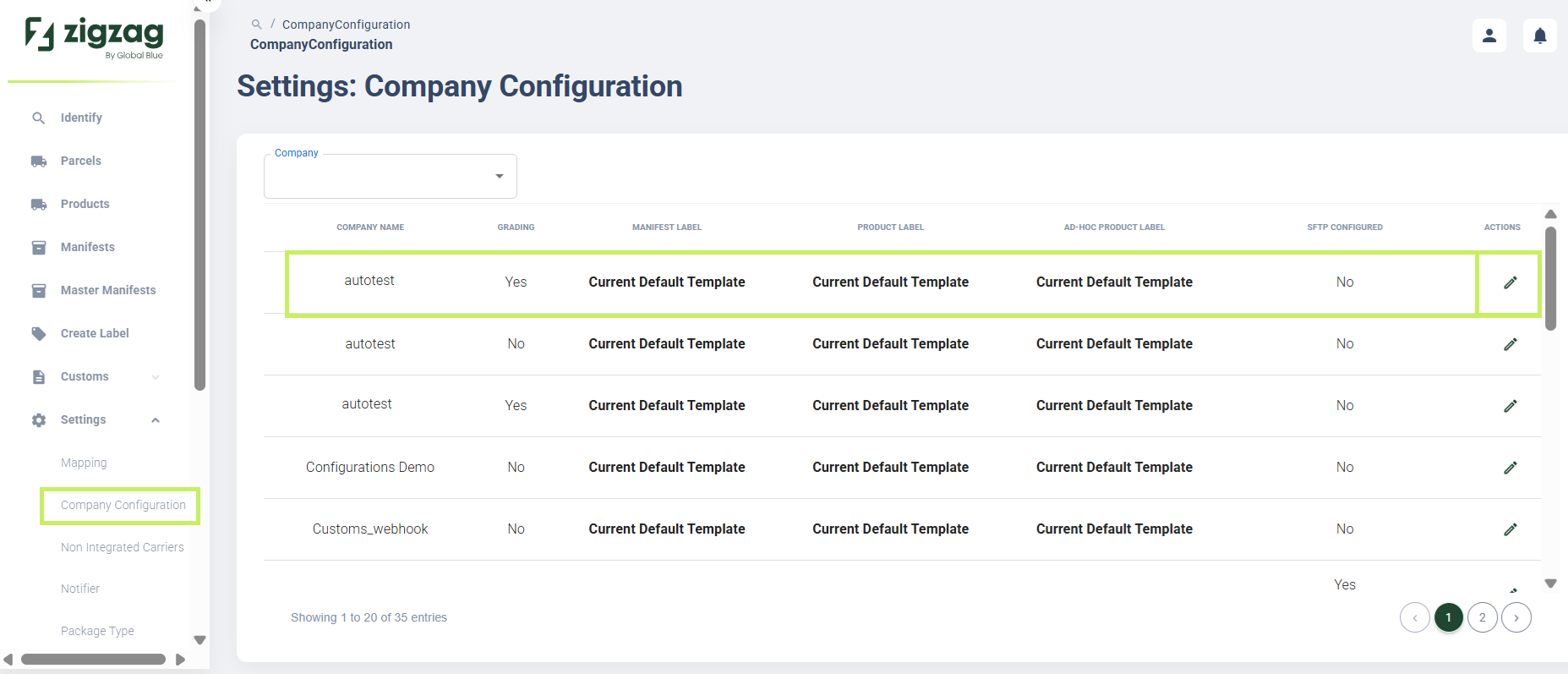
The company page appears.
5. Select the Labels tab to edit the company's labels. The Company labels page appears.
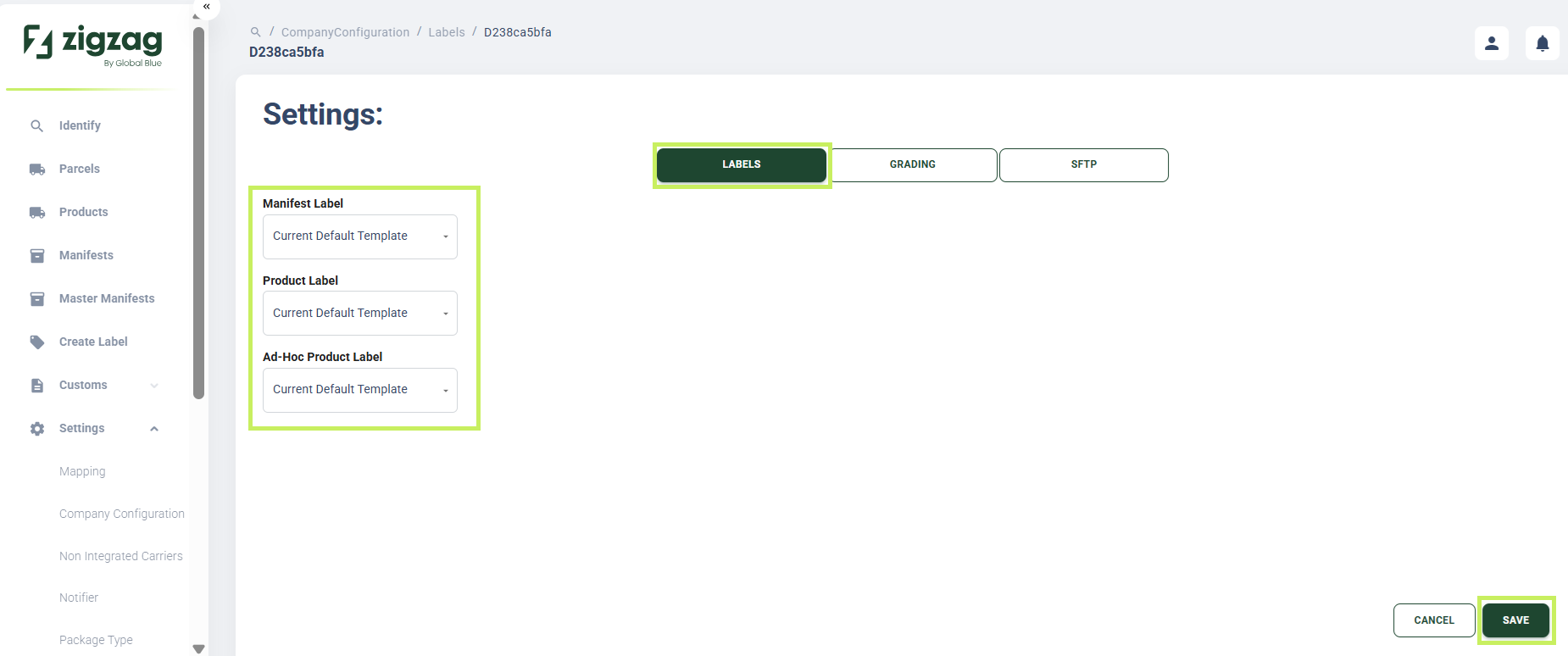
- On the Company labels page, you can edit the following fields:
- Manifest Label - from the dropdown menu, select the manifest label to be used for the company's label printing
- Product Label - from the dropdown menu, select the product label to be used for the company's label printing
- Ad Hoc Product Label - from the dropdown menu, select the ad hoc label to be used for the company's label printing
- Click Save.