How to update a company's SFTP connection
Overview
RMS offers you a straightforward way to manage a company’s SFTP connection, ensuring secure and reliable data exchange between systems. By accessing the company’s configuration settings, you can update key connection details such as the SFTP host, username, folder paths, and authentication credentials. RMS presents these fields in a clear, structured layout, helping you maintain accurate integrations while reducing the risk of connectivity issues.
How to update a company's SFTP connection
- Log in to Returns Management System (RMS).
- On the sidebar menu, click Settings. A dropdown list of setting properties appears below Settings.
- Click Company Configuration. The Settings: Company Configuration page appears on the right.
- In the companies list table, click the Edit (Pen) icon for the company whose SFTP connection you want to edit.
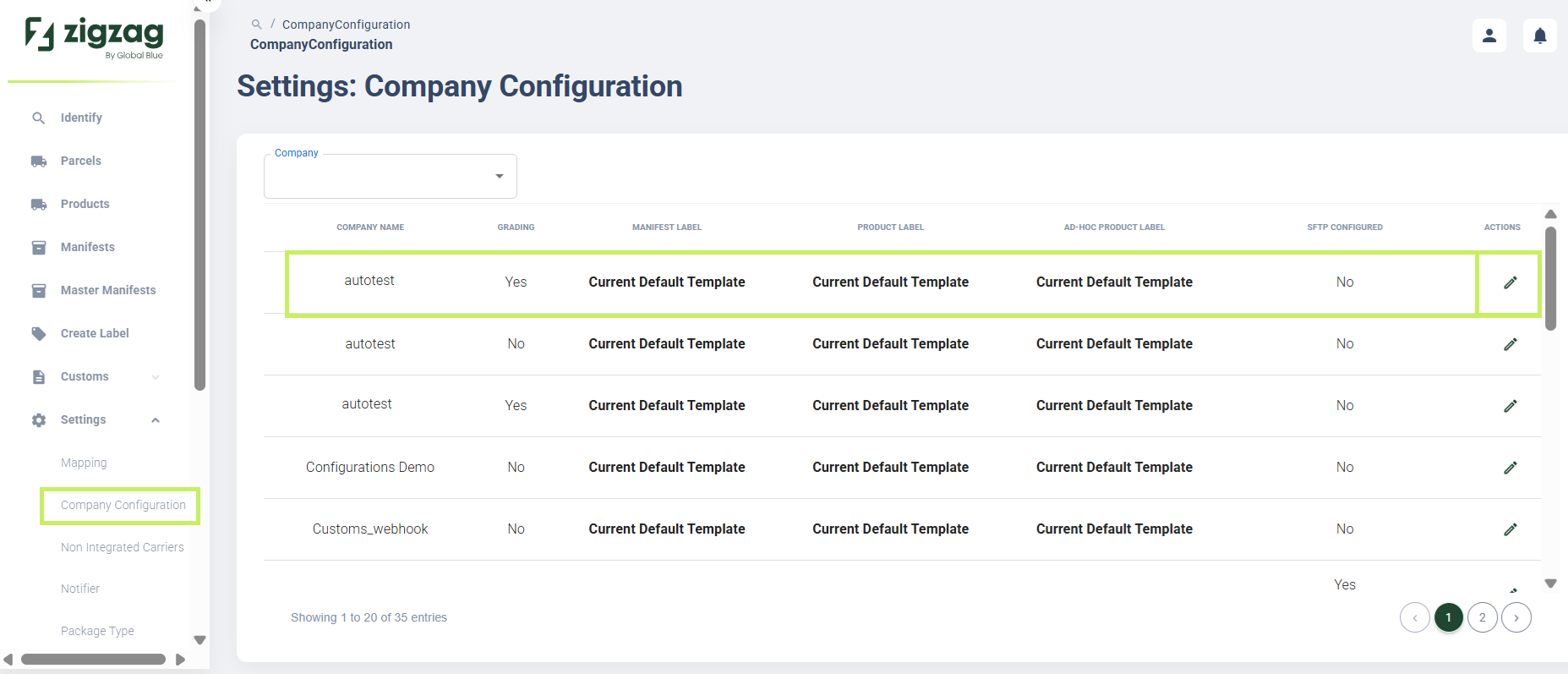
The company page appears.
5. Select the SFTP tab to update the company's SFTP connection. The Company SFTP page appears.
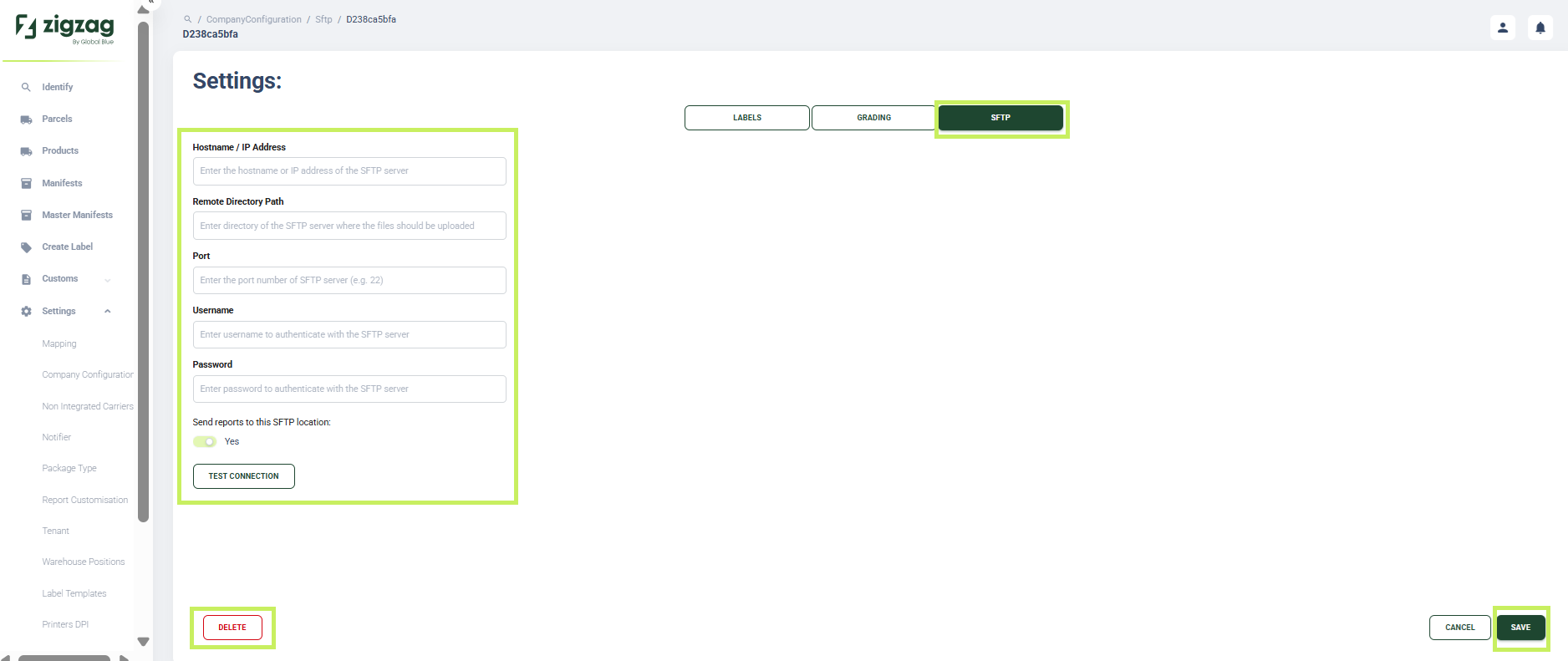
- On the Company SFTP page, you can update the following fields:
- Hostname / IP address - fill in the hostname / IP address for the SFTP connection
- Remote Directory Path - fill in the remote directory path for the SFTP connection
- Port - fill in the port for the SFTP connection
- Username - fill in the username for the SFTP connection
- Password - fill in the password for the SFTP connection
- "Disable reports being sent to this file location" switcher - switch it to Active to disable reports being sent to the configured file location
- Click the Test Connection button to test the SFTP connection.
- Click Save.
- If you want to delete the SFTP connection for a company, click the Delete button on the bottom left corner of the page.