How to change return status in bulk
Overview
The Manage returns page enables you to efficiently update the status of multiple returns at once, reducing manual effort and speeding up day‑to‑day operations. With bulk status change, you can select a group of return items, apply the appropriate status update, and ensure consistent handling across all selected cases.
Note before you start
You need to have a Manager or an Agent user role to be able to change return status in bulk.
How to change return status in bulk
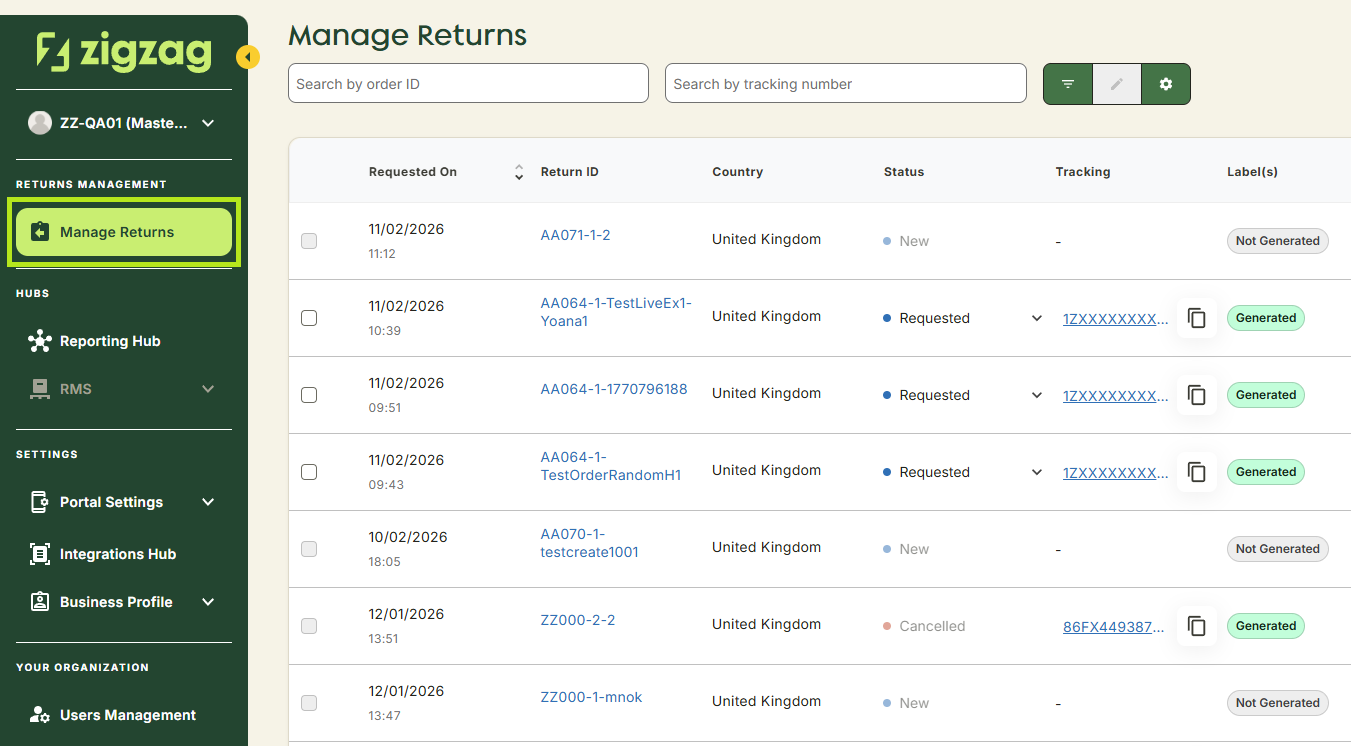
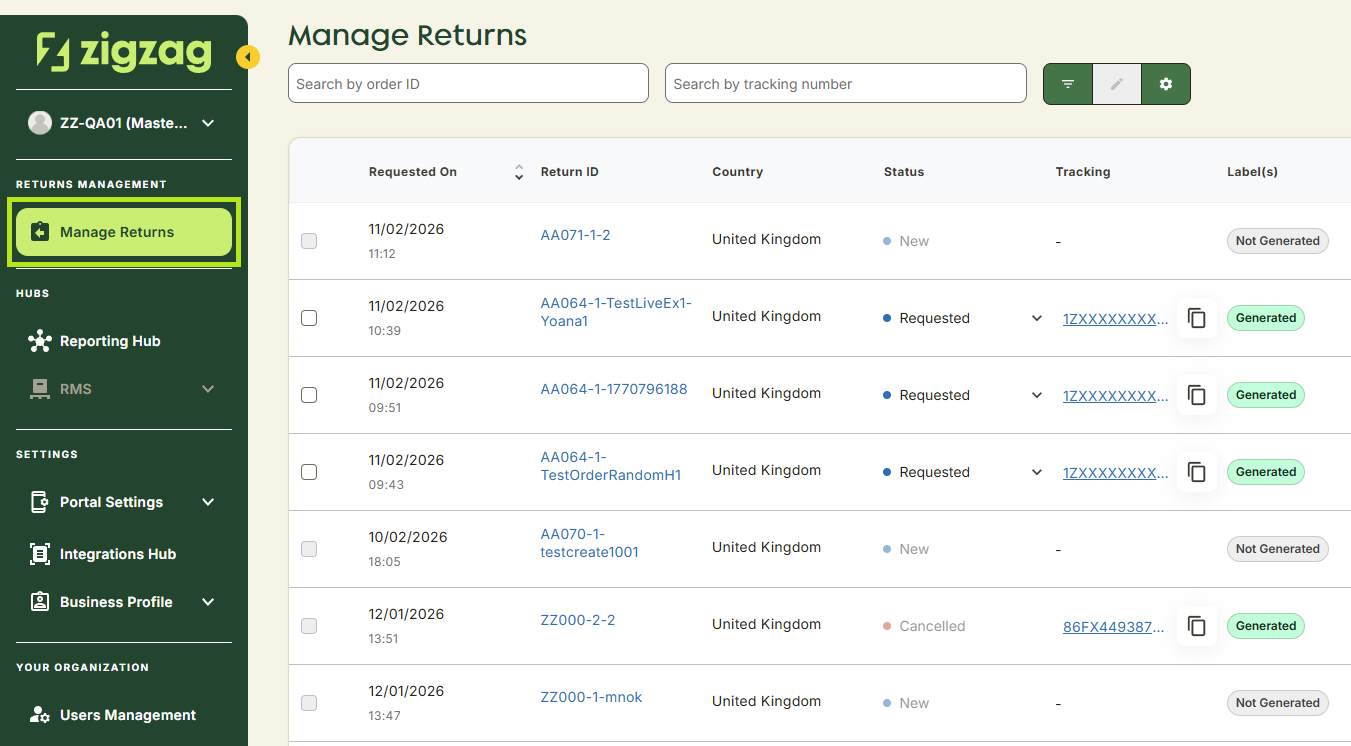
- Navigate to Manage Returns page
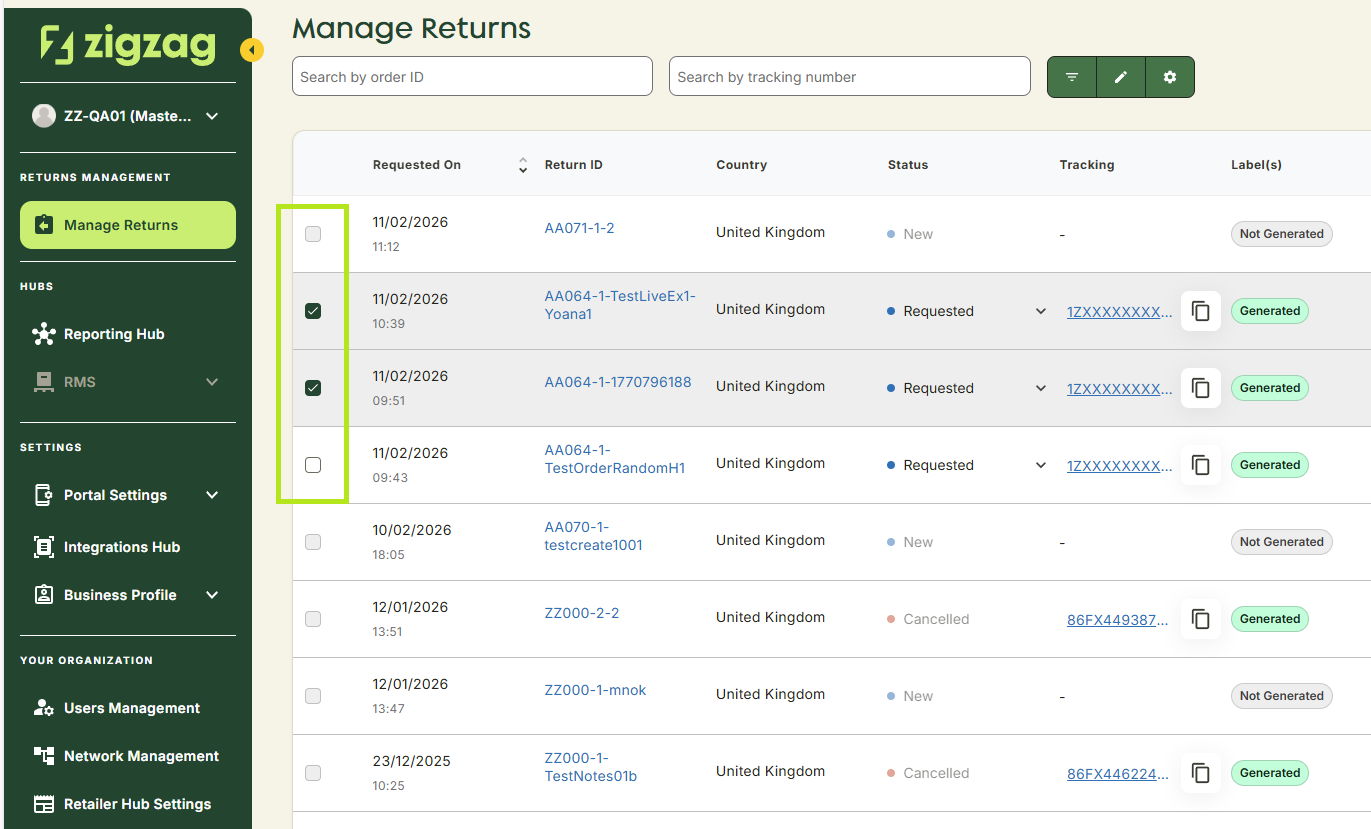
- Select the return orders you want to update in bulk.
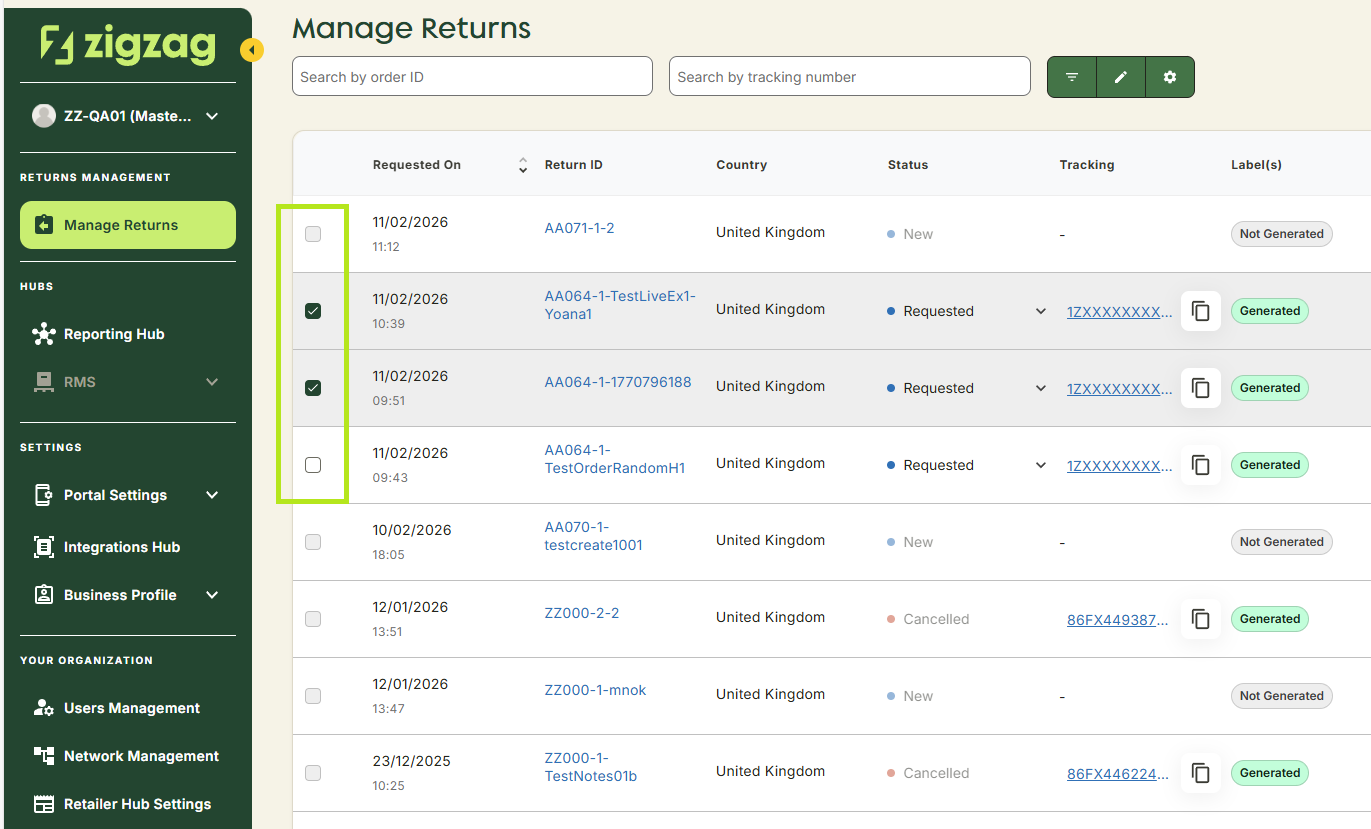
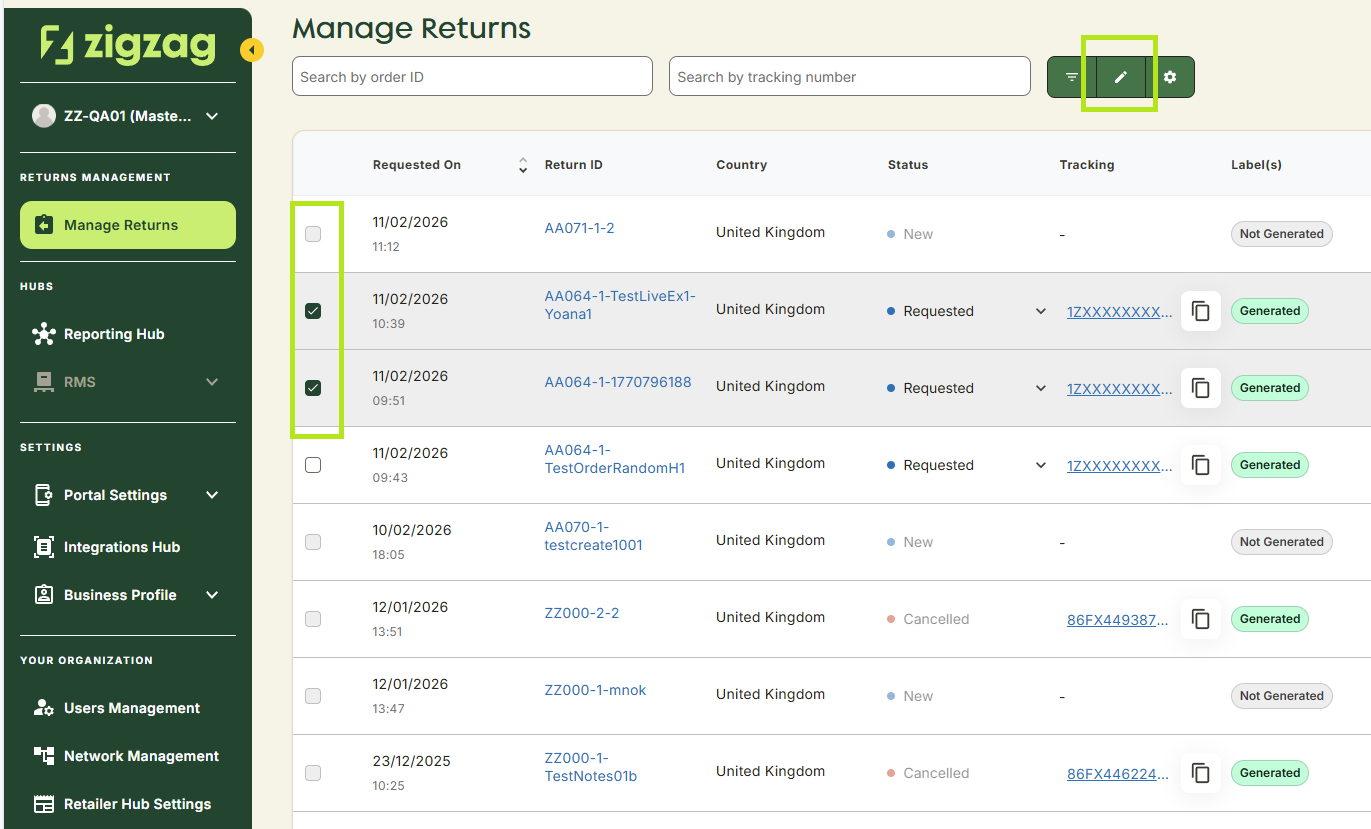
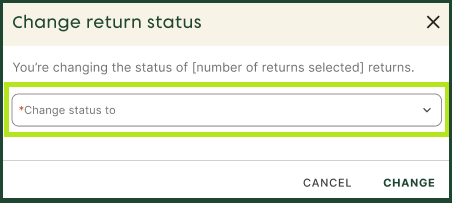
- Click the Change Status button above the Manage returns table. The Change Return Status dialog window appears.
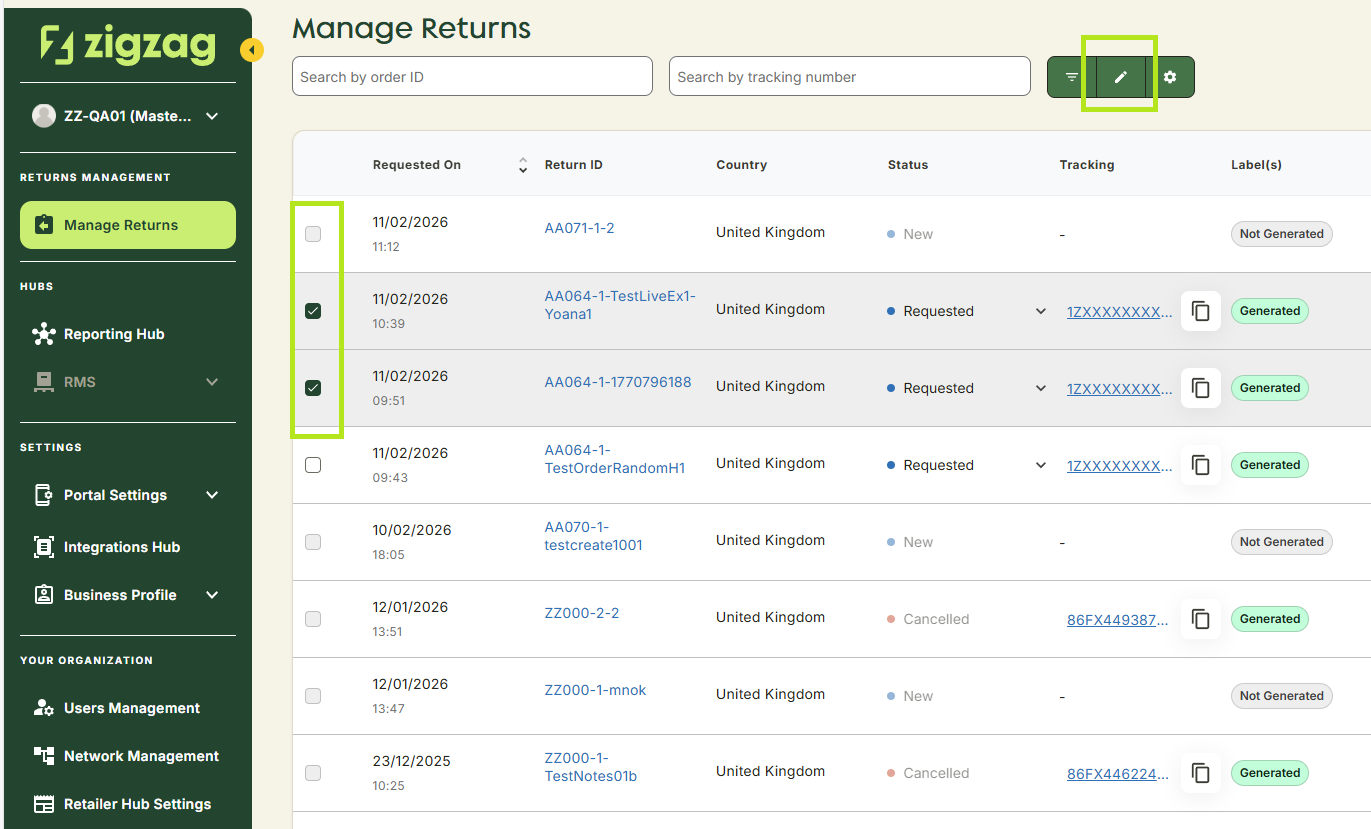
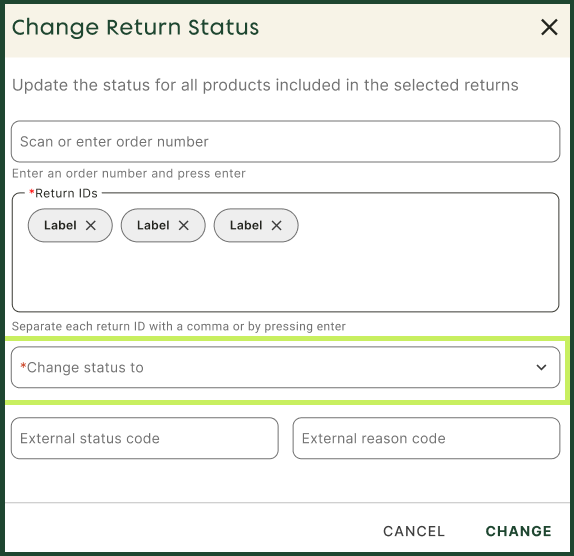
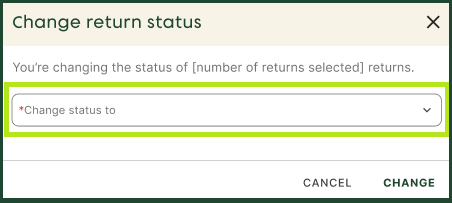
- In the Change return status dialog choose the new status you want to apply to the selected return orders.
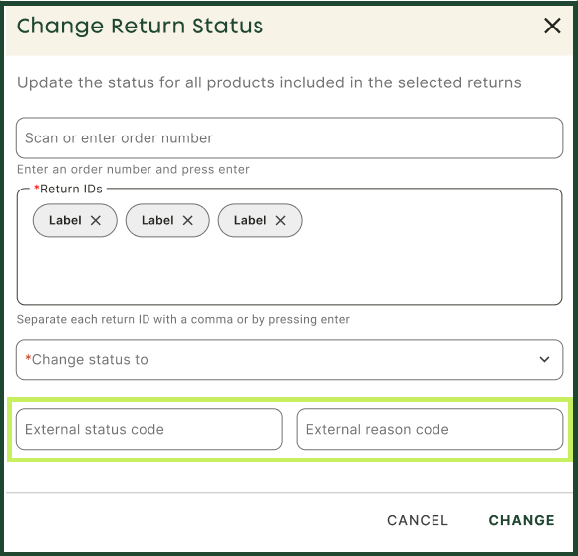
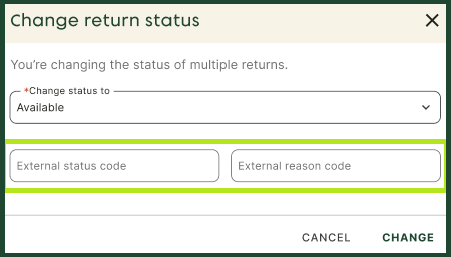
- Based on the status you have selected, additional fields may appear.
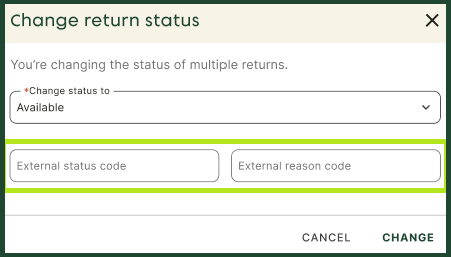
- Fill the additional fields.
- Click Change to update the statuses of all selected return orders.
How to change return status in bulk without selecting the orders in advance
-
You can also change the status of multiple return orders in bulk by directly clicking on the Change Status button without selecting the orders in advance in the Manage Returns table. The Change Return Status pop-up dialog window appears.
-
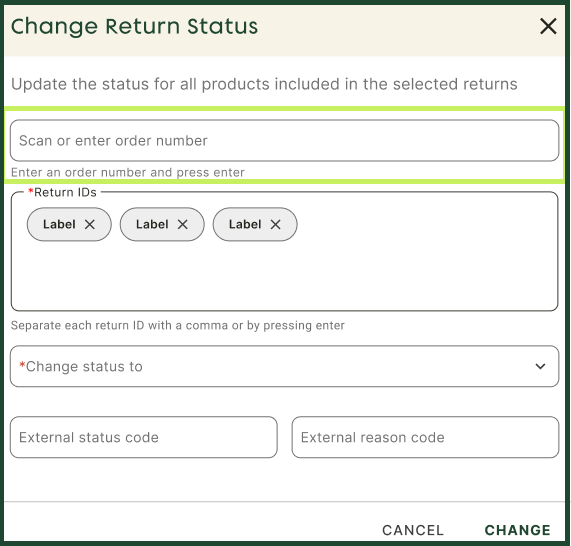
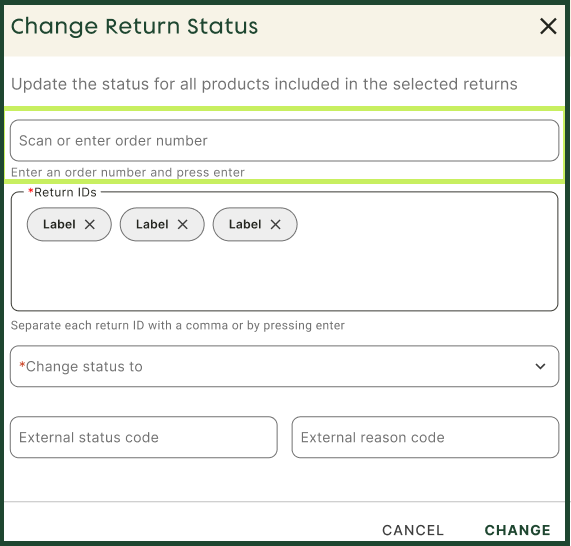
In the Change Return Status dialog, scan or enter the order number of the return order containing the items whose statuses you want to change.
-
When an order contains multiple return IDs, select or enter the return IDs of the items whose statuses you want to change.
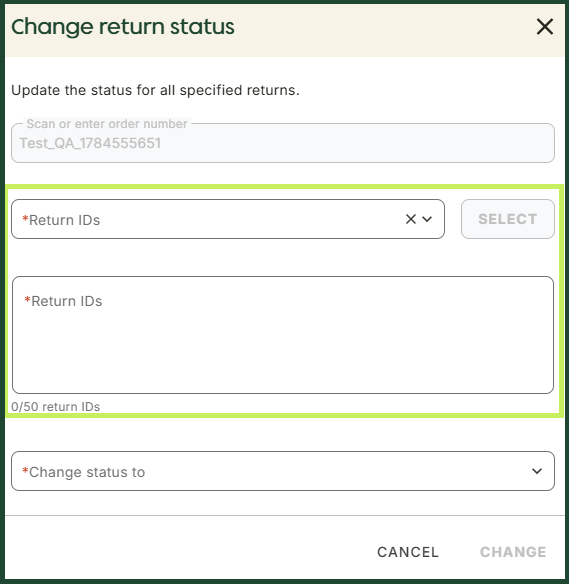
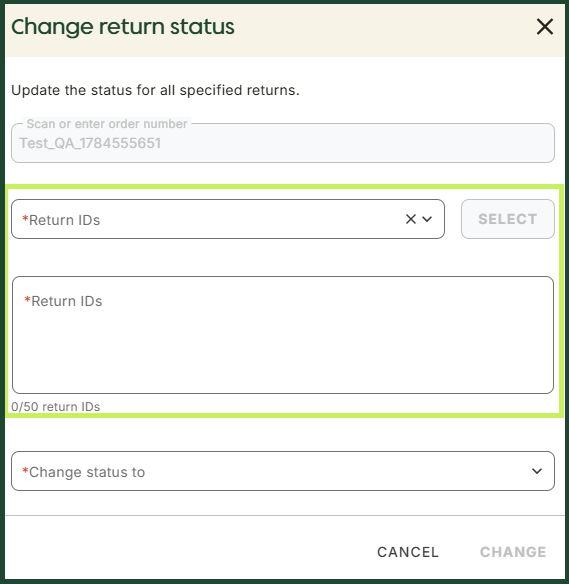
You can enter a maximum of 50 return IDs.
- From the dropdown menu, select the new status you want to apply to the selected return IDs.
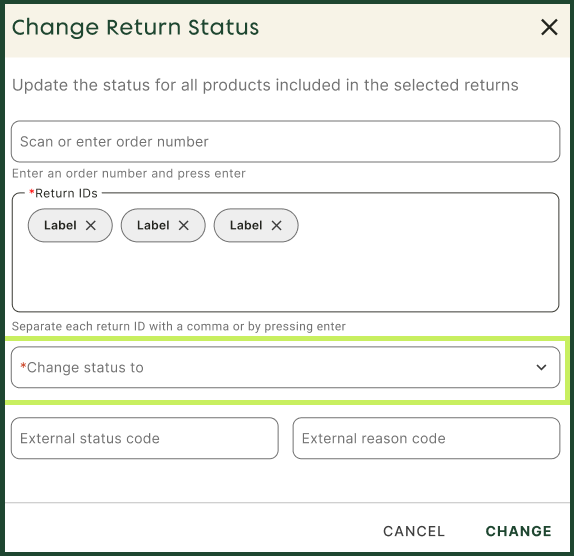
- Based on the status you have selected, additional fields may appear. Fill them in.
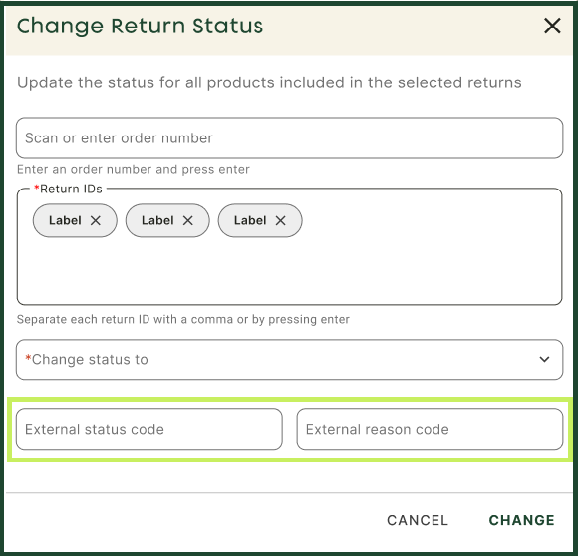
- Click Change to update the statuses of the selected return orders.