How to export data
Overview
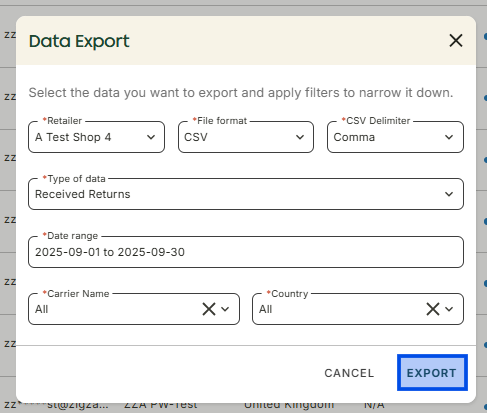
The Manage returns feature allows you to create custom data exports based on a set of criteria such as: Type of data, Retailer, Date range, Carrier Name, Country This page will guide you through the process of creating a custom data export.
Note before you start
- Some exports may take longer than others, depending on the number of records to be downloaded.
- You can still work while the export is being generated in the background
How to create custom data export
-
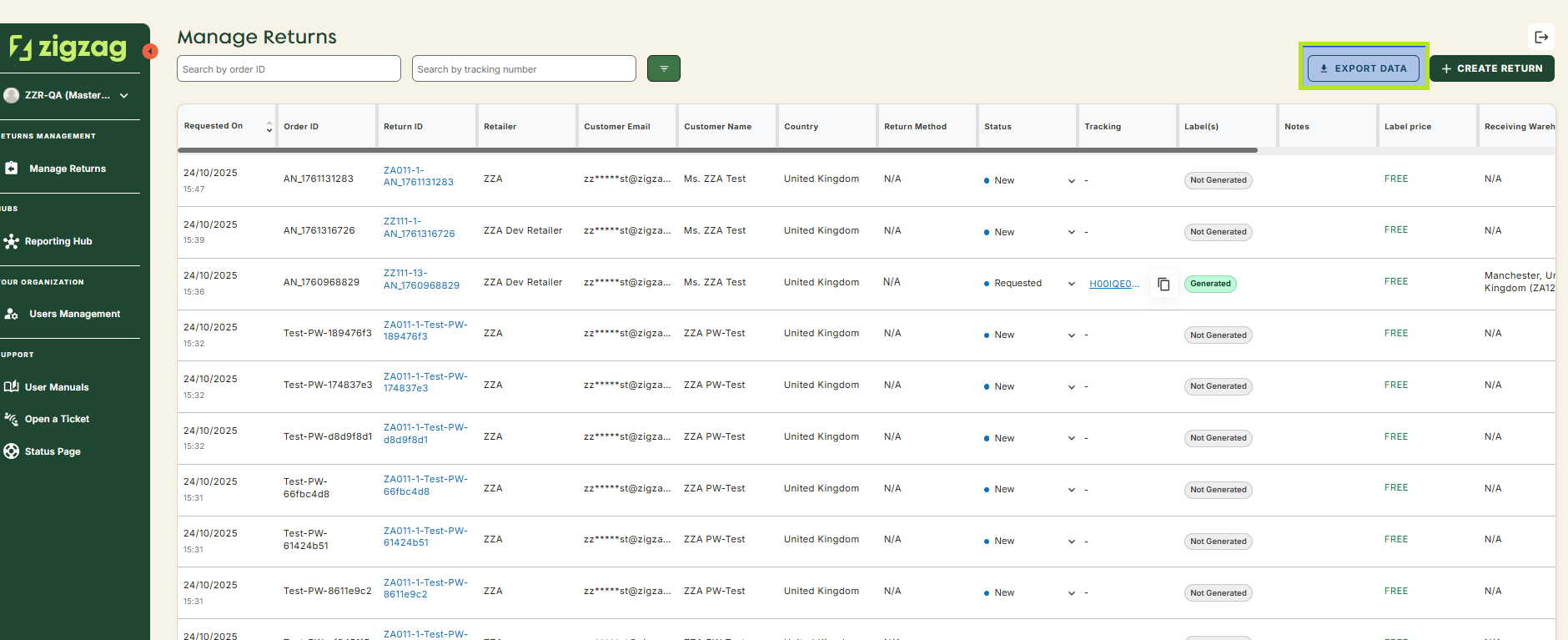
Go to Manage Returns Page
-
Click Export Data button
-
Fill the fields in the form
-
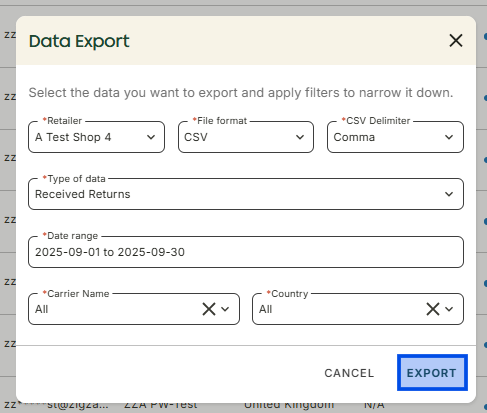
Click Export
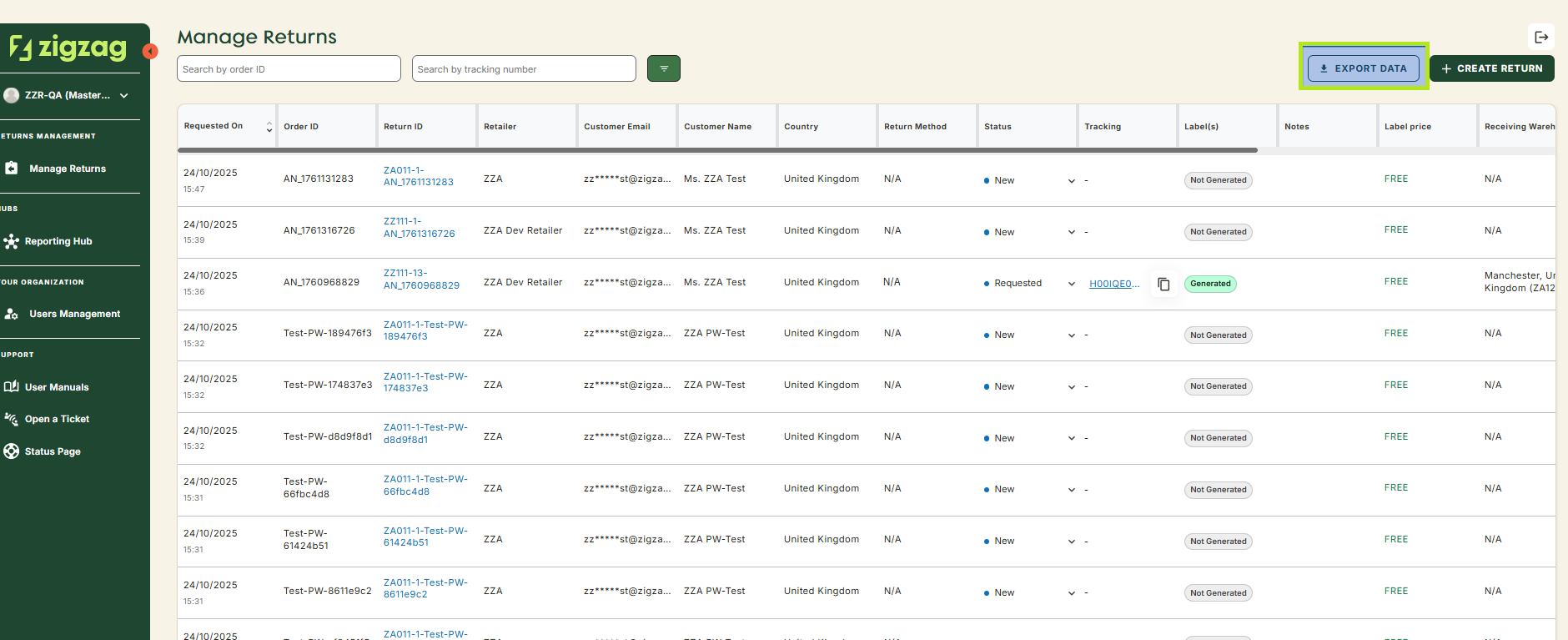
The download of the export will start immediately.