How to add manual return
Overview
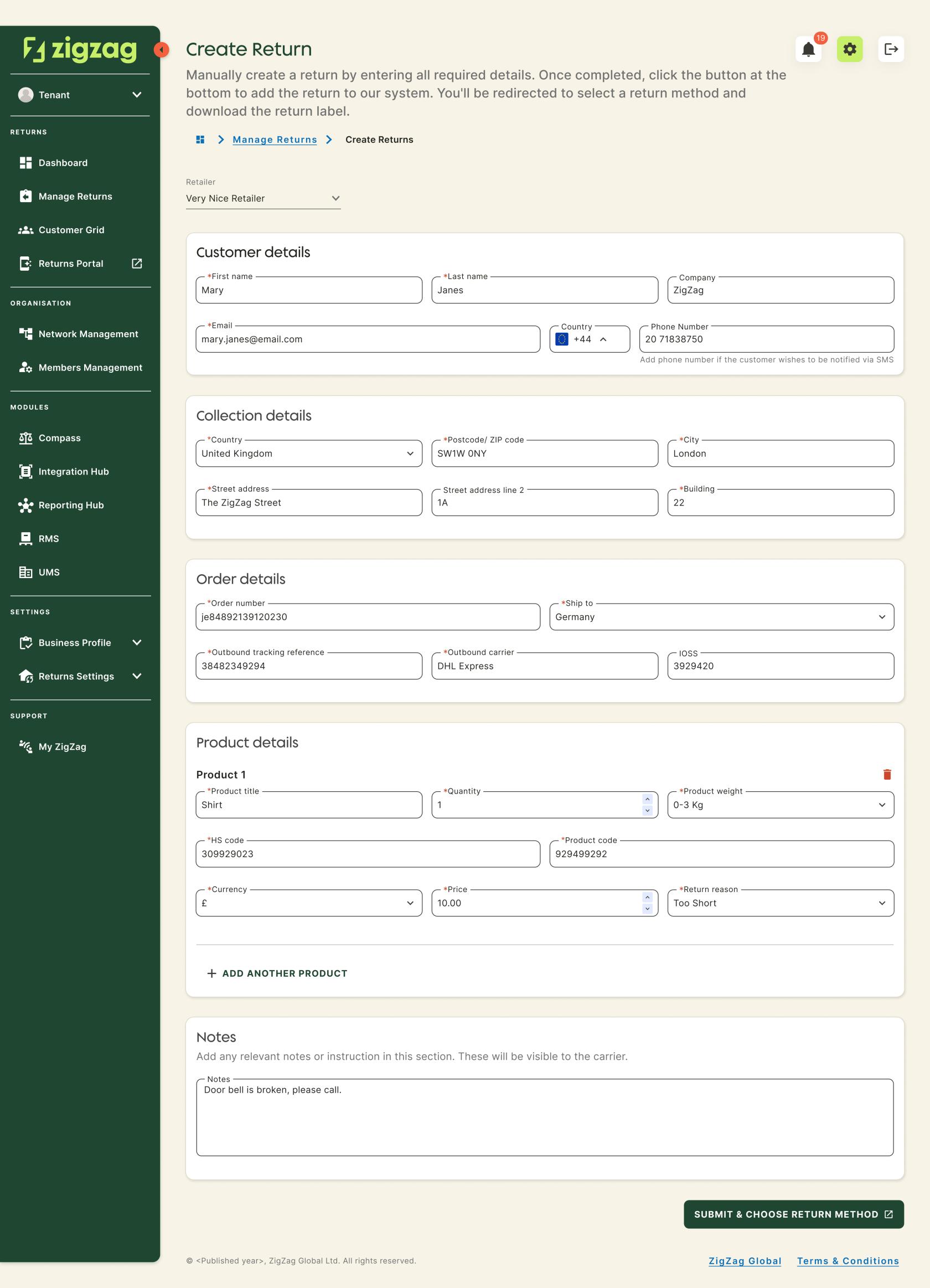
This page will guide you through the process of adding a return manually. The return creation functionality is designed to be streamlined and intuitive, minimising manual input for domestic returns and automating field requirements based on the return type. You can access this page from the Manage Returns page by clicking the "Create Return(s)" button. Once submitted, the new return will appear in your Manage Returns table.
How to add return manually
- Navigate to Manage Returns page
- Click the "Create Return(s)" button
- Fill the form, providing the necessary return information.
Mandatory fields from cross-border returns will become optional if the return is domestic - Select Carrier: Once the form is all filled out, click the submit button. The available options are:
- Returns Portal: A new tab will open, redirecting you to the carrier page of the returns portal, to conclude the request
- Retailer Hub: You will be redirected to the Return Details page of the return you just created. You will be able to download the label and other associated documents.
Coming Soon
Retailer Hub is constantly evolving based on feedback. These core pages give your teams the foundation to support returns quickly and clearly, with the connected data across the board!