How to change return status
Overview
The Manage Returns page allows you to keep your return requests up to date by updating their status directly in the table or from the return details page. This ensures your customers and team always have the latest information on each return's progress.
Note before you start
- Update return statuses
- Each return has a status field that reflects its current stage
- Color-coded labels make it easy to see return progress at a glance
- Confirmation and Feedback
- For critical changes (e.g., cancelling a return), you will see a confirmation pop-up before the update is applied
- Updates are accompanied by real-time success or error messages so you know immediately if the change was applied correctly
How to change return status
You can update the status directly from the table in Manage Returns page or inside the return details page
Manage Returns Page
- Click the drop down in the Status column of the corresponding return
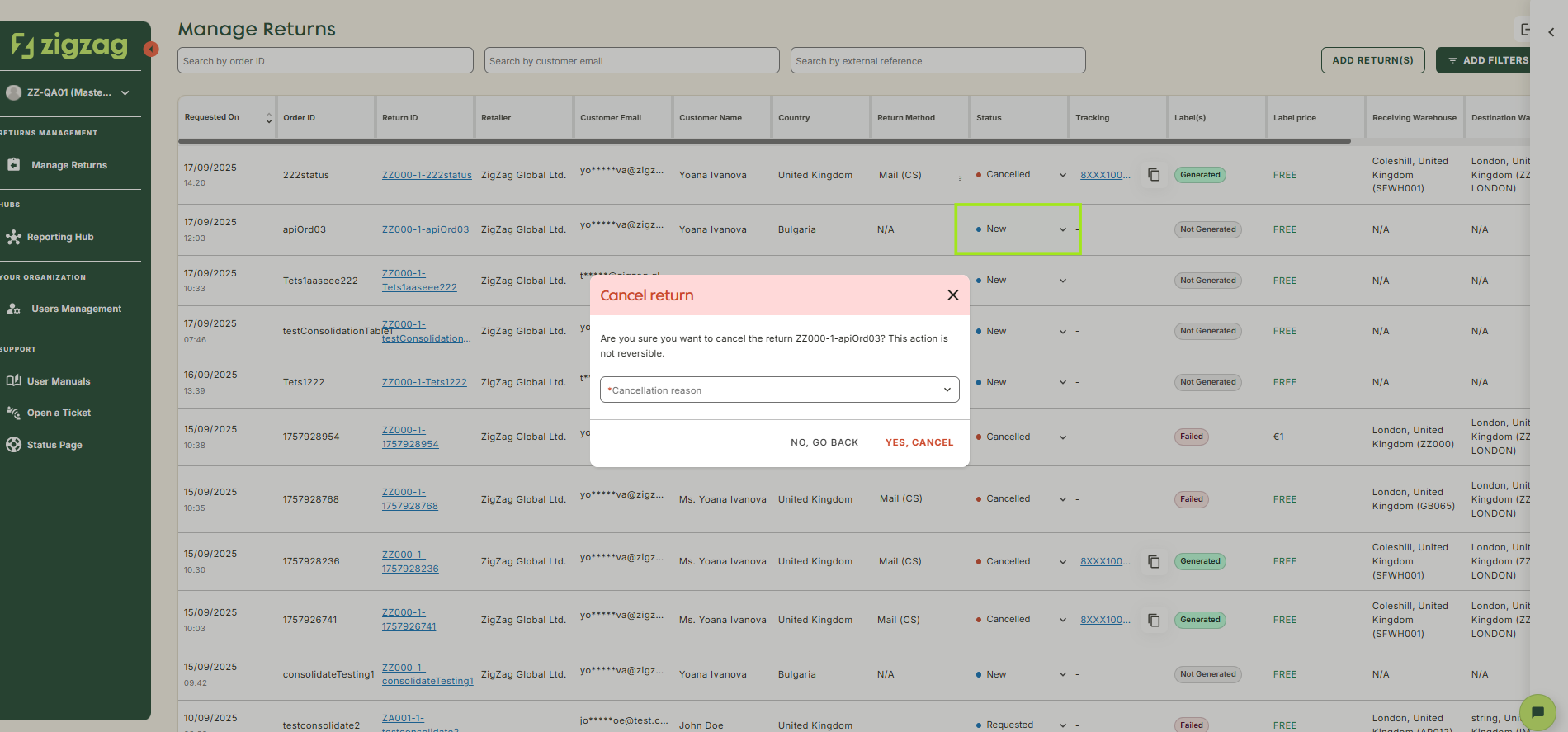
- Select the preferred status
- Fill the fields in the confirmation pop-up (if prompted)
- Click the confirmation button
Return Details Page
- In the Manage Returns page, click on the Return ID of the corresponding return
- Select the preferred status from the Status dropdown
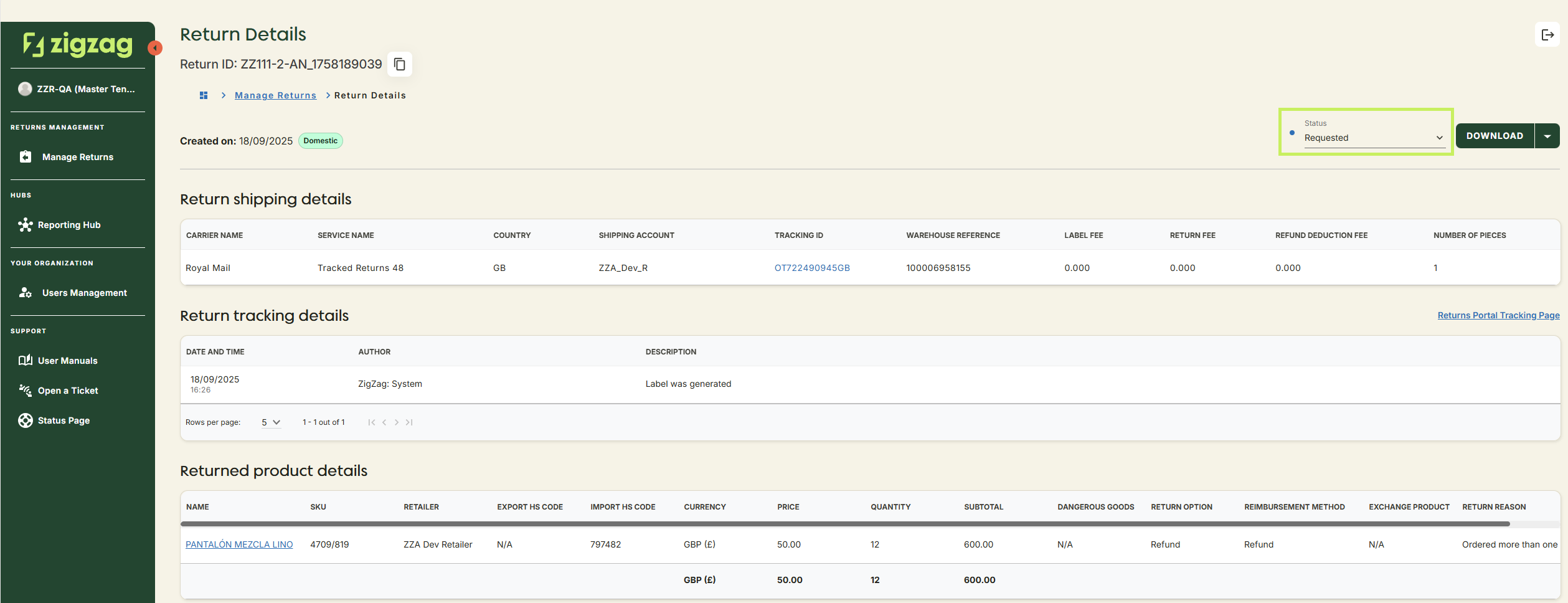
- Fill the fields in the confirmation pop-up (if prompted)
- Click the confirmation button
Coming Soon
Retailer Hub is constantly evolving based on feedback. These core pages give your teams the foundation to support returns quickly and clearly, with the connected data across the board!