How to edit the customs configuration of a mapping
Overview
RMS makes it easy for you to have precise control over customs‑specific settings that ensure compliant, efficient cross‑border returns processing.
How to edit the customs configuration of a mapping
- Log in to Returns Management System (RMS).
- On the sidebar menu, click Settings. A dropdown list of setting properties appears below Settings.
- Click Mapping. The Settings: Mapping page appears on the right.
- In the mapping table, click the Edit icon for the mapping you want to edit.
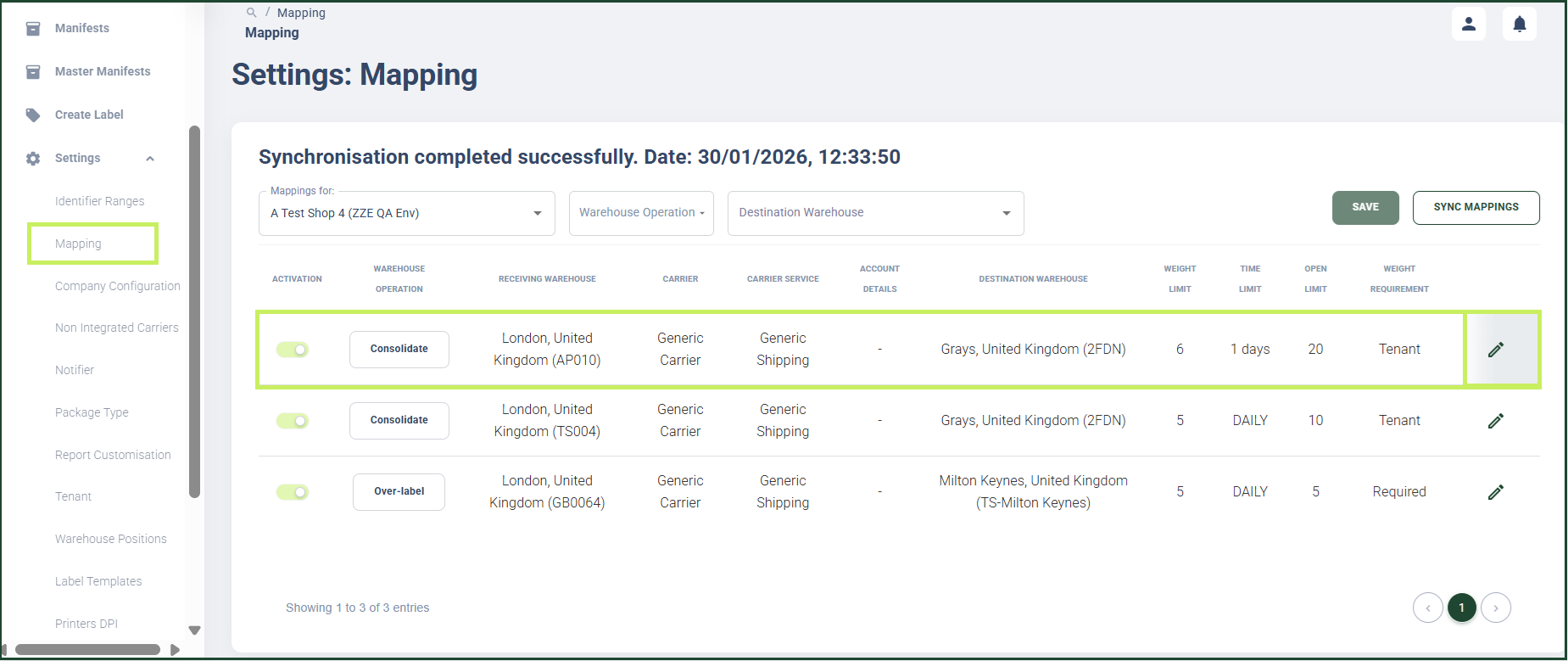
A configuration page appears for the specific mapping record you have chosen with different tab pages as options.
5. Click Customs. The Customs tab page appears.
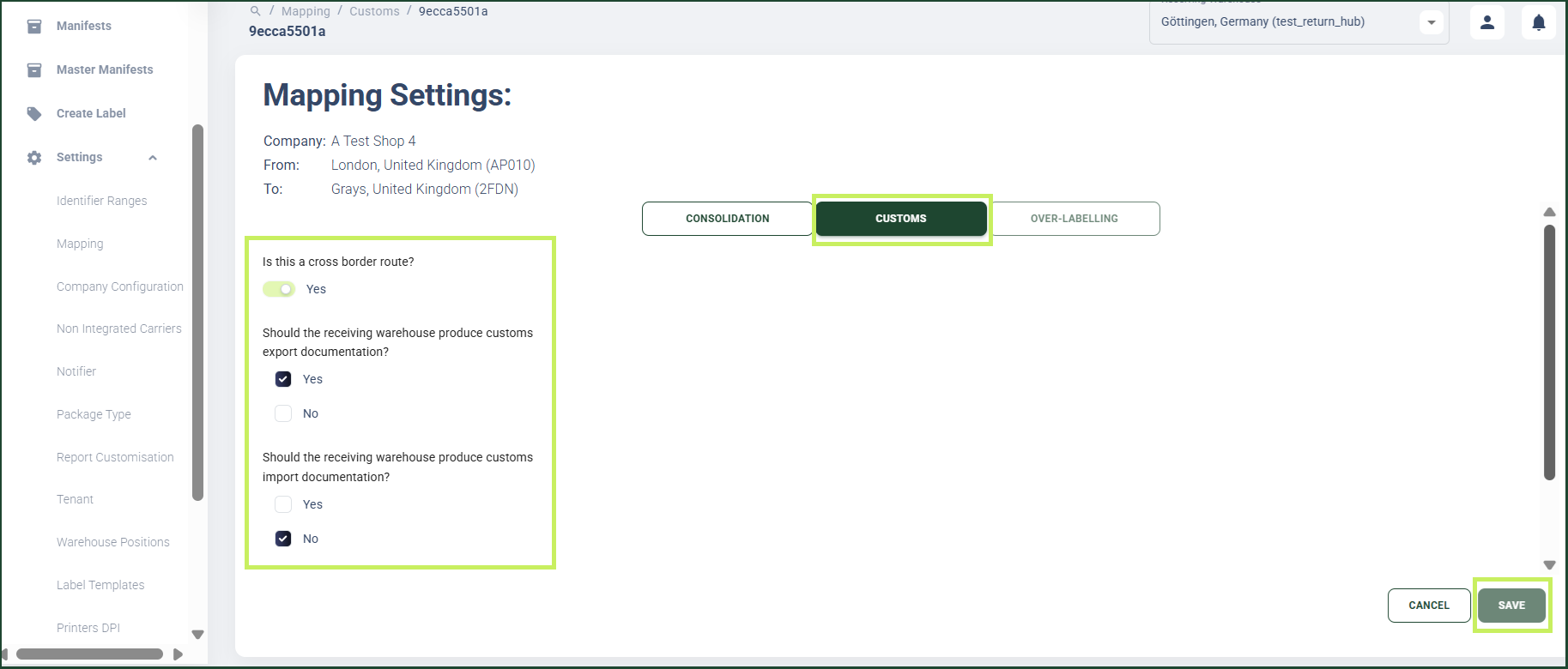
- In the Customs tab page you can edit the following parameters:
- Is this a cross border route? toggle - switch the toggle to Yes to confirm the route is cross border. The fields described below appear additionally on the page.
- Should the receiving warehouse produce customs export documentation? with Yes/No checkboxes - select whichever applies
- Should the receiving warehouse produce customs import documentation? with Yes/No checkboxes - select whichever applies
- Reasons for export (Customs Invoice Statement) - write the customs invoice statement if necessary
- Click Save.
note
For cross border routes, at least one documentation requirement should be selected!