How to view mappings
Overview
RMS makes it easy for you to view mappings and understand how returns are routed through the system. Through the Mapping page, you can see the current mappings for all retailers connected to your tenant, ensuring full visibility of how returns flow into warehouse operations. This view helps you quickly confirm configurations, prevent routing errors, and maintain smooth processing across all partner retailers.
How to view retailer mappings
- Log in to Returns Management System (RMS).
- On the sidebar menu, click Settings. A dropdown list of setting properties appears below Settings.
- Click Mapping. The Settings: Mapping page appears on the right. Here you can view mappings for different retailers.
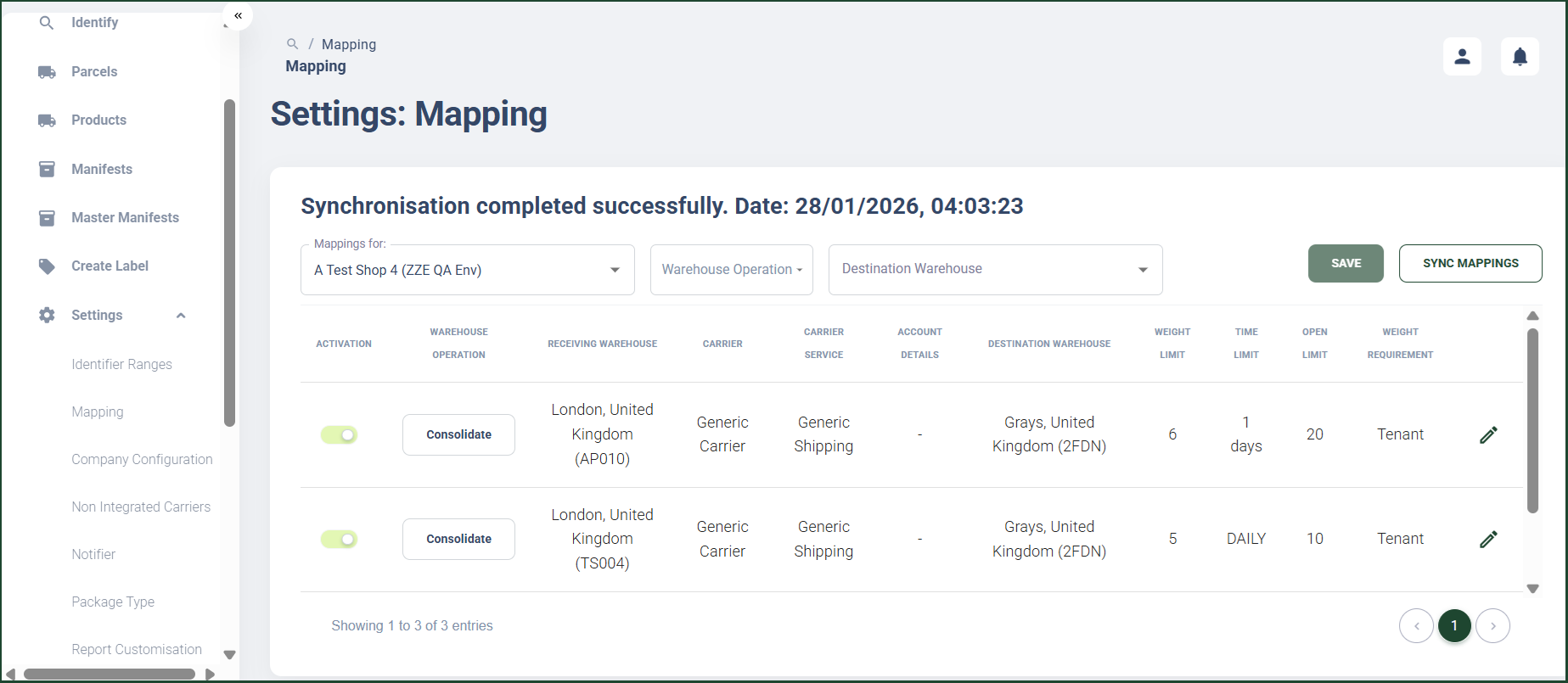
- From the Mappings for dropdown field, select the retailer you want to view mappings for.
- You can also filter the mappings by:
- Warehouse Operation
- Destination Warehouse
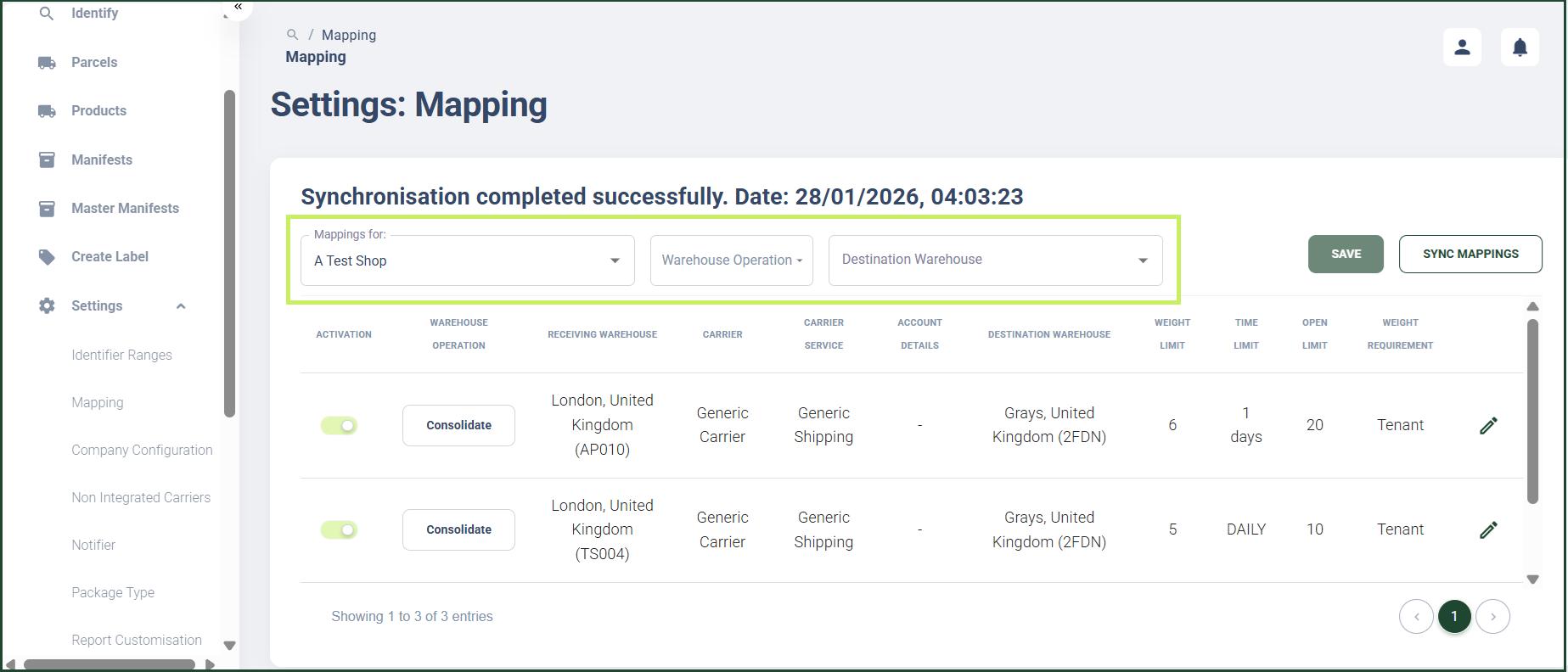
- The retailer mappings are displayed below the filters section in a table format with the following columns:
- Activation - the toggle shows whether or not a mapping is active for a retailer
- Warehouse Operation
- Receiving Warehouse
- Carrier
- Carrier Service
- Account details
- Destination warehouse
- Weight limit
- Time limit
- Open limit
- Weight requirement