How to create a new package type
Overview
Creating a new package type in RMS allows your warehouse to define clear, standardized parcel categories tailored to your operational needs. You can easily add new package types by specifying dimensions and measurement units, ensuring every parcel is processed with consistent accuracy. This streamlined setup helps maintain reliable workflows, supports efficient returns handling, and ensures your team always works with the correct packaging standards.
How to create a new package type
- Log in to Returns Management System (RMS).
- On the sidebar menu, click Settings. A dropdown list of setting properties appears below Settings.
- Click Package Type. The Settings: Package Type page appears on the right.
- Click the Create Package Type button on the top right side of the page.
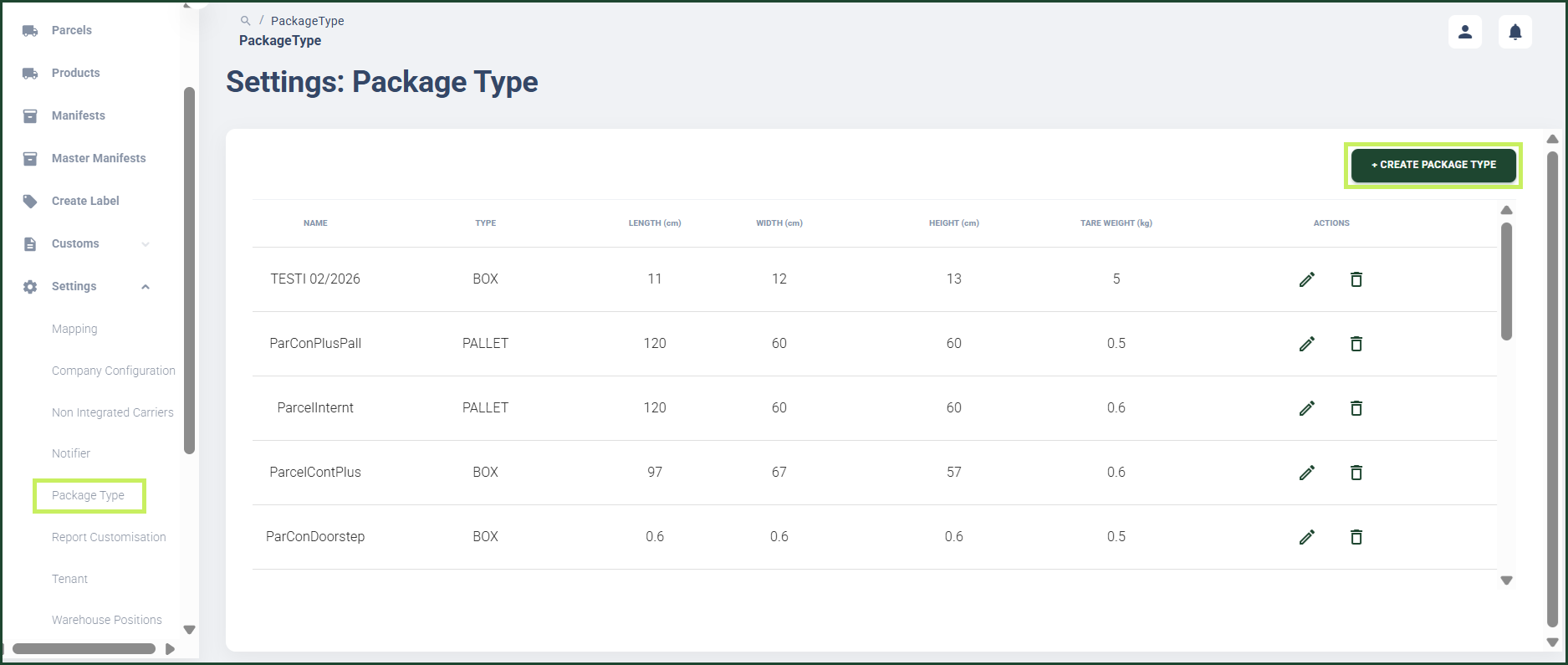
A Create Package Type dialog window appears.
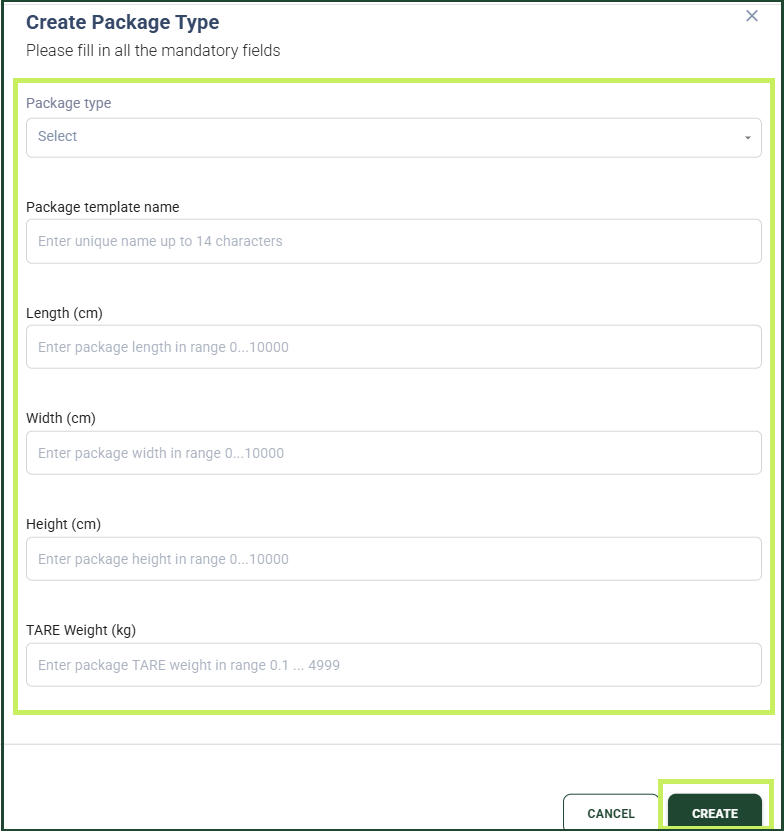
- In the Create Package Type dialog window, fill in the following fields:
- Package type - from the drop-down menu, select the package type you want to create
- Package template name - fill in a package template name for the new package type
- Length (cm) - fill in the maximum length for the new package type
- Width (cm) - fill in the maximum width for the new package type
- Height (cm) - fill in the maximum height for the new package type
- TARE Weight (kg) - fill in the maximum weight of your empty package
- Click Create. Your package type will be listed in the Package Info table on the Settings: Package Type page.