How to view label templates
Overview
The RMS Label Templates feature provides a clear, centralized view of all label formats configured for your warehouse, allowing you to quickly review, manage, and maintain the templates used across operational workflows. Accessible to users with the appropriate permissions, the Label Templates page displays a complete list of existing templates - along with key details such as label name and type, print settings, and status - supporting consistency, accuracy, and efficiency in your labeling processes.
How to view label templates
-
Log in to Returns Management System (RMS).
-
On the sidebar menu, click Settings. A dropdown list of setting properties appears below Settings.
-
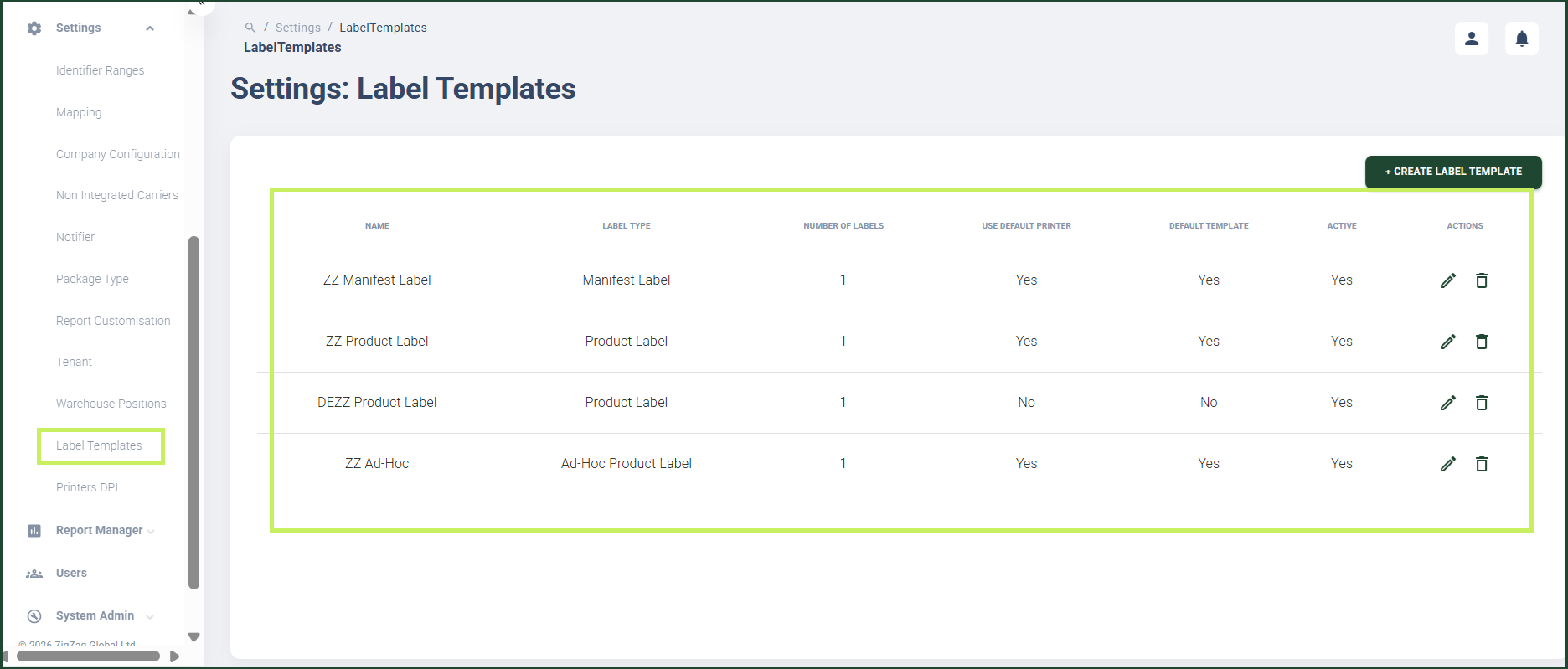
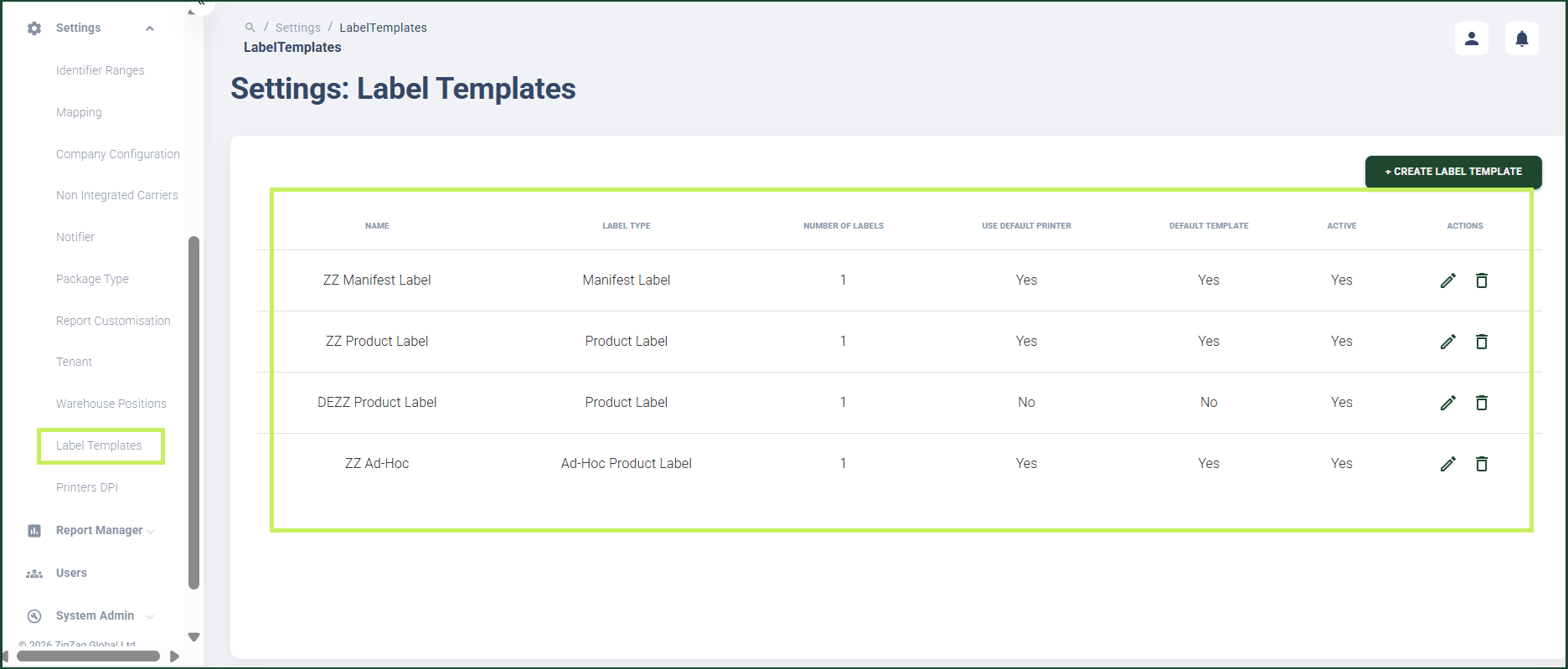
Click Label Templates. The Settings: Label Templates page appears on the right.
-
Here you can view a list of the label templates created for the warehouse with information organized in the following columns:
- Name - shows the name of the label
- Label type - shows the label type
- Number of labels - shows the number of labels of this type that can be printed
- Use default printer - shows whether the system uses the default printer or not to print the label
- Default template - shows whether the template is set as a default one or not
- Active - shows whether the label template is active or not