How to delete a label template
Overview
The Delete Label Template feature in RMS allows you to safely remove label templates that are no longer needed, keeping the system clean and up to date. You can select the template you wish to remove and confirm the deletion when prompted. This controlled process ensures templates are only deleted intentionally, helping maintain accuracy, reduce clutter, and support efficient warehouse operations.
How to delete a label template
- Log in to Returns Management System (RMS).
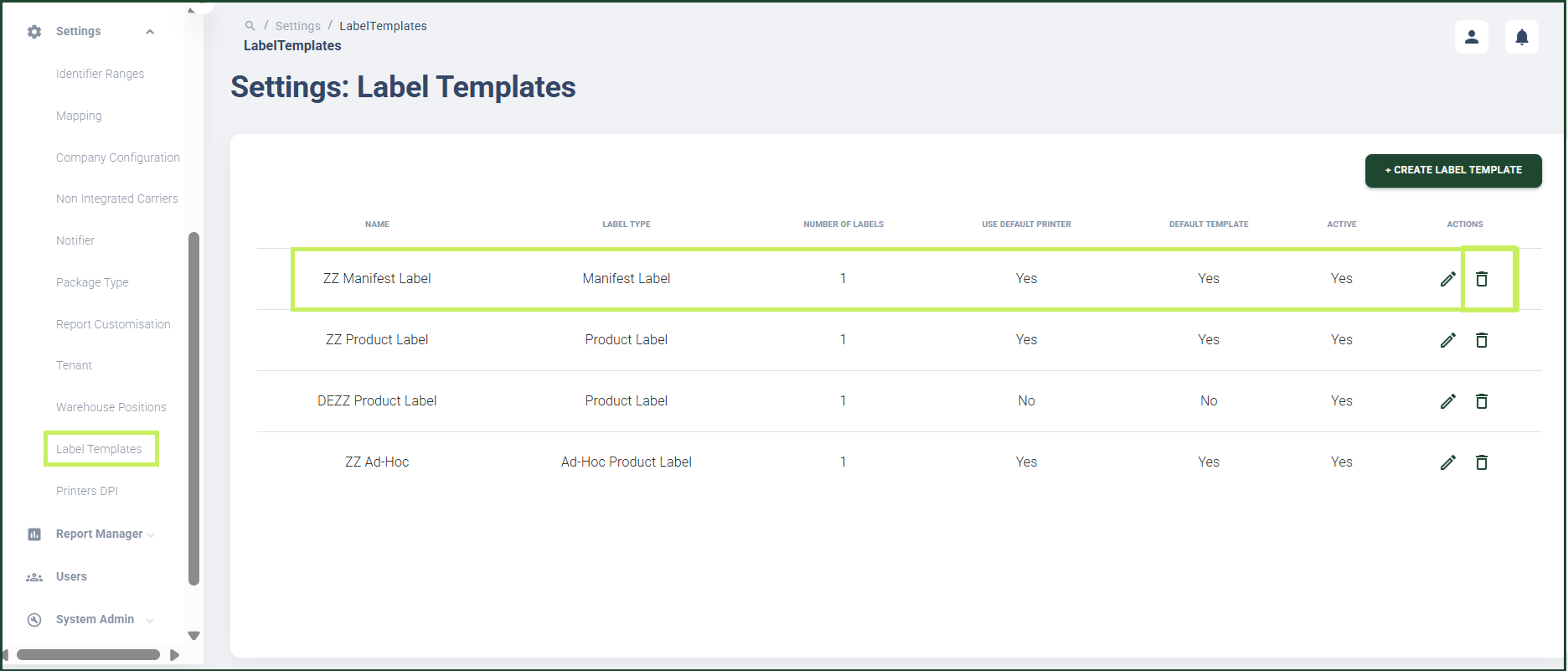
- On the sidebar menu, click Settings. A dropdown list of setting properties appears below Settings.
- Click Label Templates. The Settings: Label Templates page appears on the right.
- Click the Delete (Bin) icon for the label template you want to delete.
A Confirmation dialog window appears.
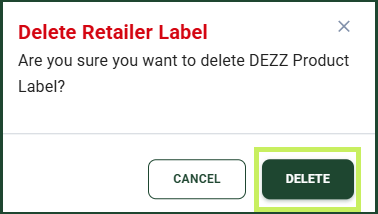
- Click Delete to confirm the deletion of the label template.