How to update a manifest - assign carrier details
Overview
Updating a manifest by assigning carrier details ensures each return parcel is correctly linked to the appropriate transportation partner within the Returns Management System. Adding accurate carrier information improves parcel traceability, streamlines downstream processing, and helps avoid delays caused by incomplete or mismatched return data. This step supports smoother logistics coordination and enhances overall visibility for both your operations and your customers.
How to update a manifest - assign carrier details
- Log in to Returns Management System (RMS).
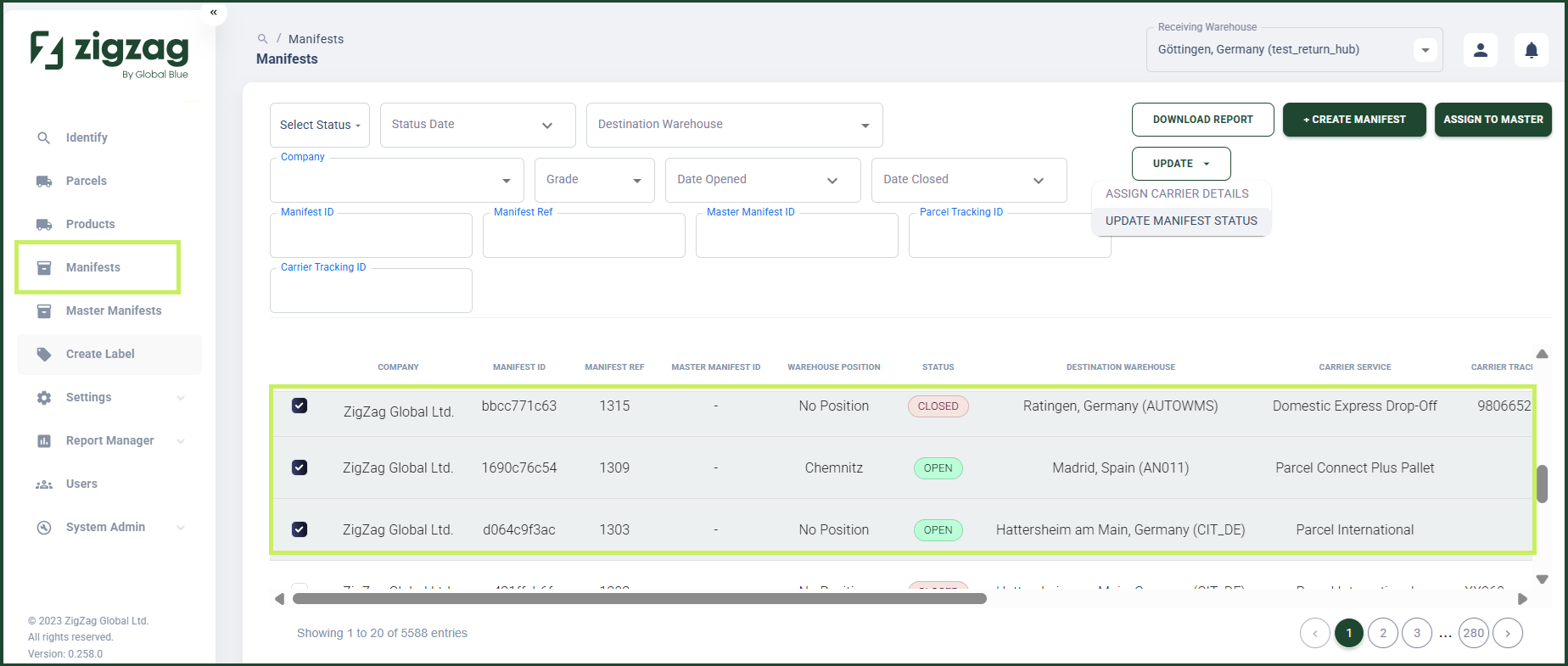
- On the sidebar menu, click Manifests. The Manifest List page appears on the right.
- On the Manifest List page, navigate to the Manifest List table and select the manifests you want to assign carrier details to by clicking on their respective rows.
- From the dropdown Update button, select Assign Carrier Details.
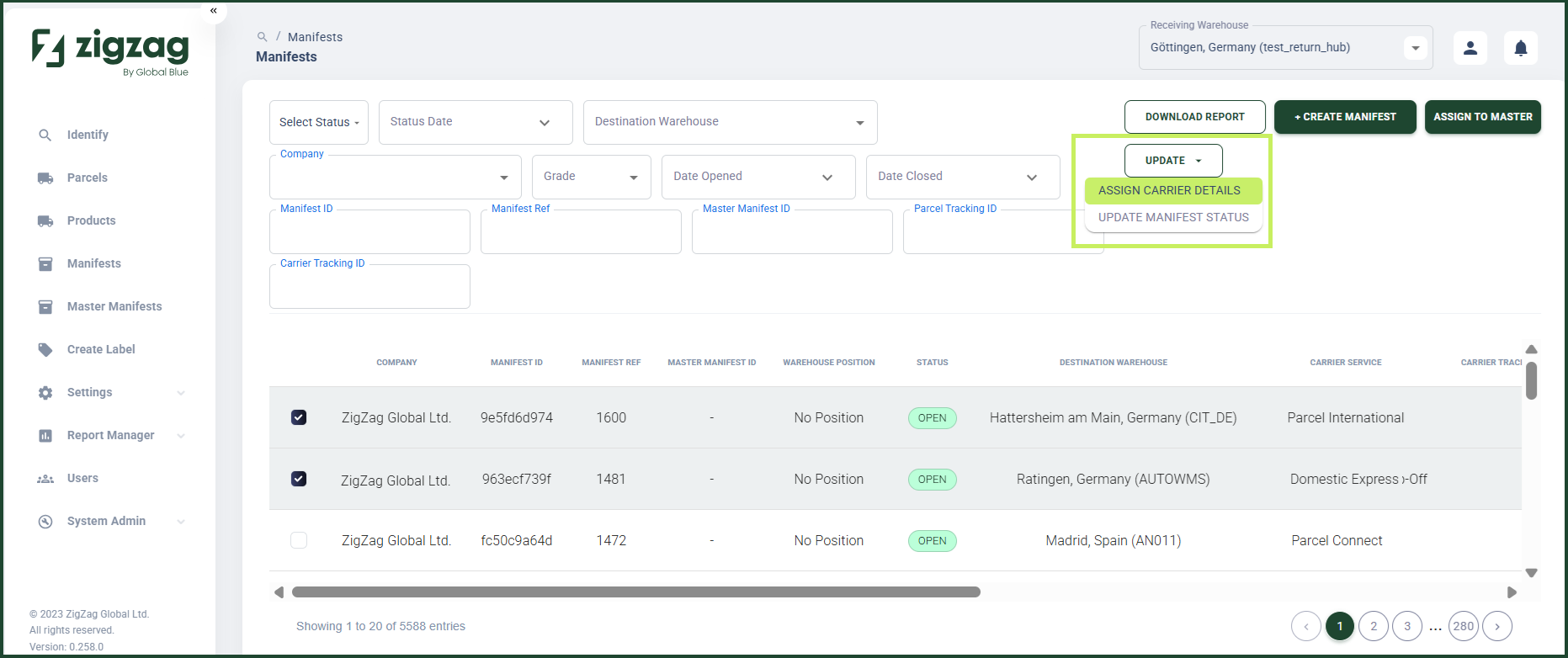
An Assign Carrier Details dialog window appears.
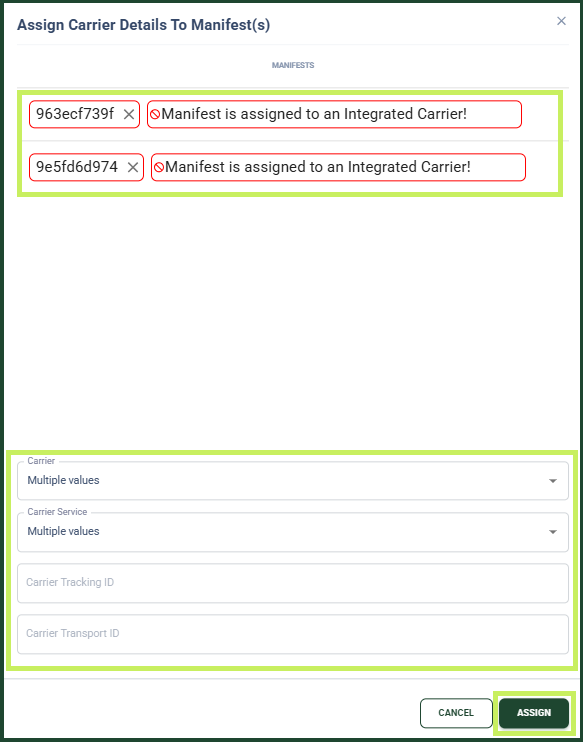
- In the Assign Carrier Details dialog window, you can view a list of the manifests you have selected for assigning carrier details.
note
A traffic light colour scheme shows which manifests can be updated (green border), which can't be updated (red border), and which require a warning (amber border).
- Fill in the following fields:
- Carrier - from the dropdown menu, select the carrier of the manifest to which you want to assign carrier details
- Carrier Service - from the dropdown menu, select the carrier service active for the chosen carrier of the manifest to which you want to assign carrier details
- Carrier Tracking ID - fill in the carrier tracking ID for the carrier of the manifest
- Carrier Transport ID - fill in the carrier transport ID for the carrier of the manifest
- Click Assign.