How to add an item manually
Overview
RMS allows you to add an item to a manifest manually in specific edge‑case scenarios, such as when parcel data is missing or duplicated. This option ensures operational continuity while maintaining traceability within the returns process. Where possible, RMS guides you to follow standard identification and processing workflows first, helping preserve end‑to‑end tracking and data accuracy while still providing flexibility when exceptions occur.
How to add an item manually
- Log in to Returns Management System (RMS).
- On the sidebar menu, click Manifests. The Manifest List page appears on the right.
- On the Manifest List page, click the Edit (Pen) icon for the manifest to which you want to add an item manually.
note
You can only assign new items to a manifest with an Open status.
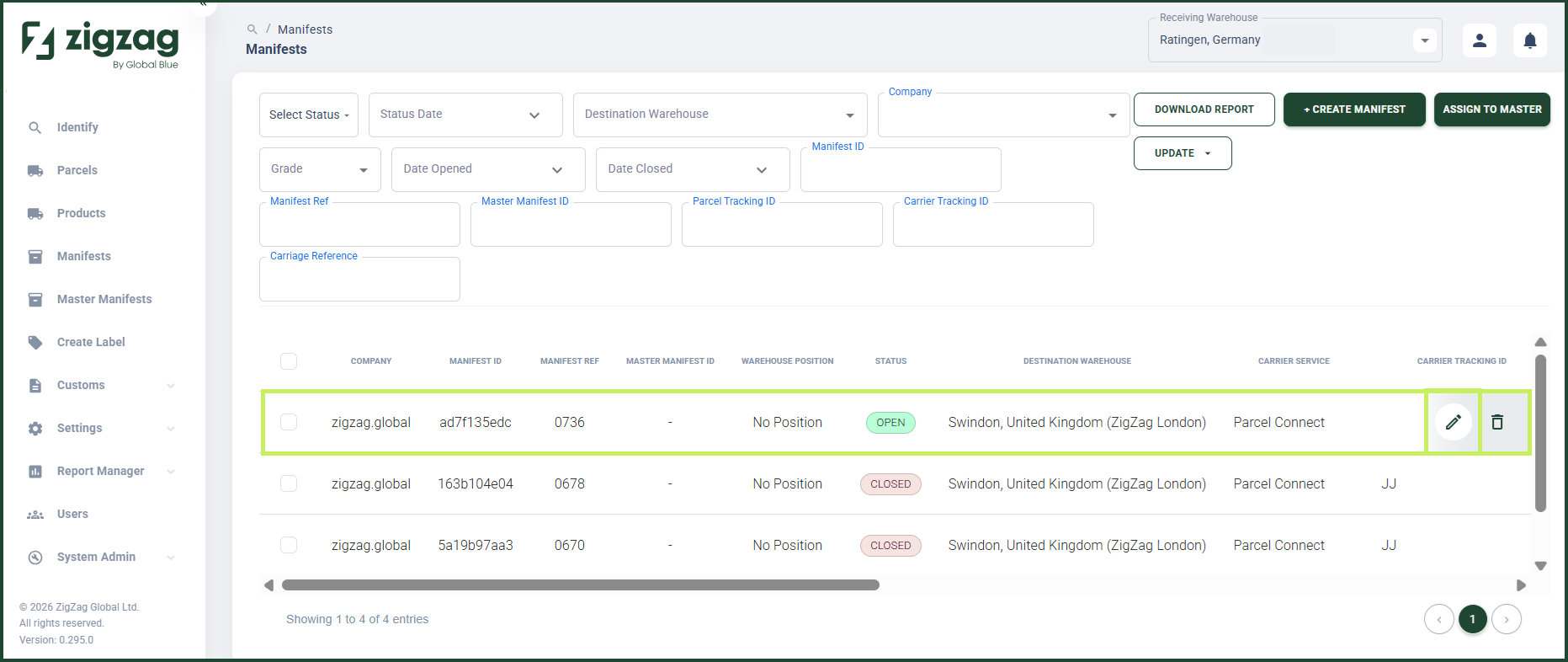
The Manifest Details page appears.
- On the Manifest Details page, click the Add Item Manually button.
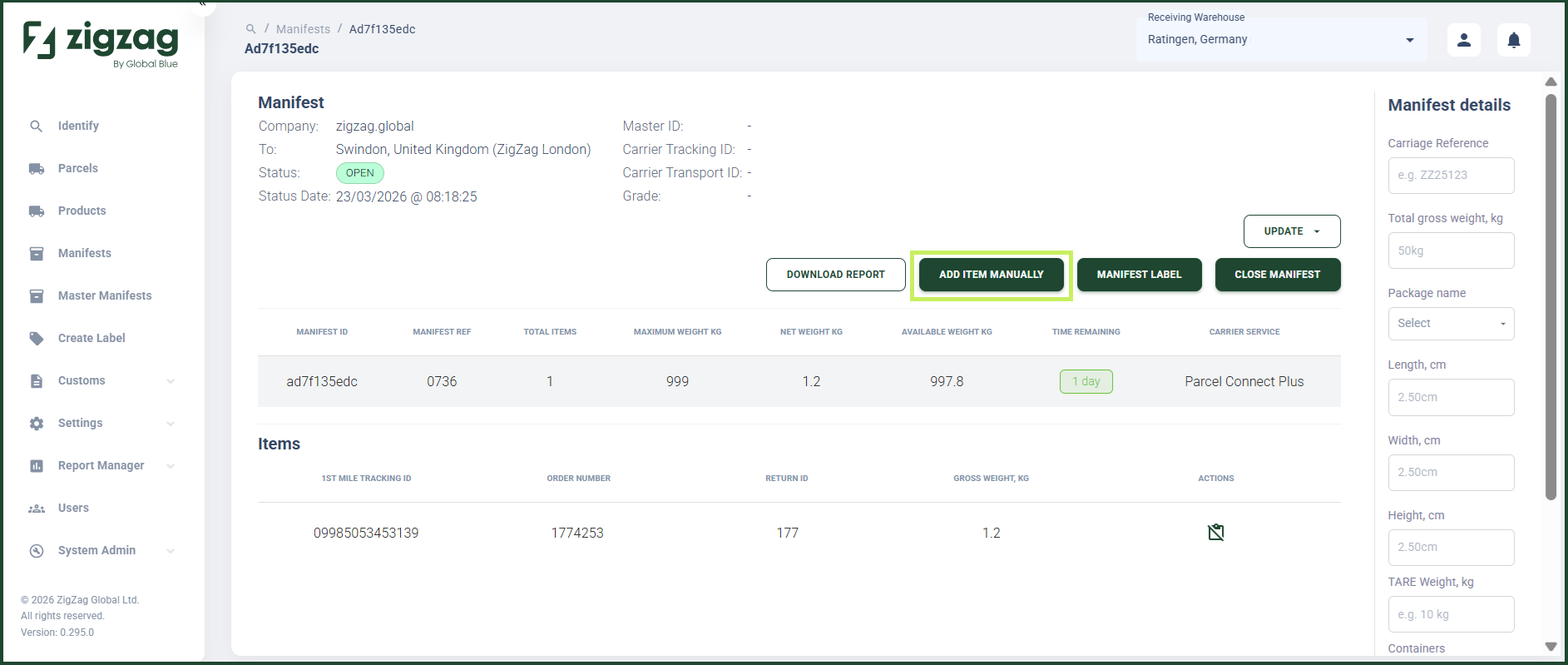
The Add Item Manually dialog window appears.
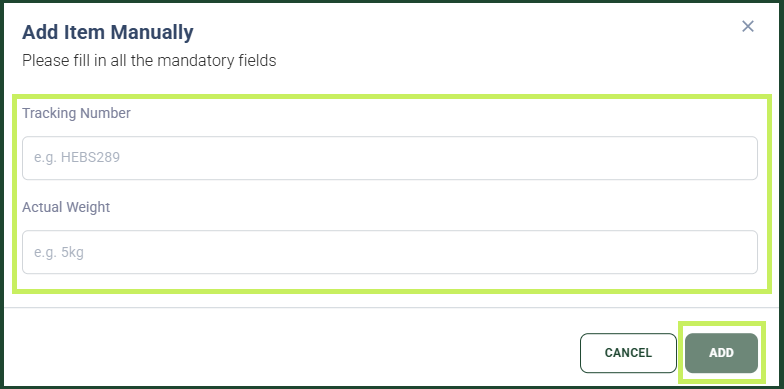
- In the Add Item Manually dialog window, fill in the following fields:
- Tracking Number - fill in the tracking number of the item you want to add
- Actual Weight - fill in the weight of the item you want to add
- Click Add.
note
The Actual Weight field is visible when Weight Requirement setting in Mapping Settings: Consolidation tab is configured to "Required" or "Tenant".