Managing Returns
Overview
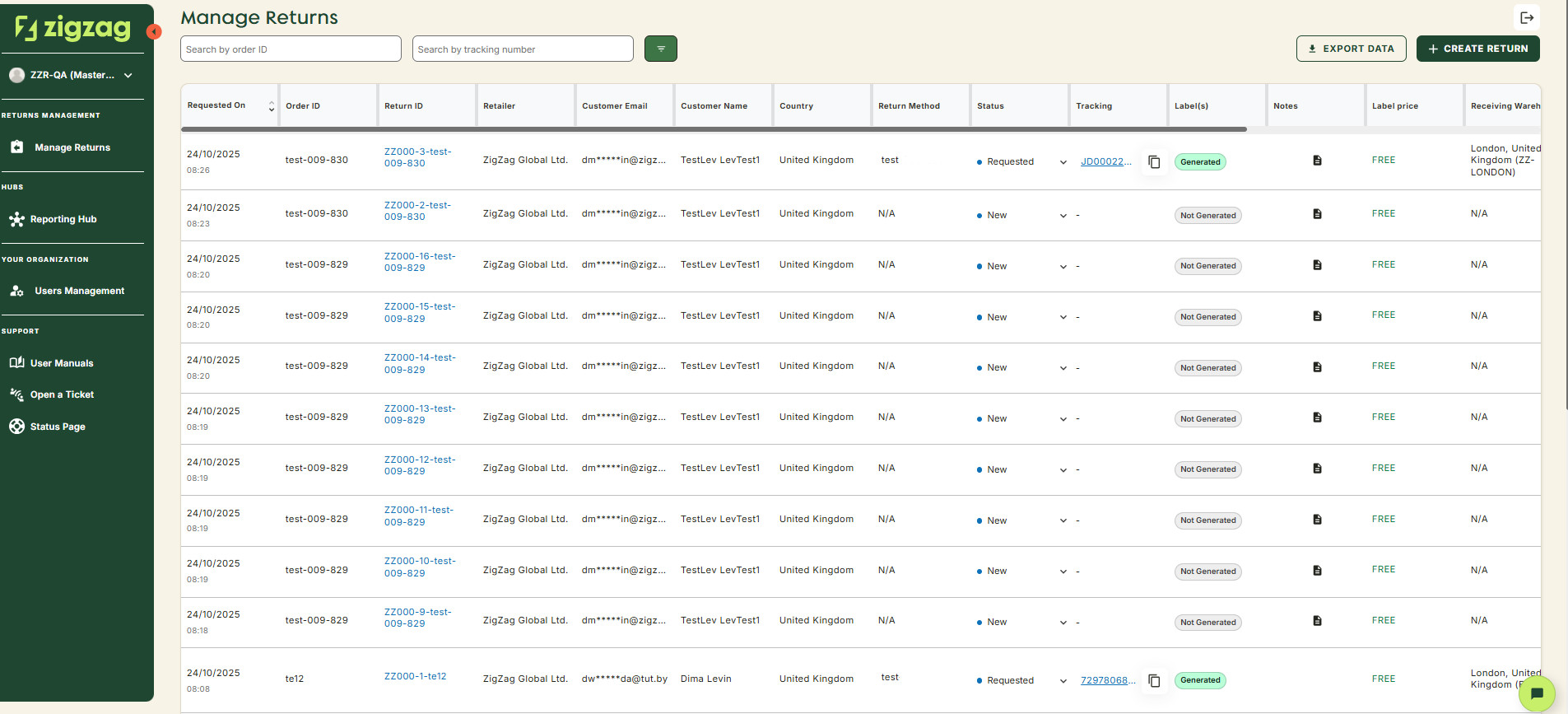
The Manage returns page is the starting point. It lists all return requests submitted by your customers - a dashboard where you can filter, search, and take quick actions on returns.
Capabilities and available actions
Think of this page as your control center for returns. Here is everything you can do:
- View all returns: The returns table displays one row per return request with the following details:
- Requested On: Date and time the return was created
- Order ID: Associated order reference
- Return ID: Unique identifier for the return
- Retailer: Brand/retailer associated with the return
- Customer Email: Customer's email address
- Customer Name: Customer's name
- Country: Customer's country of origin
- Return Method: Carrier name and service used
- Status: Current status of the return
- Tracking ID: Tracking number for the shipment
- Label: Label status (Not Generated, Failed, Generated)
- Notes: Check which returns has notes from your customers
- Receiving Warehouse: Warehouse designated to receive the return
- Destination Warehouse: Warehouse destination for processed returns
- Warehouse Reference: Internal warehouse reference number
- External Reference Number: Additional identifier provided externally
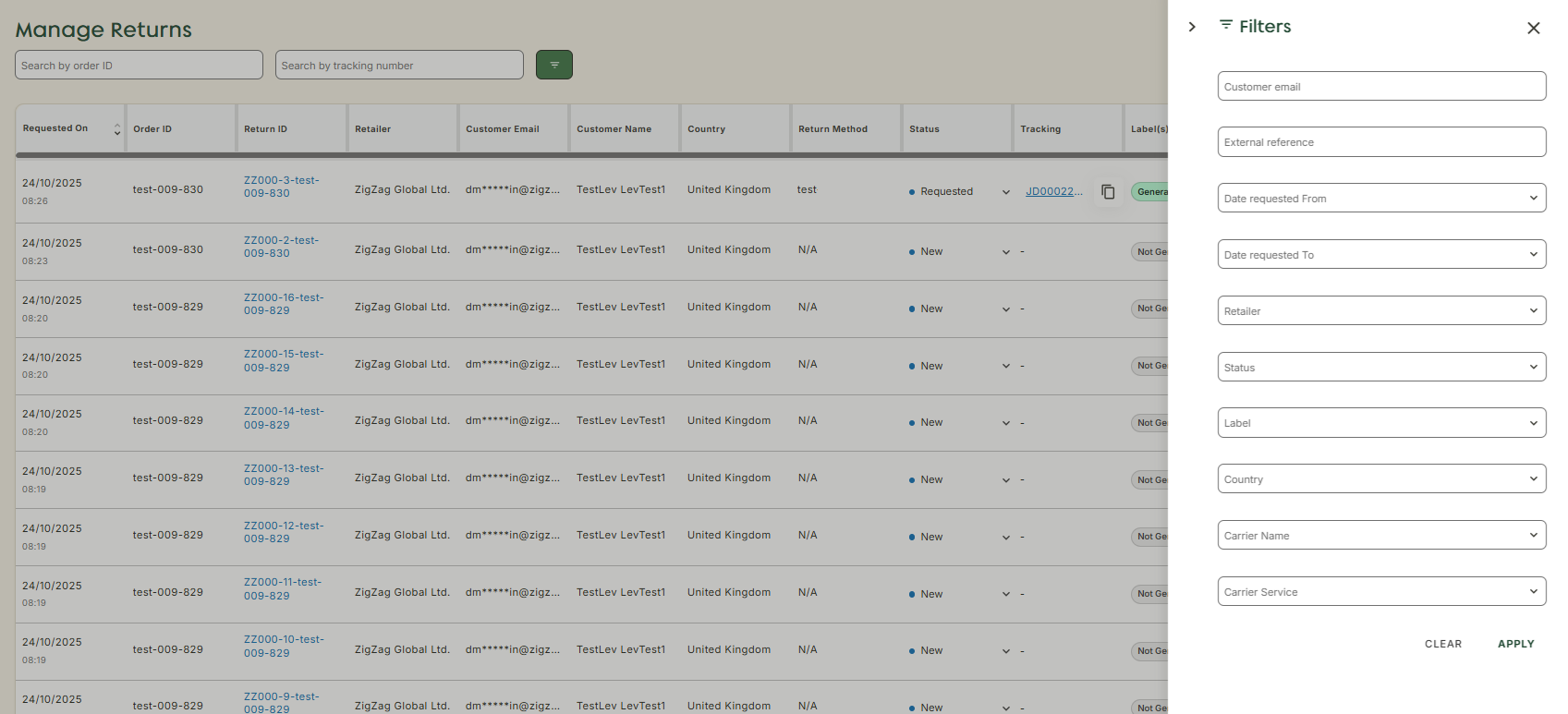
- Search and filter: Looking for something specific? Use the built-in tools:
- Search by: Order ID, Customer Email, External Reference
- Filter by: Retailer, Status, Label, Country, Customer email, External Reference,Carrier Name, Carrier Service, Date Requested From and Date Requested to
When using the search boxes without any additional filters applied, you might experience a timeout error due to the large volume of returns being processed. If that happens, try to narrowing down the search first by brand, for example. We are aware of this issue and are already working on a fix
You can be combine searches and filters for more precise results. Applied filters appear below the search bar so you can easily manage or remove them
- Update return status - You can change the status of returns directly in the table, with color-coded labels improving visibility, which saves time when you аre managing a lot of items at once.
- Open details: Click on a return ID to open the full return information, including customer details, tracking, and warehouse details
- Create a return: Need to add a return manually? Click the "Add Return(s)" button in the top-right corner to open the manual return form
Retailer Hub is constantly evolving based on feedback. These core pages give your teams the foundation to support returns quickly and clearly, with the connected data across the board!