How to edit a notifier
Overview
Editing a notifier in RMS allows your team to easily refine or update existing automated alerts so they continue to deliver accurate, relevant information to connected systems. Through the notifier’s Edit panel, authorised users can adjust key settings - such as the notifier’s name, endpoint, credentials, data sources, and associated event triggers - ensuring the configuration remains aligned with evolving operational needs. This flexible update process helps maintain reliable system‑to‑system communication without requiring redevelopment or technical intervention.
How to edit a notifier
- Log in to Returns Management System (RMS).
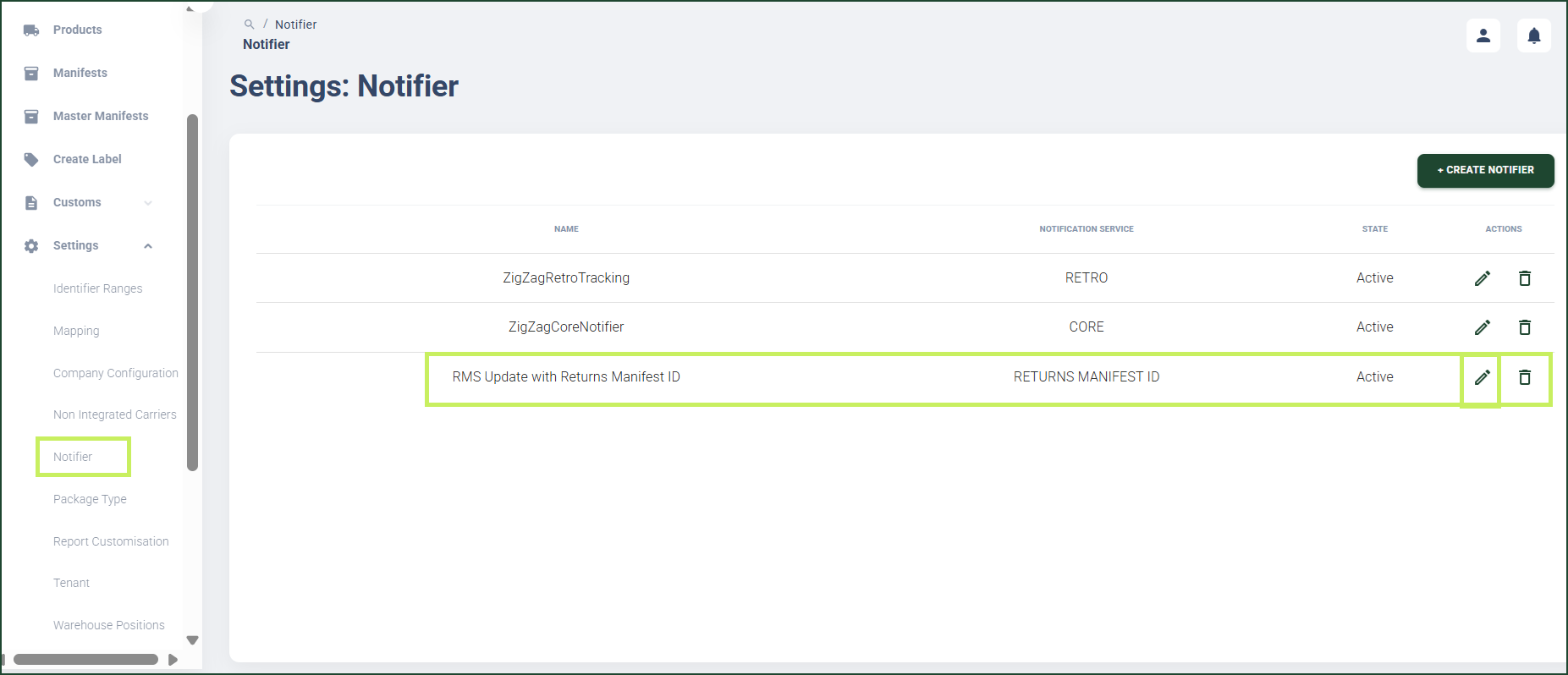
- On the sidebar menu, click Notifier. The Settings: Notifier page appears on the right.
- On the Settings: Notifier page page, click the Edit (Pen) icon for the notifier you want to edit.
An Edit Notifier dialog window appears.
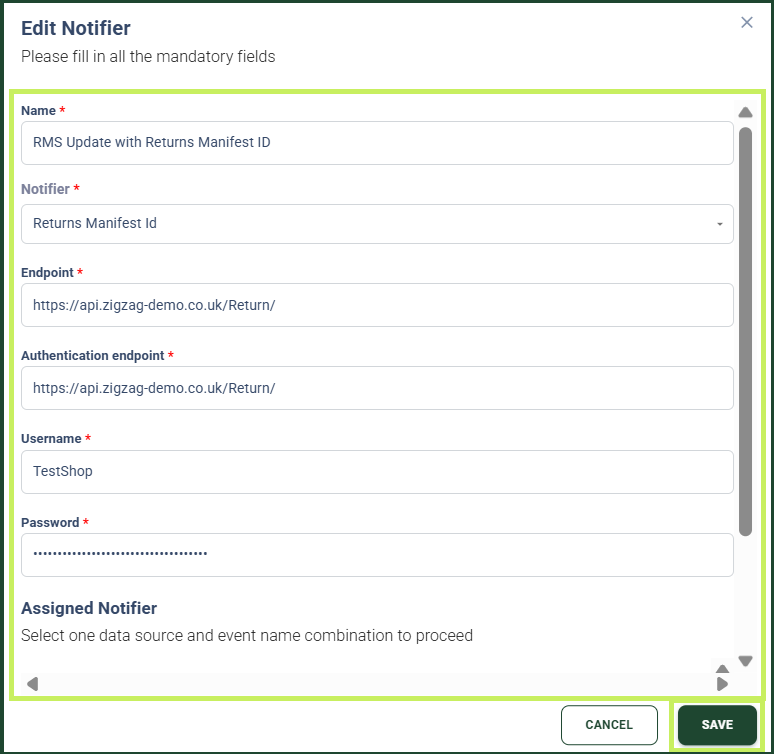
- In the Update Notifier dialog, you can update the following fields:
- Name - edit the name of the notifier
- Notifier - from the dropdown menu, edit the notifier type
- Endpoint - edit the endpoint to which the notifier will be sent
- Authentication endpoint - the endpoint to which RMS will send authentication details
- Username - edit the username for the notifier authentication process
- Password (masked) - edit the password for the notifier authentication process
- Data Source - from the drop-down menu, edit the environment from which the parcel data is sourced and for which a notification will be triggered
- Event Name - from the drop-down menu, edit the name for the notification event.
- Click Save.