How to delete a notifier
Overview
Deleting a notifier in RMS allows your team to keep configurations clean and up‑to‑date by removing outdated or unused event triggers. Through the Notifier configuration screen, users can simply select and delete an existing event name or notifier, ensuring the system only processes relevant automated notifications. RMS also provides a confirmation prompt before deletion, helping you manage notifier settings confidently while maintaining accuracy and operational clarity.
How to delete a notifier
- Log in to Returns Management System (RMS).
- On the sidebar menu, click Notifier. The Settings: Notifier page appears on the right.
- On the Settings: Notifier page, click the Delete (Bin) icon for the notifier you want to delete.
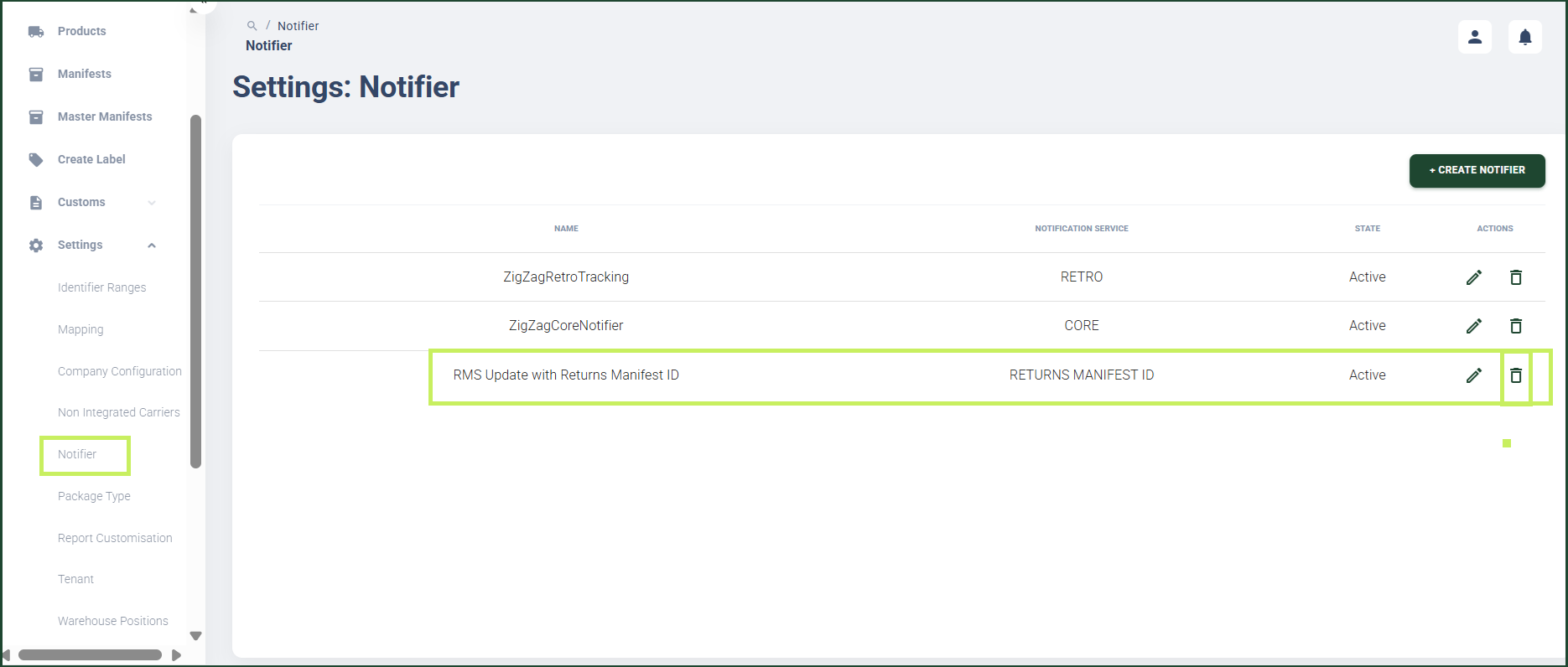
A Confirmation dialog window appears with a question "Are you sure you want to delete this notifier?".
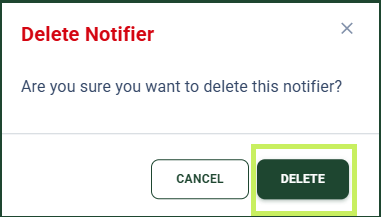
- Click Delete to confirm the deletion of the notifier.
note
Once deleted, the notifier is removed from the configured list but remains available to re-add if needed.