How to delete a non-integrated carrier
Overview
In RMS, deleting a non‑integrated carrier helps keep your carrier list clean and relevant by removing options that are no longer in use. Authorised users can simply select a carrier from the Non‑Integrated Carriers settings page and delete it, ensuring that only accurate and up‑to‑date carrier configurations remain available to your team. This supports smoother processing and reduces the risk of selecting outdated carrier information during daily operations.
How to delete a non-integrated carrier
- Log in to Returns Management System (RMS).
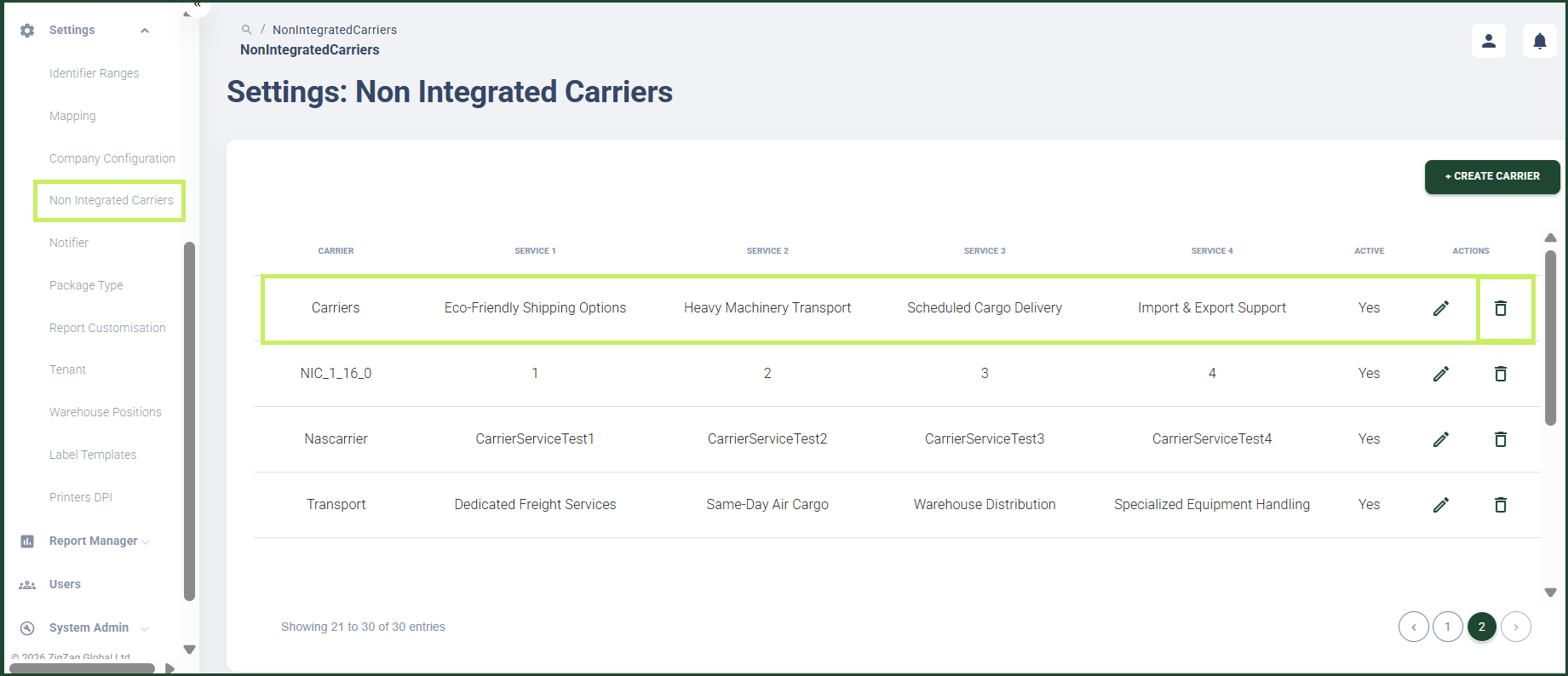
- On the sidebar menu, click Settings. A dropdown list of setting properties appears below Settings.
- Click Non-Integrated Carriers. The Settings: Non-Integrated Carriers page appears on the right.
- On the Settings: Non-Integrated Carriers page, click the Delete (Bin) icon for the carrier you want to delete.
A Confirmation dialog window appears.
5. Click Delete to confirm the deletion of the carrier.