How to edit a printer DPI
Overview
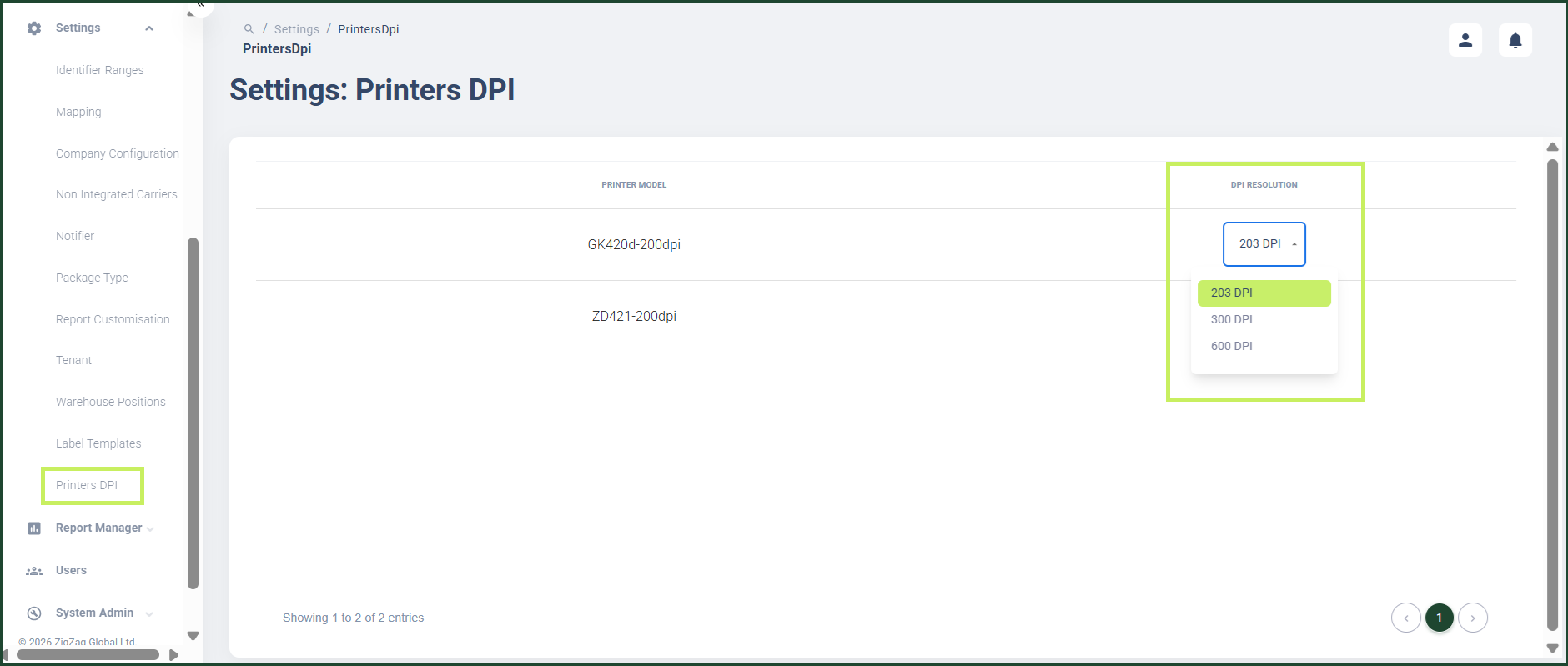
RMS makes it easy for you to adjust printer clarity by allowing authorized users to edit the Dots Per Inch (DPI) resolution for each registered printer model. Through the Printers DPI settings page, you can simply select a printer, choose a new DPI value from the dropdown, and have the change applied instantly - no engineering support required. This ensures label output remains sharp and consistent across different devices while giving teams full control to match printer settings to operational needs.
How to edit a printer DPI
- Log in to Returns Management System (RMS).
- On the sidebar menu, click Settings. A dropdown list of setting properties appears below Settings.
- Click Printers DPI. The Settings: Printers DPI page appears on the right.
- Select the printer model whose DPI resolution you want to edit and from the drop-down menu of the DPI resolution column, select a new DPI resolution number for the printer. The change is automatically saved.