How to delete a scheduled report
Overview
Deleting a scheduled report in RMS Report Manager provides you with full control over which automated reports remain active within your organisation. You can remove a scheduled report directly from the Scheduled Reports list, ensuring outdated or unnecessary reports no longer run or distribute information. Once deleted, the report is cleared from the list and is no longer generated or sent. That helps your team maintain a clean, accurate, and efficient reporting setup aligned to your current operational needs.
How to delete a scheduled report
- Log in to Returns Management System (RMS).
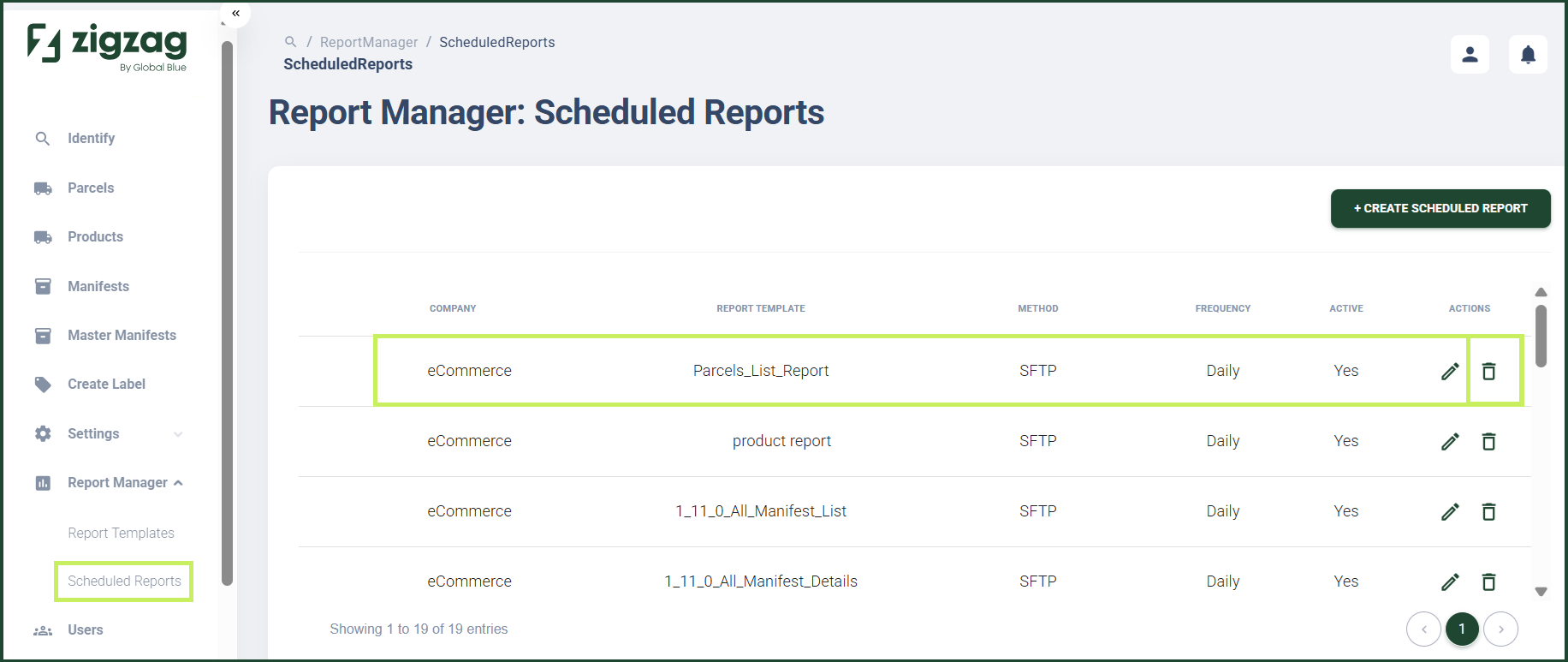
- On the sidebar menu, click Report Manager. A dropdown list of report properties appears below Report Manager.
- Click Scheduled Reports. The Report Manager: Scheduled Reports page appears on the right.
- In the Scheduled Reports List table, click the Delete (Bin) icon for the report you want to delete.
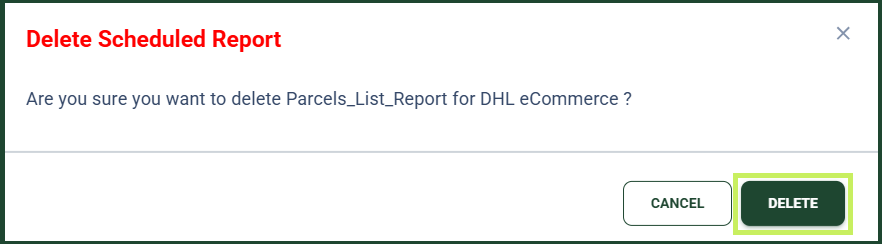
A Delete Scheduled Report confirmation dialog window appears.
5. Click Delete to confirm the deletion of the report.