How to process a parcel via Over-label workflow
Overview
Over-labelling is the process of applying a new retailer specific label over the original shipping label on the returned parcel. This allows returns to be re-routed. Once re-labelled, the return is sent to the appropriate retailer warehouse, distribution centre, or resale partner – faster and more efficiently.
When a parcel is found after search and it belongs to a consolidation mapping that includes the over-label warehouse operation, you are navigated to the Identify for over-label page.
How to process a parcel via Over-label workflow
Identify for Over-label page
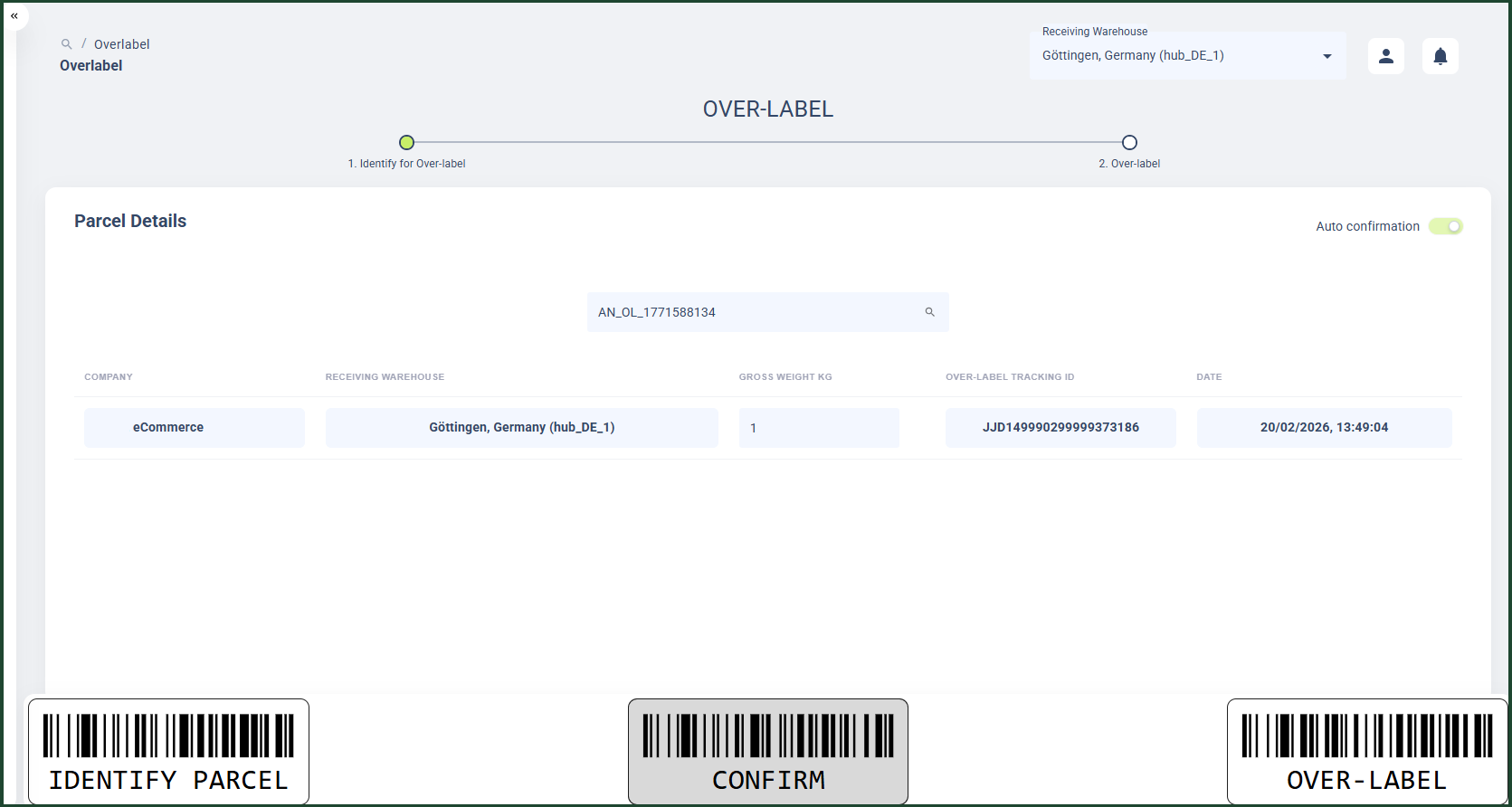
- After a parcel has been identified for over-label, you are navigated to the Identify for Over-label page where you can see parcel details such as:
- The parcel order number in the Parcel search field as you have entered it during the Identify step;
- The company to which the parcel belongs;
- The receiving warehouse where the parcel has been delivered;
- The actual weight of the parcel
- If you are not sure that the parcel you have identified for grading and consolidation is the parcel you want to process, you can enter another parcel order number in the Parcel search field.
- If the parcel you have identified for over-label is the parcel you want to process, click the Confirm button. You are navigated to the Over-label page.
Over-label page
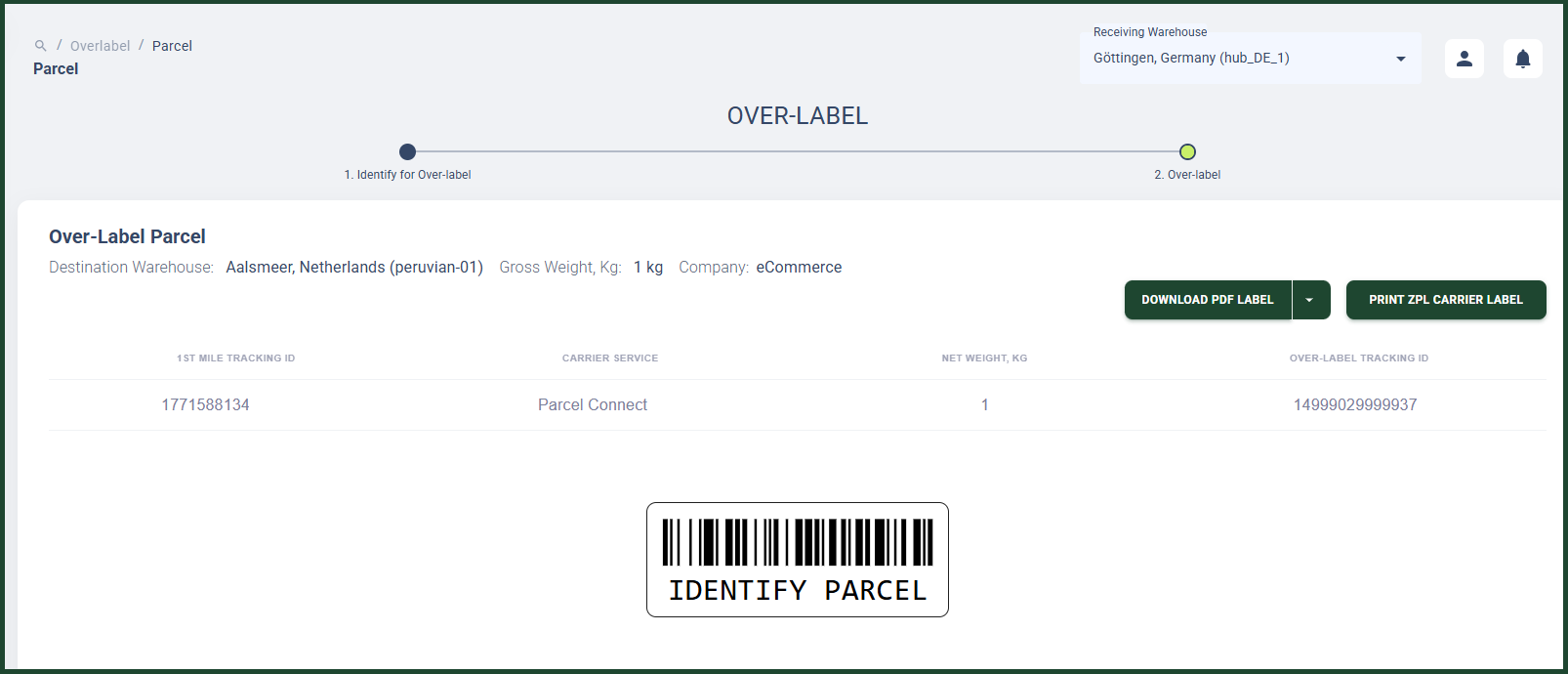
- On the Over-label page, you are able to see the following sections with relevant information:
- Parcel information
- Destination Warehouse
- Gross Weight of the parcel in kilograms
- Company
- Table with additional parcel information
- 1st mile tracking ID
- Carrier Service
- Net weight of the parcel in kilograms
- Over-label tracking ID
- Parcel information
- To over-label a parcel, click the Download PDF label button.
- To print the carrier label, click the Print ZPL Carrier label button.
- If you want to identify another parcel, you can go to Identify step by clicking/scanning the Identify parcel barcode button.
The system automatically prints the configured number of carrier labels during the over-label workflow when the number of labels is greater than zero. That saves time and effort, ensuring the workflow remains seamless and efficient. The system prints to the default printer when Use the Default Printer toggle is set to Active in Settings: Tenant.