How to view a Product List report
Overview
The Product List report gives you a detailed, exportable view of all graded products that match selected filters, enabling you to analyse product-level return outcomes with precision. From the Products page, you can filter by graded date range, company, grade, order ID, and SKU, then download the resulting dataset for further analysis. This report consolidates all product properties into a structured XLSX or CSV file. It is especially useful for quality review, retailer reporting, recommerce decisions, and process optimisation, ensuring full visibility into product grading activity across RMS.
How to view a product list report
- Log in to Returns Management System (RMS).
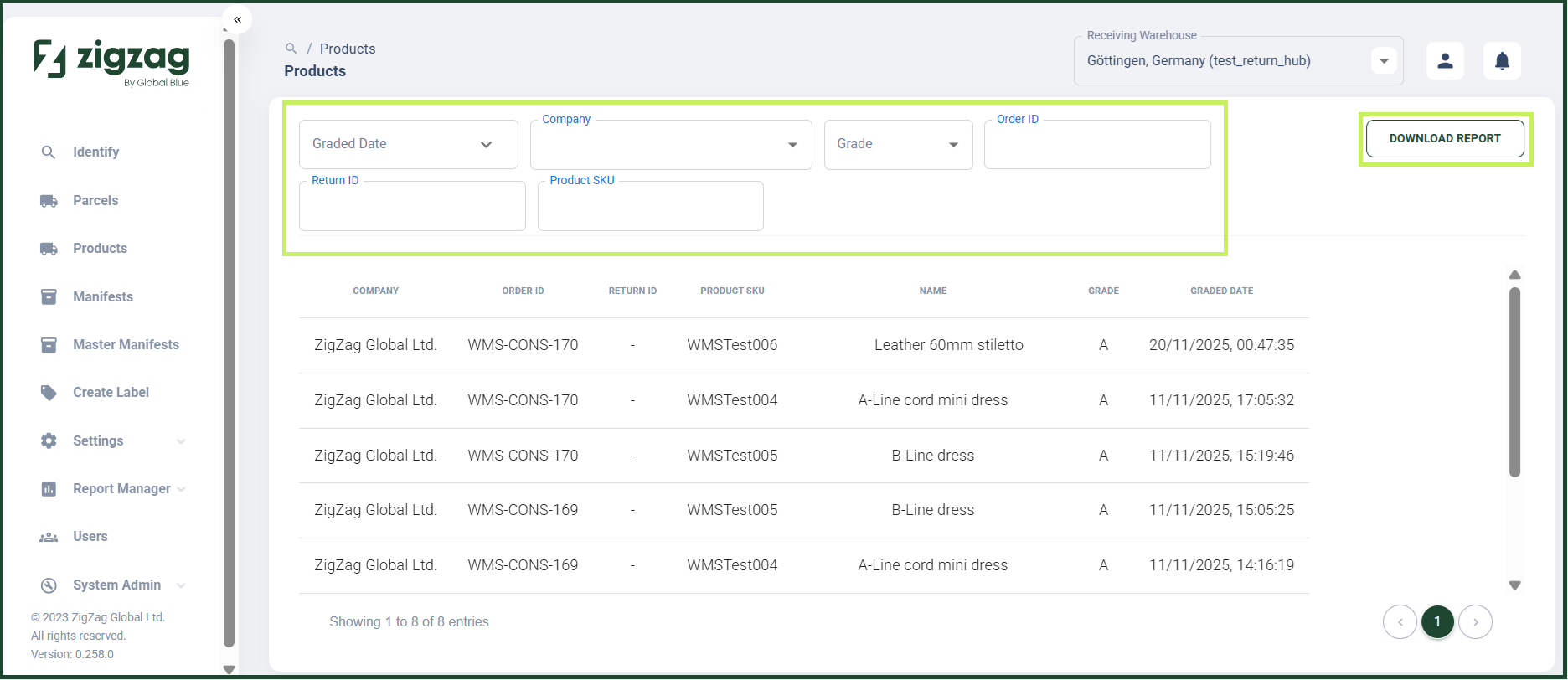
- On the sidebar menu, click Products. The Products page appears on the right.
- On the Products page, you can filter to view products based on different criteria:
- Graded Date Range - from the dropdown selector, select the start date and end date of the period for which you want to view a product list report of the graded products
- Company - from the dropdown menu, select the companies for which products you want to view a product list report
- Grade - from the dropdown menu, select the grades for which you want to view a product list report
- Order ID - fill in the order ID of the products for which you want to view a product list report
- Product SKU - fill in the SKU of the product you want to view
- After you apply the filters you want, you are able to view a product list table with the relevant product information organized in the following columns:
- Company
- Order ID
- Return ID
- Product SKU
- Name
- Grade
- Graded Date
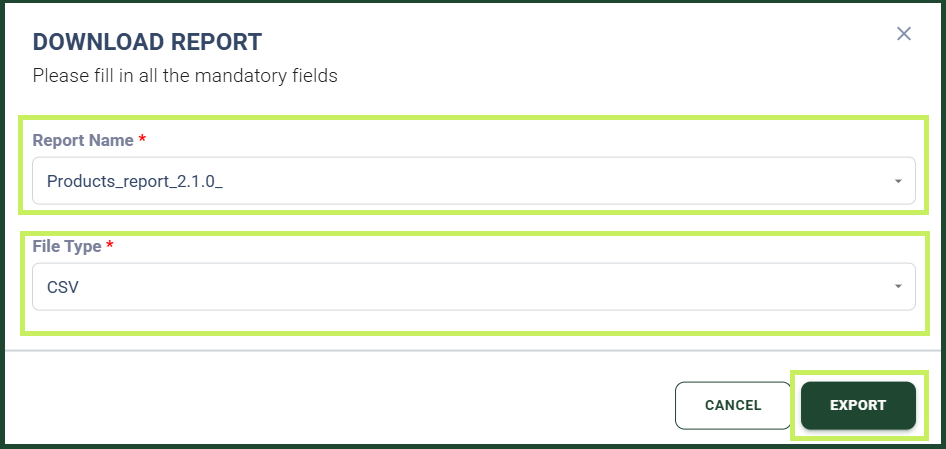
- You are able to download the table in CSV or XLS format by clicking on the Download report button. A Download report dialog window appears.
- In the Download report dialog window, fill in:
- Report name - from the drop-down menu, select the name for the report you want to download; you can also write a new report name
- File type - from the drop-down menu, select the file type (CSV or XLS) for the report your want to download
- Click Export.