How to view a Manifest Details report
Overview
The Manifest Details report provides an exportable, item‑level view of everything contained within a specific manifest, allowing you to analyse the full operational footprint of a shipment. Accessible from the Manifest Details page, this report compiles all manifest attributes such as company, destination warehouse, manifest reference, tracking information, parcel counts, weights, and timestamps, into a structured file for auditing, carrier communication, and retailer reporting. By offering a complete breakdown of a single manifest’s contents and properties, the report supports end‑to‑end traceability and ensures accurate downstream processing.
How to view a Manifest Details report
Log in to Returns Management System (RMS). 1. 2. On the sidebar menu, click Manifests. The Manifests page appears on the right. 3. On the Manifests page, navigate to the Manifest List table and select the manifest which report you want to view by hovering on its respective row. An Edit (Pen) and a Delete (Bin) icon appear.
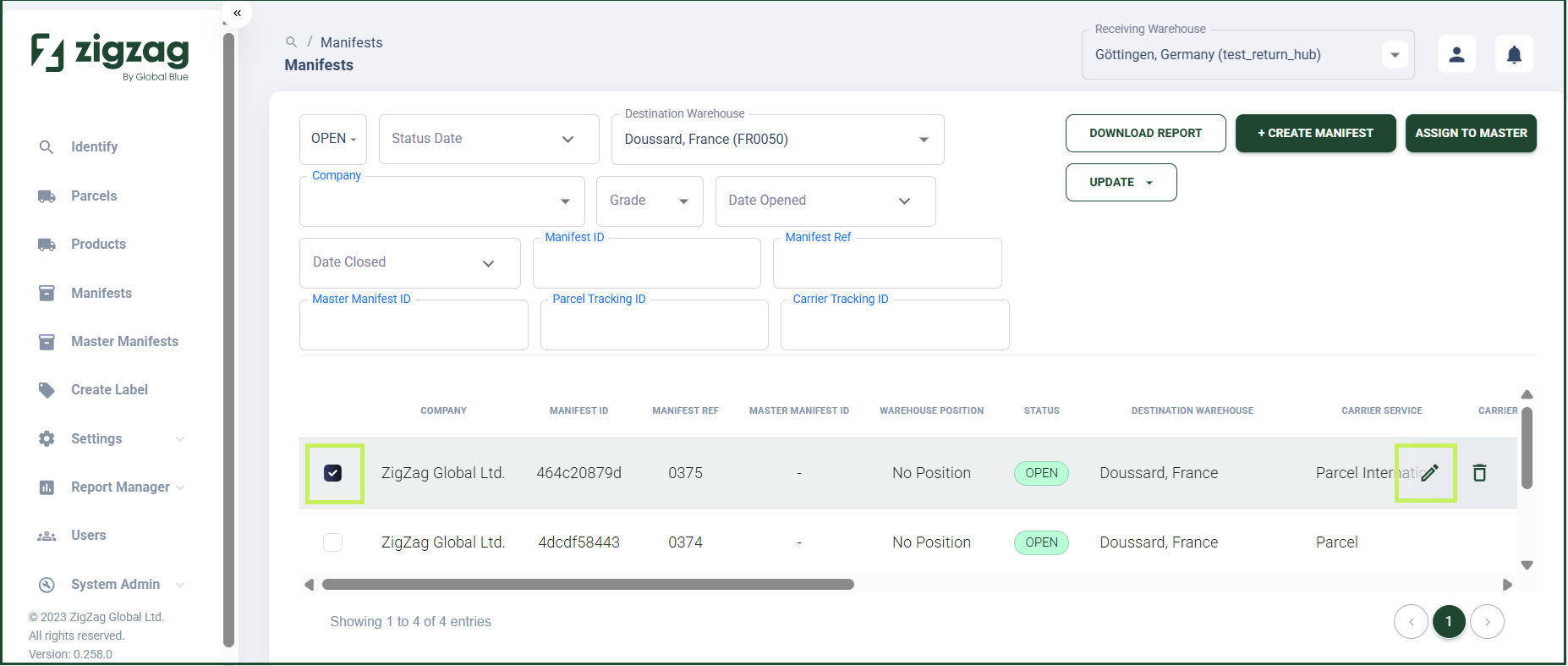
- Click the Edit (Pen) icon. The Manifest Details page appears.
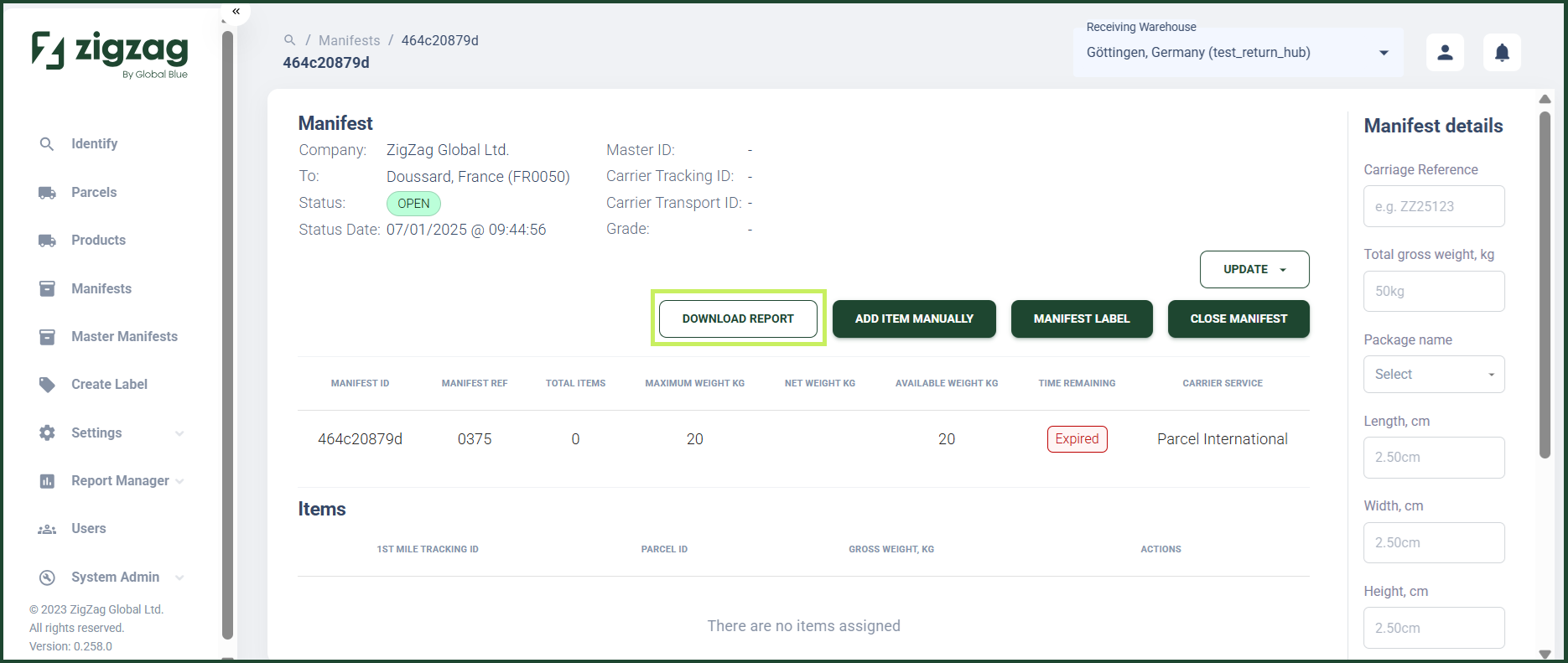
- On the Manifest Details page, click the Download report button. A Download report dialog window appears.
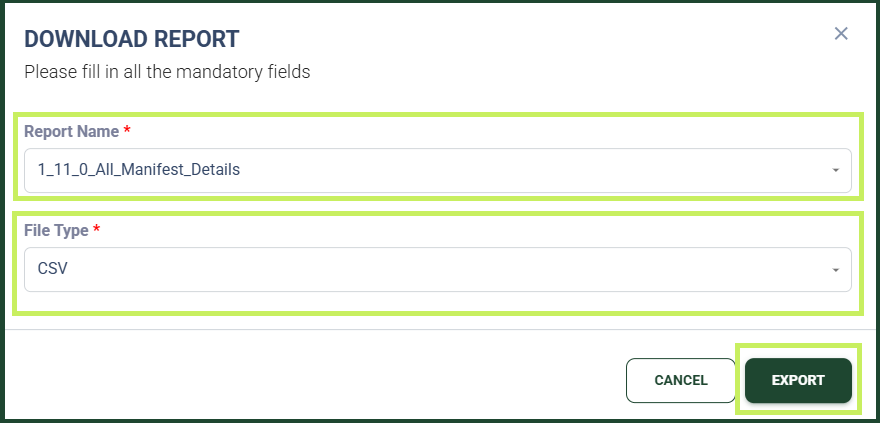
- In the Download report dialog window, fill in:
- Report name - from the drop-down menu, select the name for the report you want to download; you can also write a new report name
- File type - from the drop-down menu, select the file type (CSV or XLS) for the report your want to download
- Click Export.