Add users in bulk
Overview
The Users & Permissions Management feature of Retailer Hub gives you full control over the access and roles of the platform users.
This page will guide you through the process of adding/inviting users in bulk rather than one by one.
Note before you start
warning
- You can only import 50 users at a time!
- Invalid user records from the template will not be added!
How to add users in bulk
- Navigate to the Users Management page
- Click on the right side of Invite User(s) button
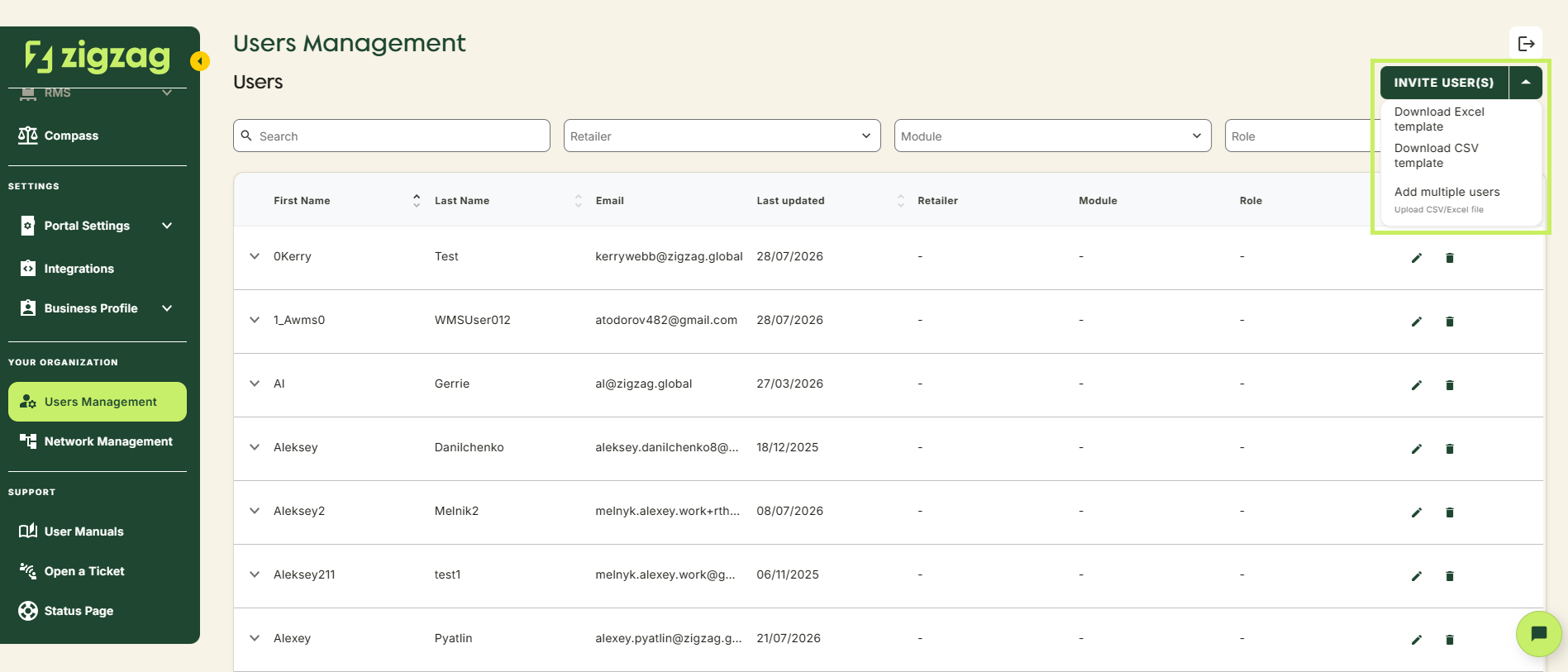
- Download the template in CSV or Excel format
- Fill out the template according to the examples provided
- Click on the right side of Invite User(s) button
- Select Add Multiple Users
- Select the Retailer for which you want to create the new users
- Upload the file with users to be added
- Review all the details
- The interface will clearly tell you which users will be created successfully, and which ones will not, by informing you about any errors the file may have
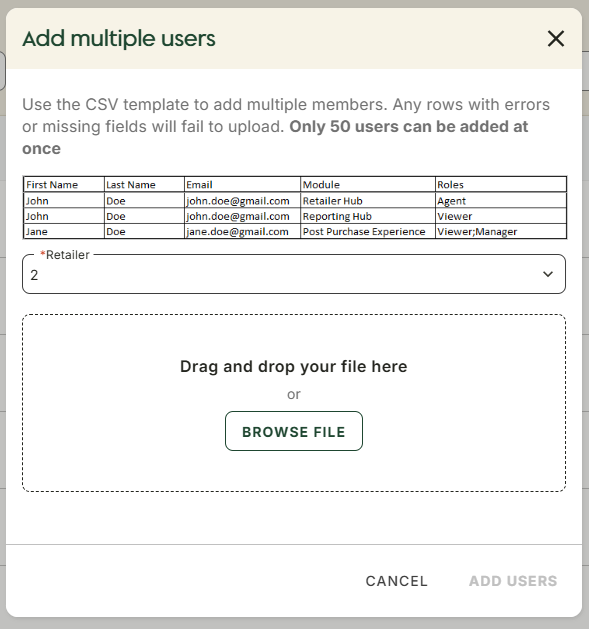
- After all the details are reviewed, click Add users
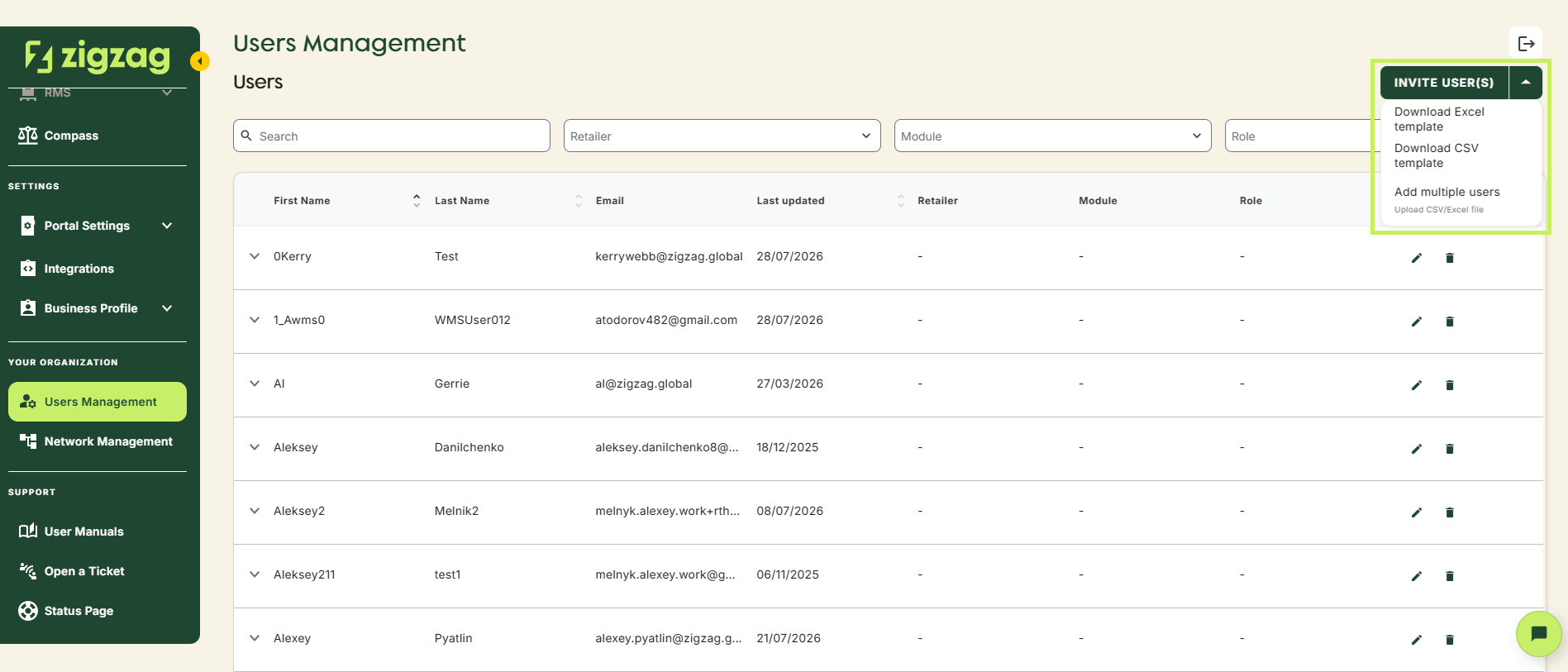
All valid users records will be added to Retailer Hub