How to edit a master manifest
Overview
Editing a master manifest in RMS offers you a clear and consistent way to update key shipment details while maintaining operational accuracy. RMS ensures warehouse‑specific data is accurately reflected, including displaying details for the selected receiving warehouse and maintaining consistent processing rules to prevent mid‑process location changes. When editing fields like the carriage reference, validations match those used elsewhere in the manifest workflow, ensuring data reliability across the platform. These features allow you to confidently adjust Master Manifests with reliable clarity, consistency, and control.
How to edit a master manifest
- Log in to Returns Management System (RMS).
- On the sidebar menu, click Master Manifests. The Master Manifests page appears on the right.
- On the Master Manifests page, navigate to the Master Manifest List table and select the master manifest which properties you want to edit by clicking the Edit (Pen) icon in the Actions column.
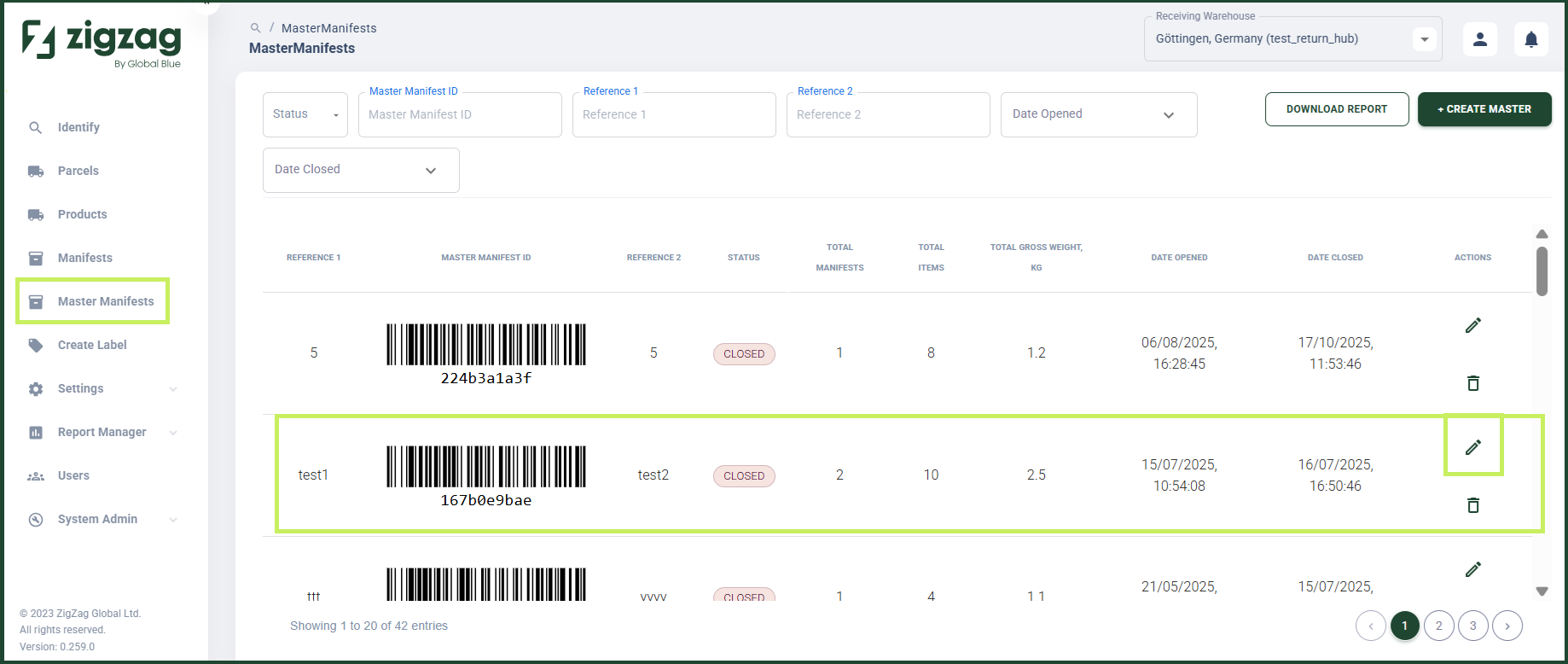
The Master Manifest Details page appears.
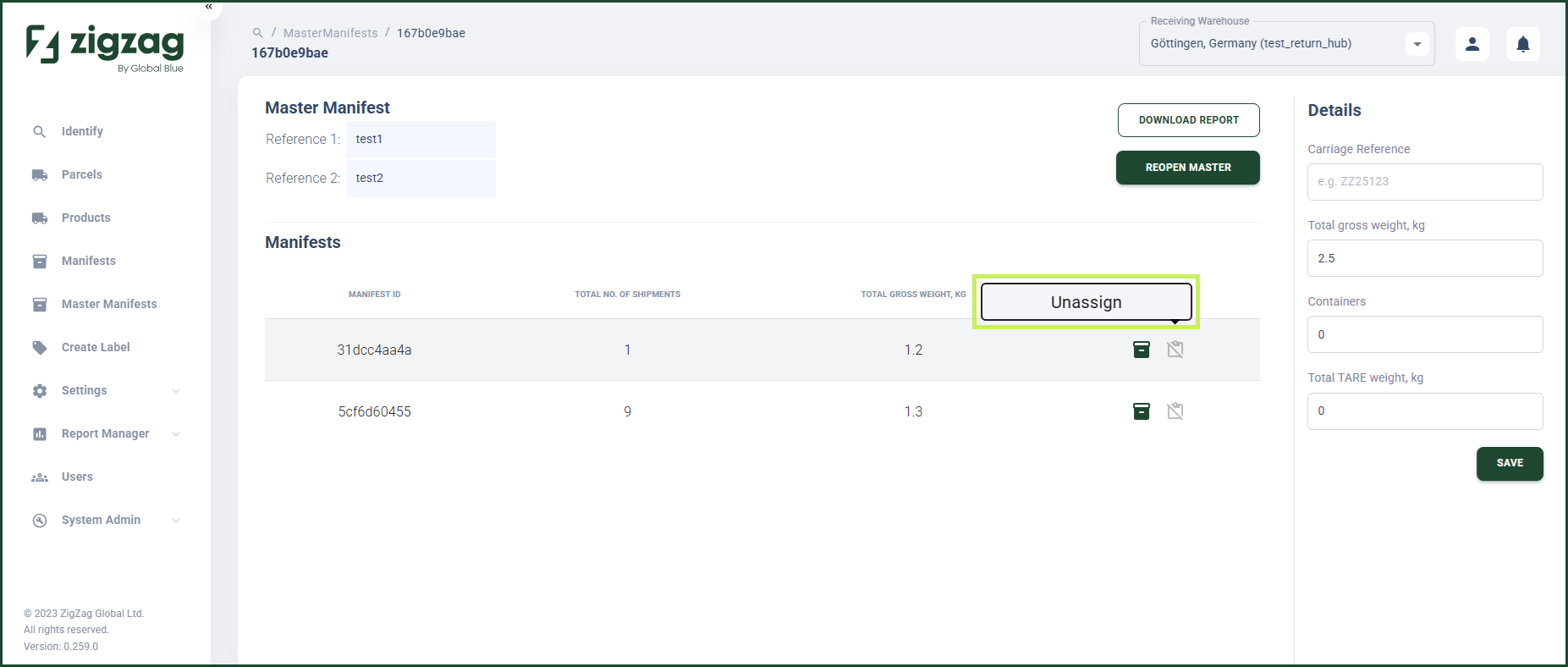
4. On the Master Manifest Details page, you can edit a master manifest by unassigning manifests that are assigned to it. Click the Unassign button displayed in the Actions volumn.
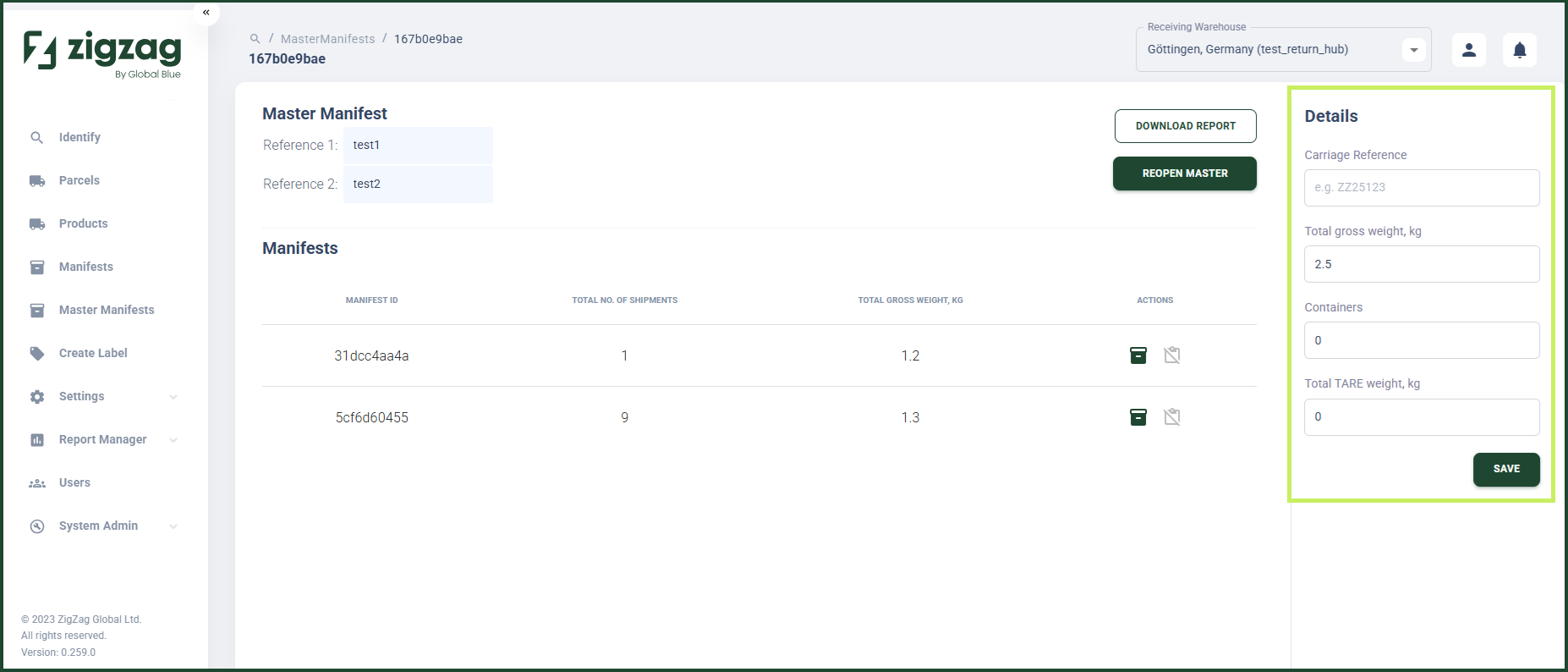
- You can also manually update master manifest details to ensure master-level data is accurate before submission. You can edit the following details in the Master Manifest Details panel that appears on the right side of the screen.
- Carriage reference
- Total gross weight in kg - auto-calculated as the combined total gross weight of all manifests in the master manifest
- Containers - auto-calculated as the combined containers of all manifests in the master manifest
- Total TARE weight in kg - auto-calculated as the combined total TARE weight of all manifests in the master manifest.
- In case you edit a closed master manifest, you can reopen it in order to add or remove manifests. To do that, click the Reopen Master button.
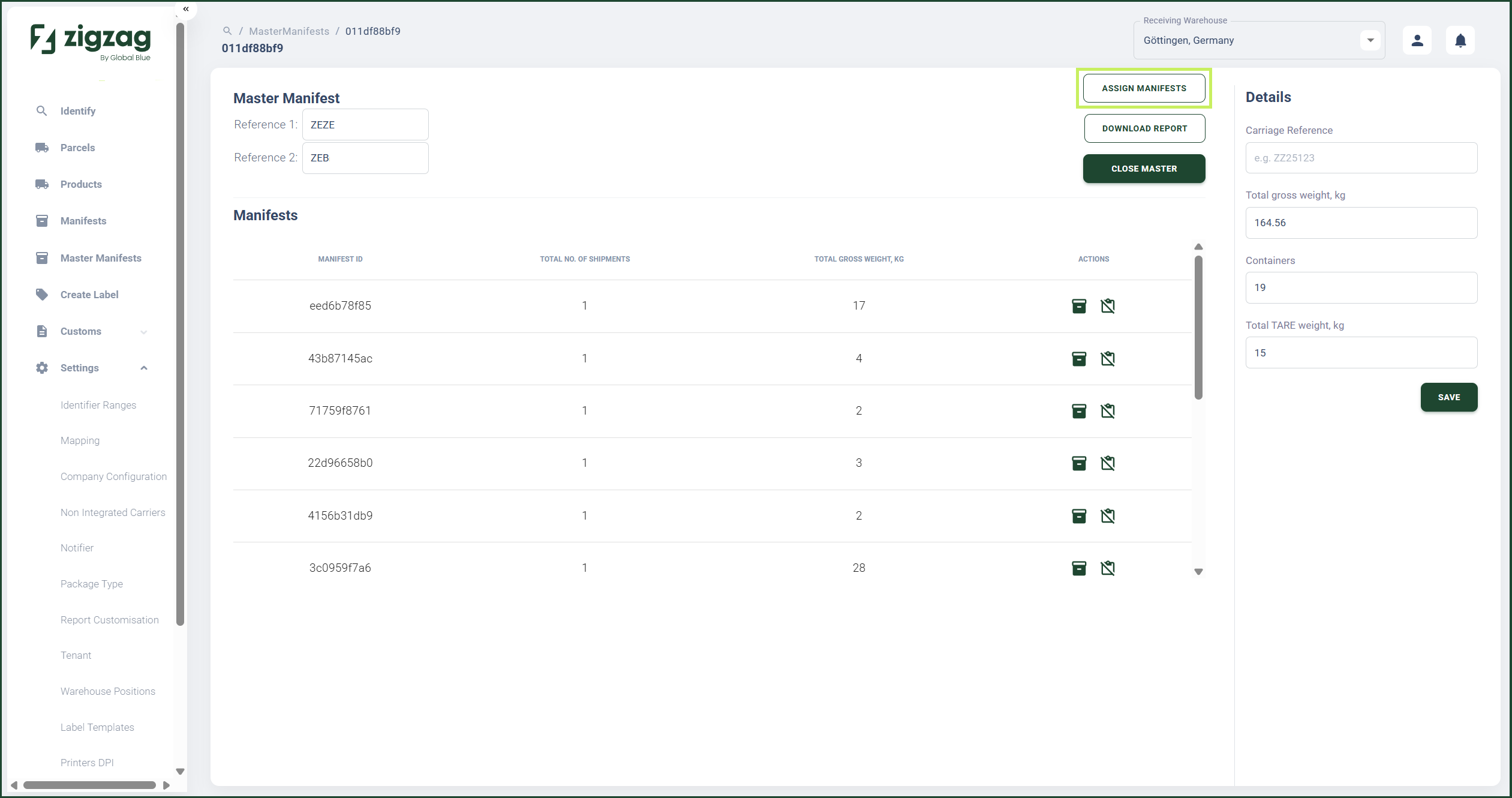
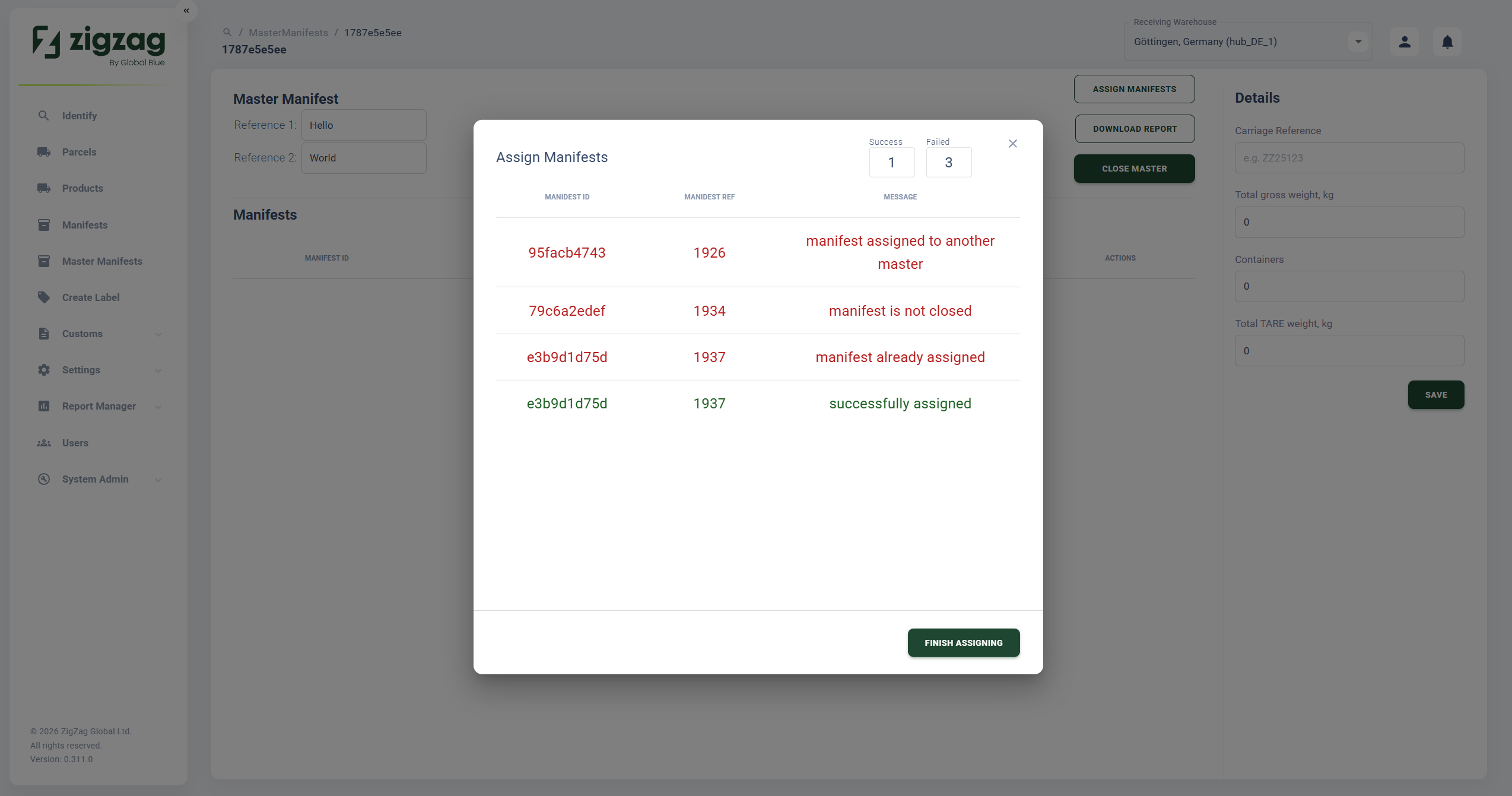
- To assign manifests to an open master manifest, click the Assign Manifests button. The Assign Manifests dialog window appears.
- While in the Assign Manifests dialog window, scan the manifest IDs of the manifests you want to assign to the master manifest. Depending on the statuses of your chosen manifests, the system shows you whether you have successfully assigned a manifest or not. In case of assignement failure, you can see the reason for it.
-
Click Finish Assigning to close the Assign Manifests dialog window after you have completed the process.
-
While on the Master Manifest Details page, you can also navigate to an individual manifest within the master manifest. To do that, click the Go to Manifest icon for your chosen manifest.
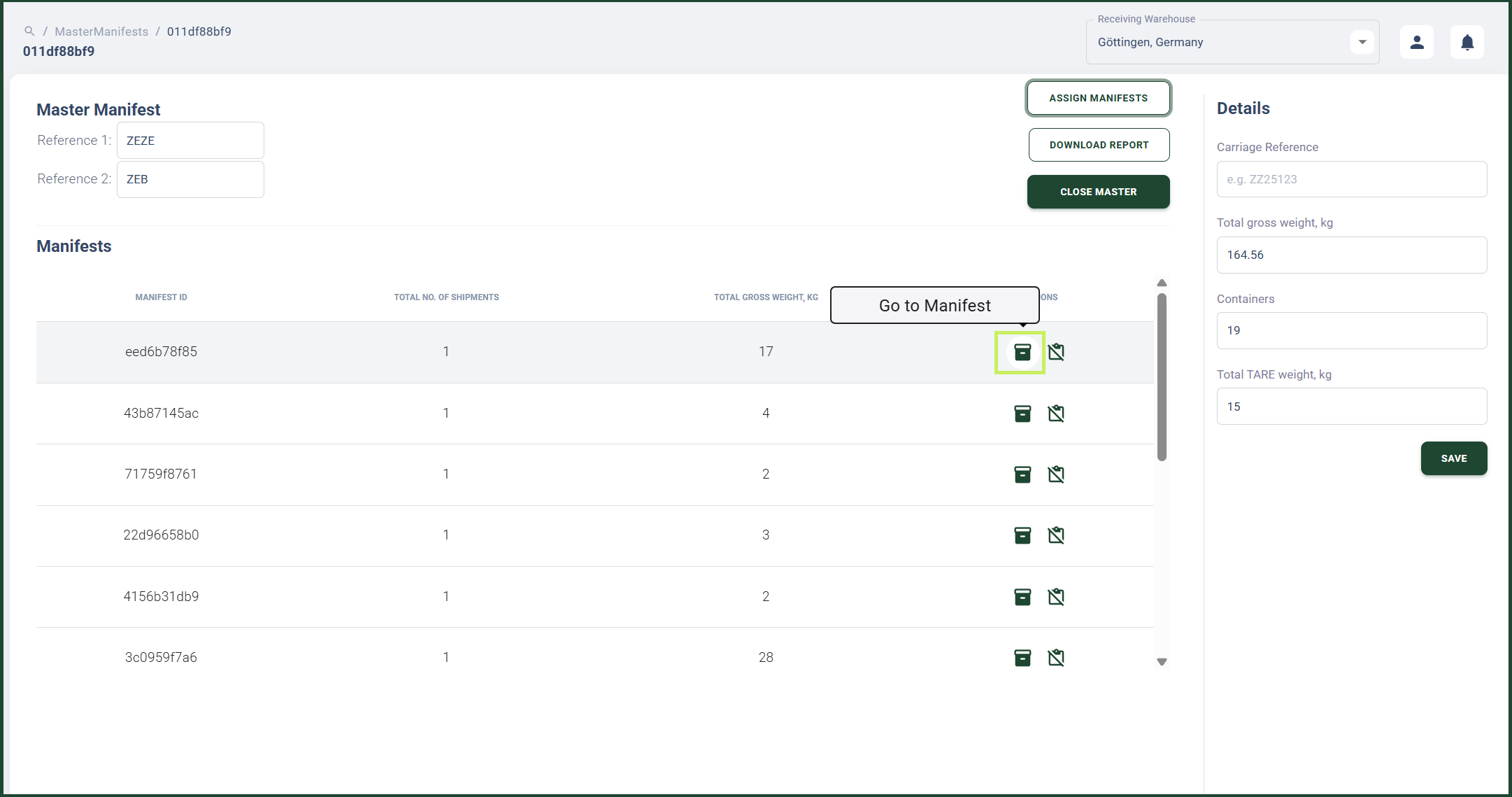
- Click Save to save all the changes you have made to the master manifest.