WhatsApp Integration
Overview
This page will guide you how to set up WhatsApp notifications.
Note before you start
Before starting the integration process, make sure the following requirements are met:
- You have a Meta Business Account.
- You have a WhatsApp Business Account.
- You have a phone number that is not already connected to another solution (a new number is recommended).
You do not have a Meta Business account
Click Continue with Facebook to create one. Activation may take up to 48 hours. We will generate a 6-digit PIN that you can enter to connect your account with ZigZag. You can change this PIN anytime from WhatsApp Manager.
You already have a Meta Business account
Navigate to Portal Settings -> Notification Settings -> Integrations tab and follow the guided setup process.
- If there is no existing WhatsApp account, a number can be generated and a new account created directly from ZigZag during the integration.
- The PIN code required during the integration is only needed if two-factor authentication is enabled. If not, simply click Connect with Facebook.
Forgot your PIN?
- Navigate to WhatsApp Manager → Phone number → Click More → then Change PIN.
- Generate a new 6-digit PIN and confirm it.
- Enter this PIN on ZigZag.
- Click Continue with Facebook.
To allow ZigZag to manage your WhatsApp Business account, you will need to grant account permissions.
You do not have a WhatsApp Business account
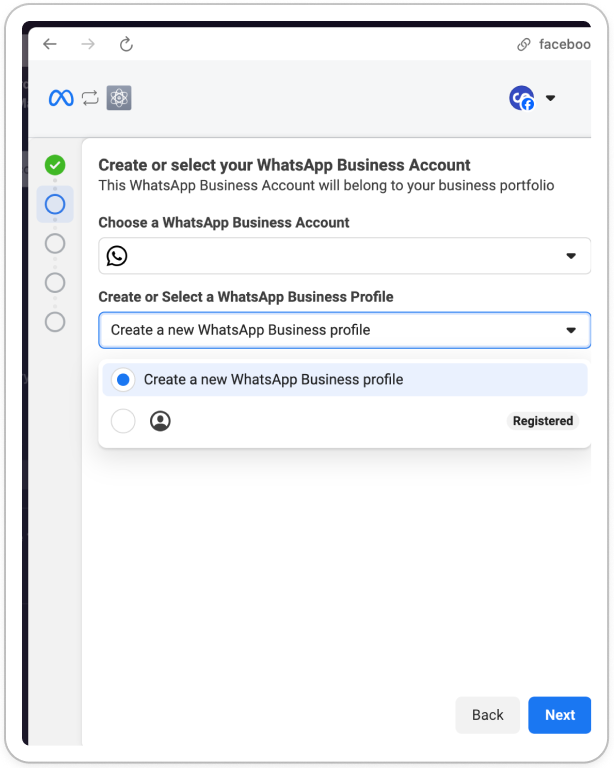
Step 1- Enter your business information
- Create a new Business Manager account to add your phone number. Your audience will not see this information on your WhatsApp profile.
- Create a WhatsApp Business account – this account will be linked to your Business Manager.
- Create a WhatsApp Business profile – this profile will display your business information to WhatsApp users.
Step 2- Add a phone number
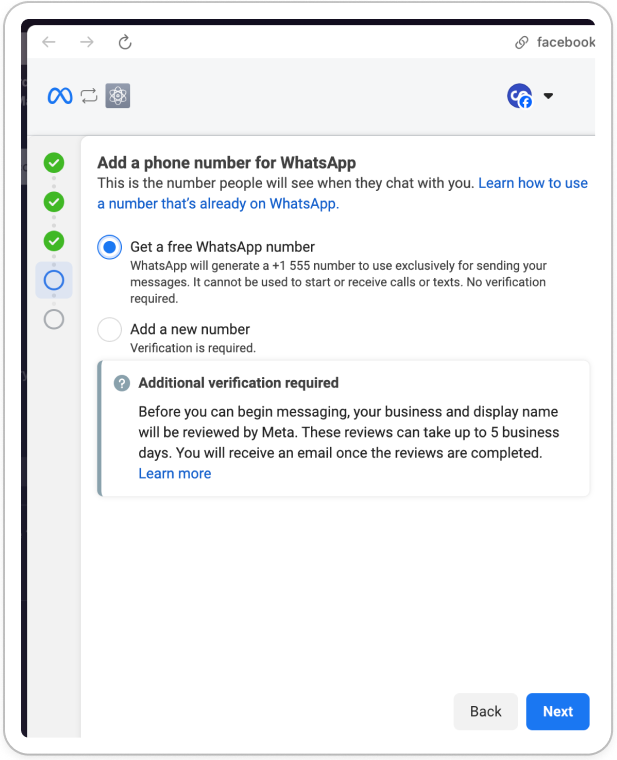
Add a phone number for WhatsApp – this is the number your customers will see when they chat with you. Use an existing number or generate a free WhatsApp number.
A WhatsApp Business account can have up to two free numbers generated by Meta. If needed, delete an existing number before adding a new one.
WhatsApp integration
Follow the steps in your WhatsApp Business Application.
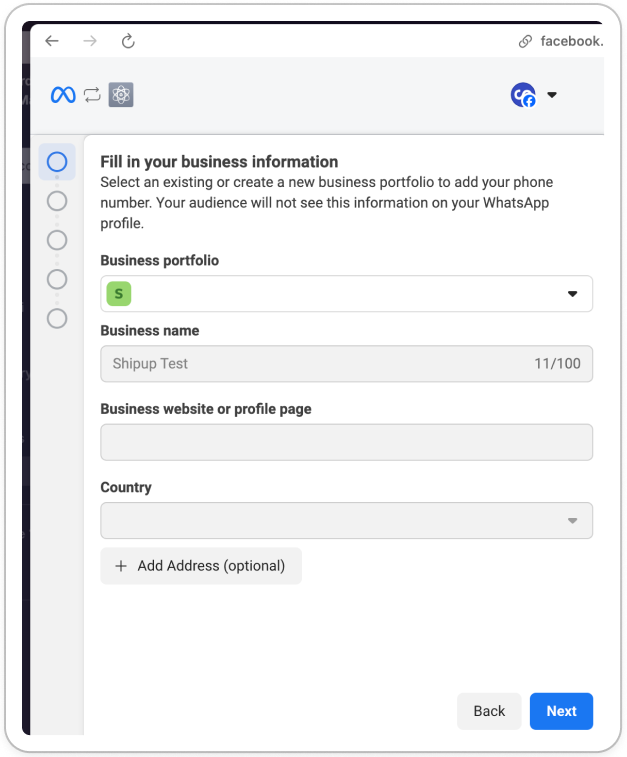
Step 1 - Enter your business information
Enter your business information:
- Select an existing Business Manager account.
- Select a WhatsApp Business account.
- Select a WhatsApp Business profile, which will display your business information to customers on WhatsApp.
If an account is grayed out and you can not select it, it may already be in use for another service. In this case, create a new account and enter your business information.
Step 2 - Add a payment method
Make sure your payment details are correctly saved in Meta.
You will only be able to send 250 messages. Once this limit is reached, you will not be able to send WhatsApp notifications.
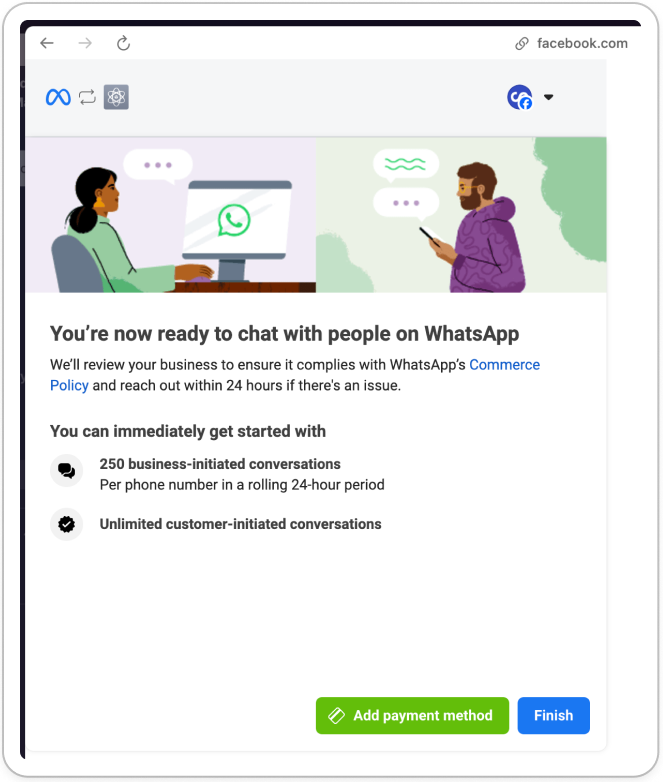
Double-check your information, and that is it—you are all set to send WhatsApp notifications!
Template generation
Once WhatsApp is connected, we automatically send a selection of templates to Meta for approval. This helps to get started with notifications as quickly as possible.
Meta enforces a daily submission limit. Any remaining templates not submitted automatically will need to be submitted manually.
All templates are submitted in the activated languages.
Setting up brand identity
By default, there is no profile photo, store name, or verification badge visible in WhatsApp conversations.
To customise the business identity:
- Go to the WhatsApp Business Manager
- Click on Phone Numbers
- Add a profile photo
- Set a display name
- Submit a verification request
Once the WhatsApp integration is complete
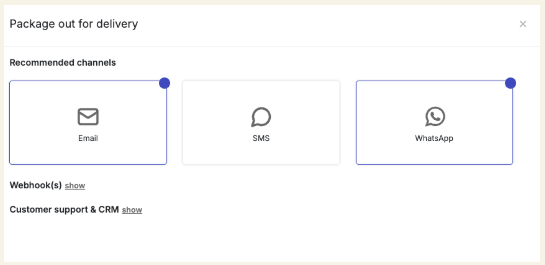
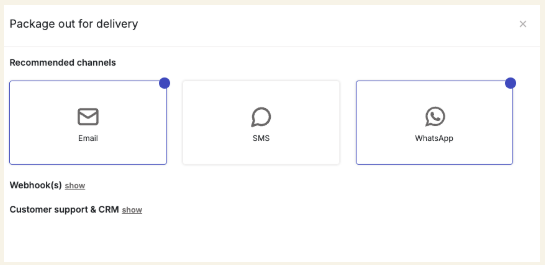
- Activate Notifications - To start sending notifications through WhatsApp, simply activate the channel for each relevant notification in the interface.
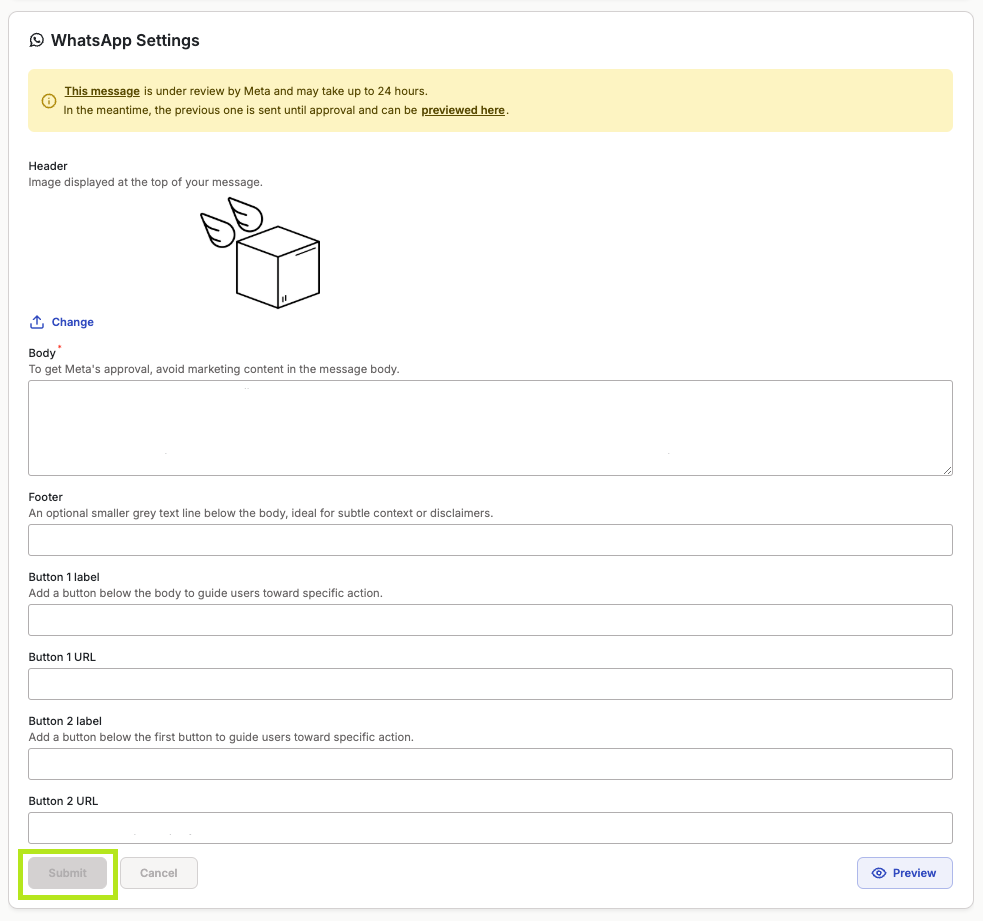
- Customise message content - The content of each notification can be customised, while ensuring compliance with Meta’s rules
| Component | Mandatory | Content Type | Accept variables (e.g. {{user_name}}) | Limitations |
|---|---|---|---|---|
| Header | False | image | N/A | N/A |
| Body | True | text-only | True | 1024 character maximum. No custom variables. No conditional liquid available |
| Footer | False | text-only | False | 60 characters maximum. No custom variables. No conditional liquid available |
| Buttons (label) | False | text-only | False | Label → 25 characters maximum |
| Buttons (url) | False | url | True | URL → 2000 characters maximum. Supports 1 variable at the end of the URL |
- Preview WhatsApp Messages - two preview options are available:
- In-app preview - available even for templates that have not been approved yet
- Test notification - If you would like to see how the message will look on WhatsApp, simply enter your phone number and click Send. You will receive a test notification on your WhatsApp and get a preview of the final result.
Test notifications are only available for Meta-approved templates
Important
Test notifications are billed and will count as a paid message.
- Submit a template - To submit a new template or update an existing one, click the Submit button below the message content.