How to use Notifications Editor
Overview
This page will help you understand how the Editor table in the Notifications tab is constructed. This will enable you to configure notifications optimally.
To access the Notifications Editor navigate to Settings menu section -> Portal Settings -> Notifications Settings -> Editor
How to use Notifications Editor
In the Notification Editor page, you can configure the following settings:
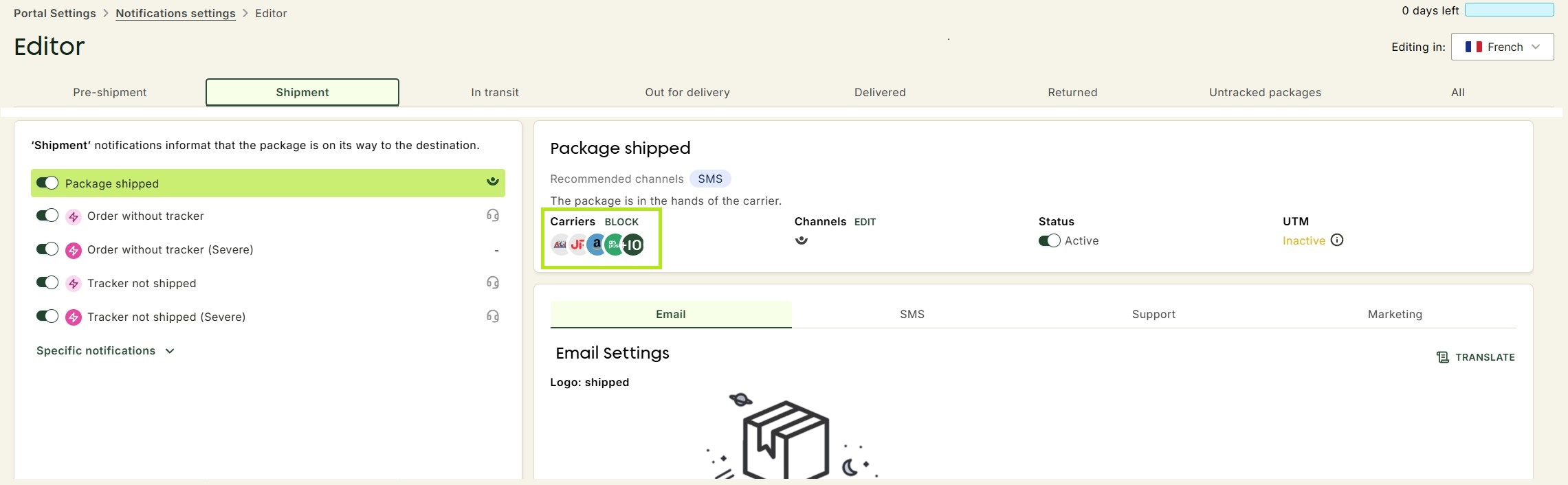
List of carriers
This field lists all the carriers for which this notification is available.
Channels
 There are 7 different communication channels:
- Email - Notification will be sent by e-mail.
- SMS - Notification will be sent by SMS.
- Webhook - A webhook will be sent when this notification is sent.
- Customer.io
- Mailchimp
- CRM - Zendesk, Gorgias and Easiware
- A ticket will be created when this notification is sent.
- Support email - Your support team can be blind copied on this notification to monitor the progress of the shipment and intervene proactively if necessary.
To edit a channel:
- Click Edit next to the channels.
- Fill the necessary fields.
- Click Update
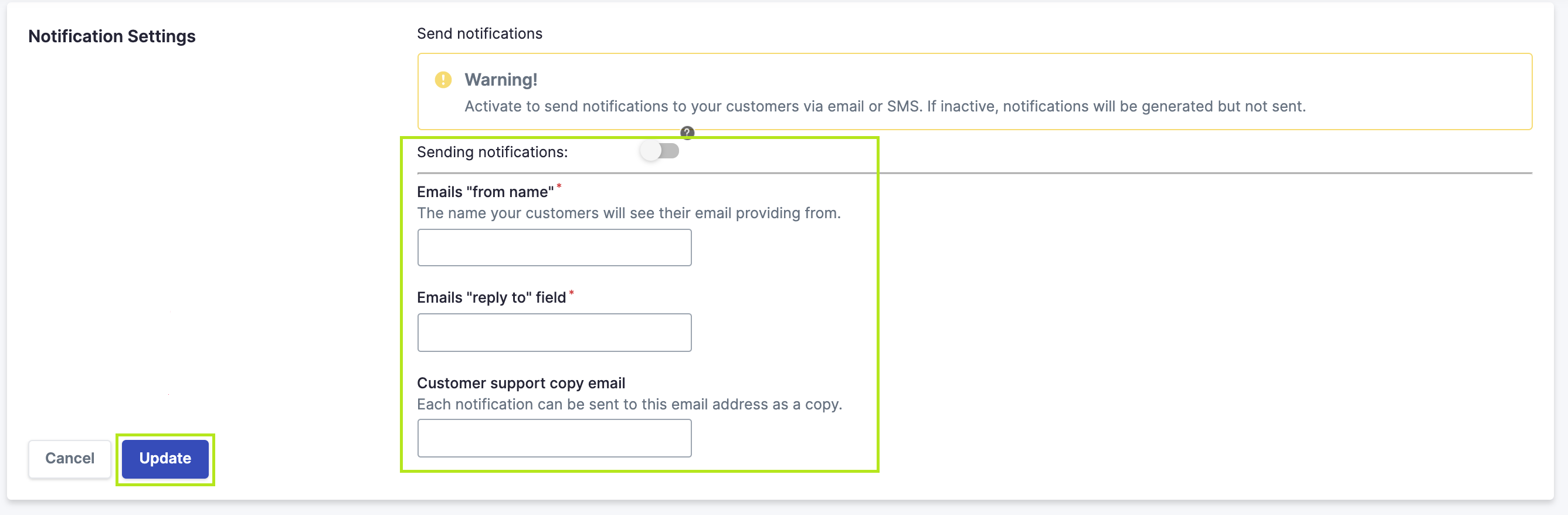
Remember to save the change (for each language if you have several languages you are using).
For your support team - You will need to define the e-mail address where customer service will receive these e-mails.
It will also be necessary to define a reply-to address if the customer decides to reply directly to the e-mail sent by ZigZag.
Status
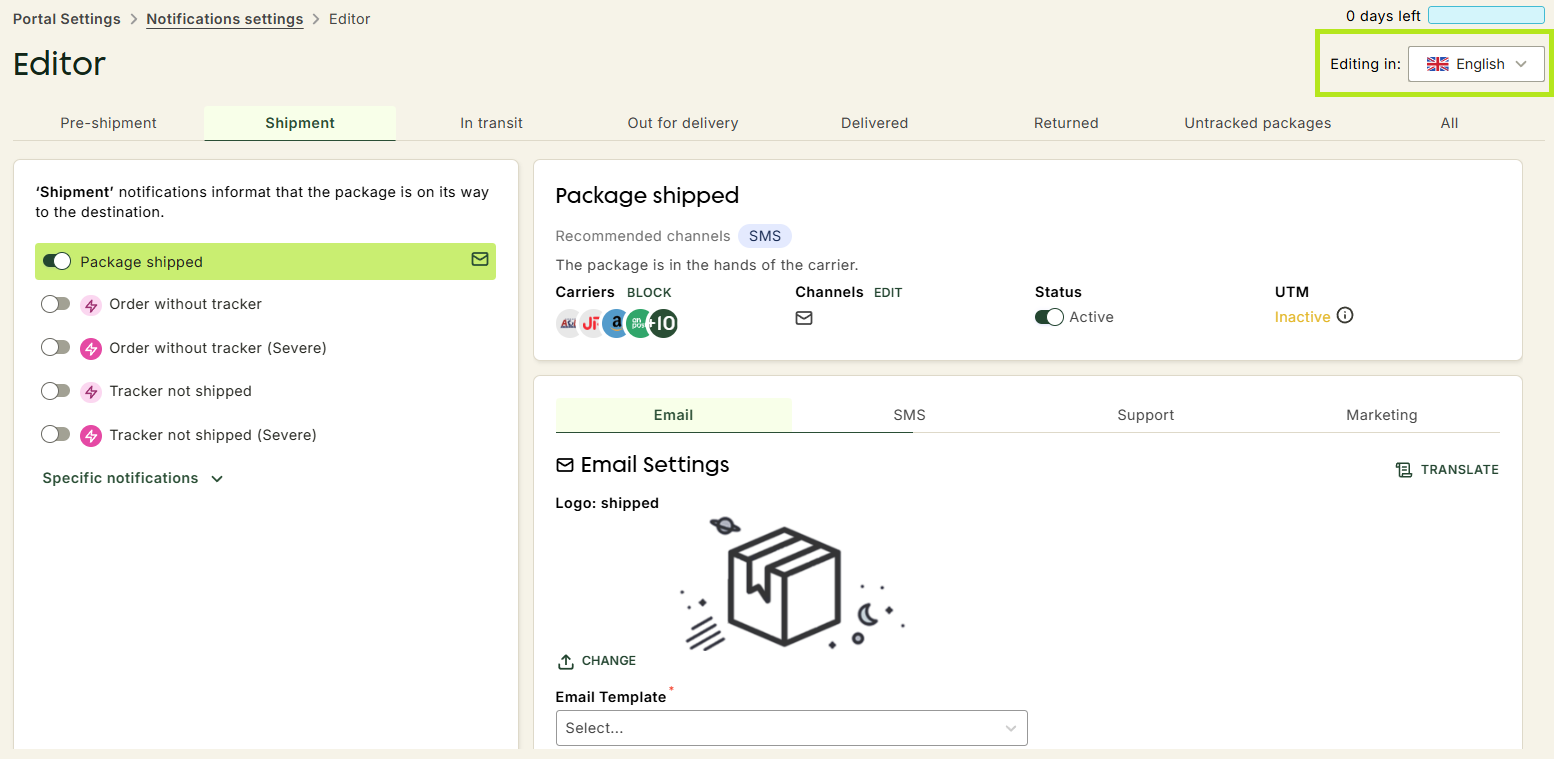
The Status toggle allows you to enable/disable the notifications for each event.
- Active notifications have the activation toggle in blue.
- Deactivated notifications have the activation toggle in gray.
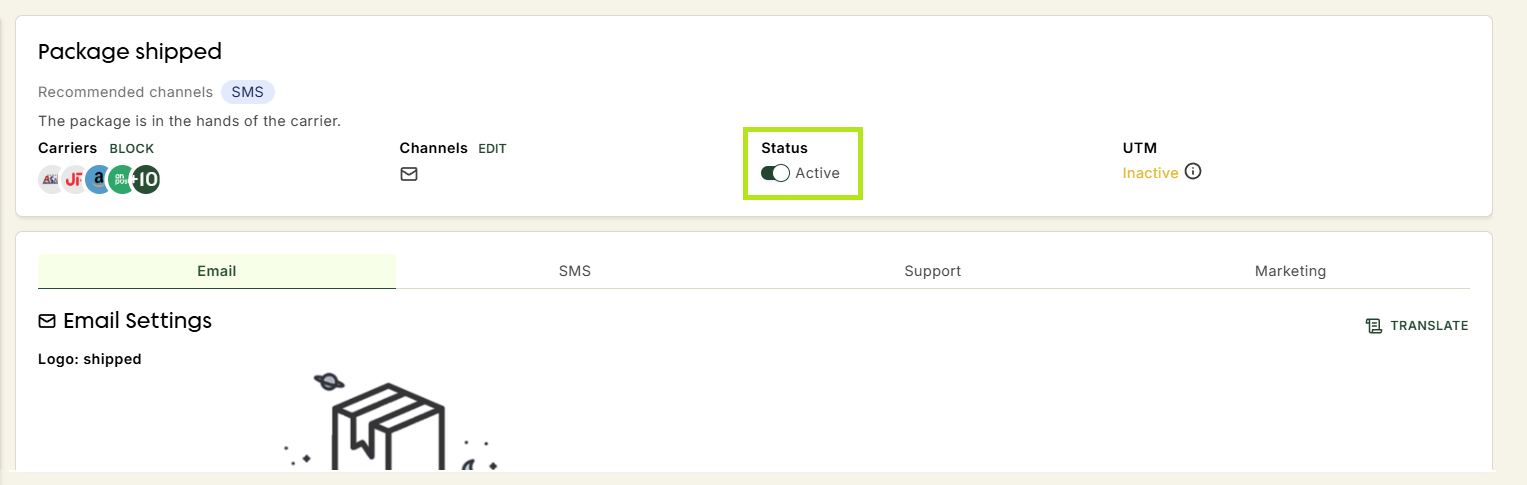
A notification is only generated if an event is reported by a carrier (indicated by the carrier logo).
Notification Language
The flag indicates the language in which you are currently editing the notification.
A change (in status, channel, notification content, etc.) made in one language will not automatically be reflected in the other languages. Be sure to make any changes in all the languages you use.
Support copy
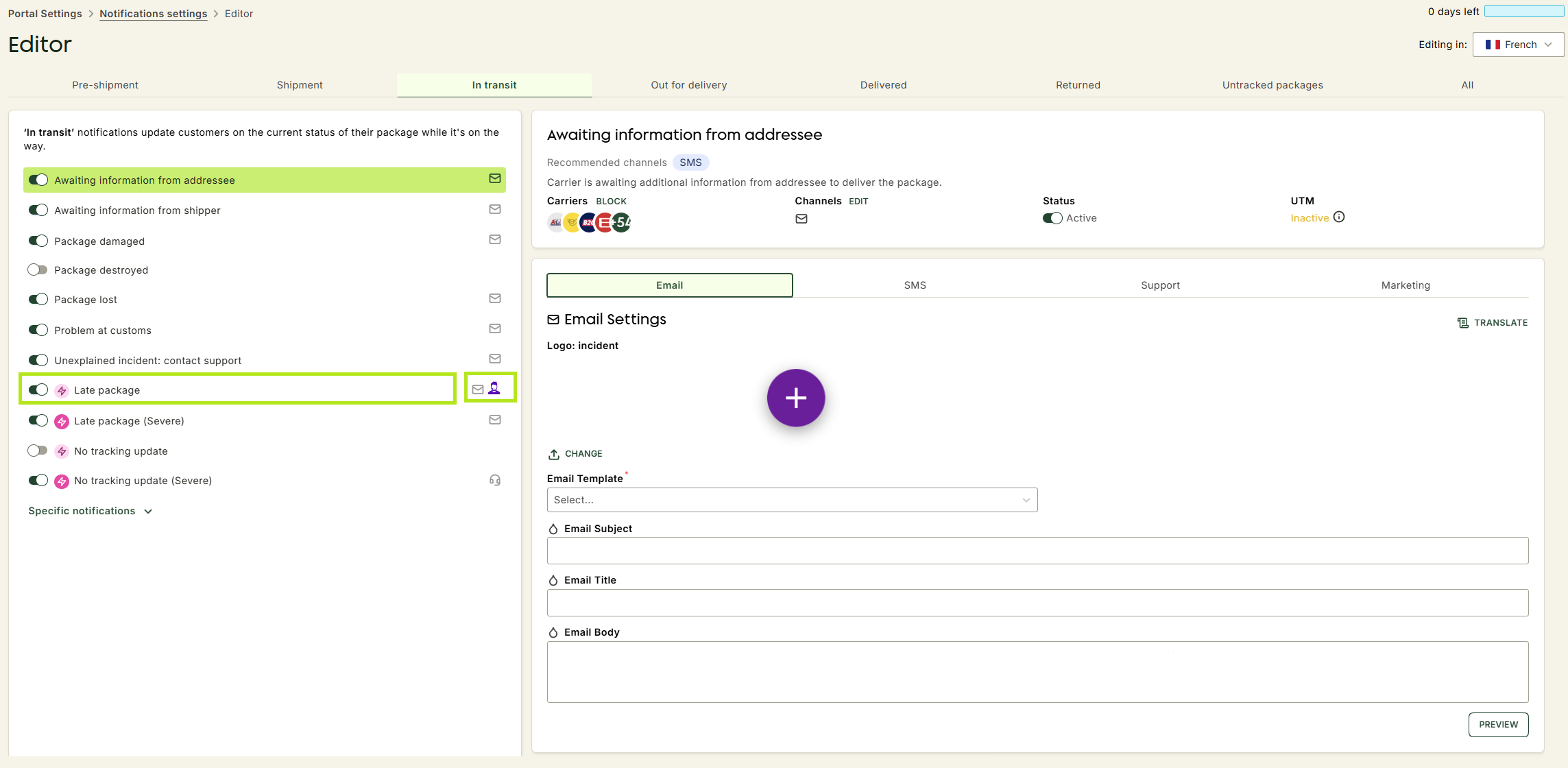
The little man logo indicates that your support team is a hidden copy of this notification.
If you enable Zendesk, Gorgias, or Easiware, you will want to make sure that the logo of these applications appears in this location instead.
How to set the addresses to the support?
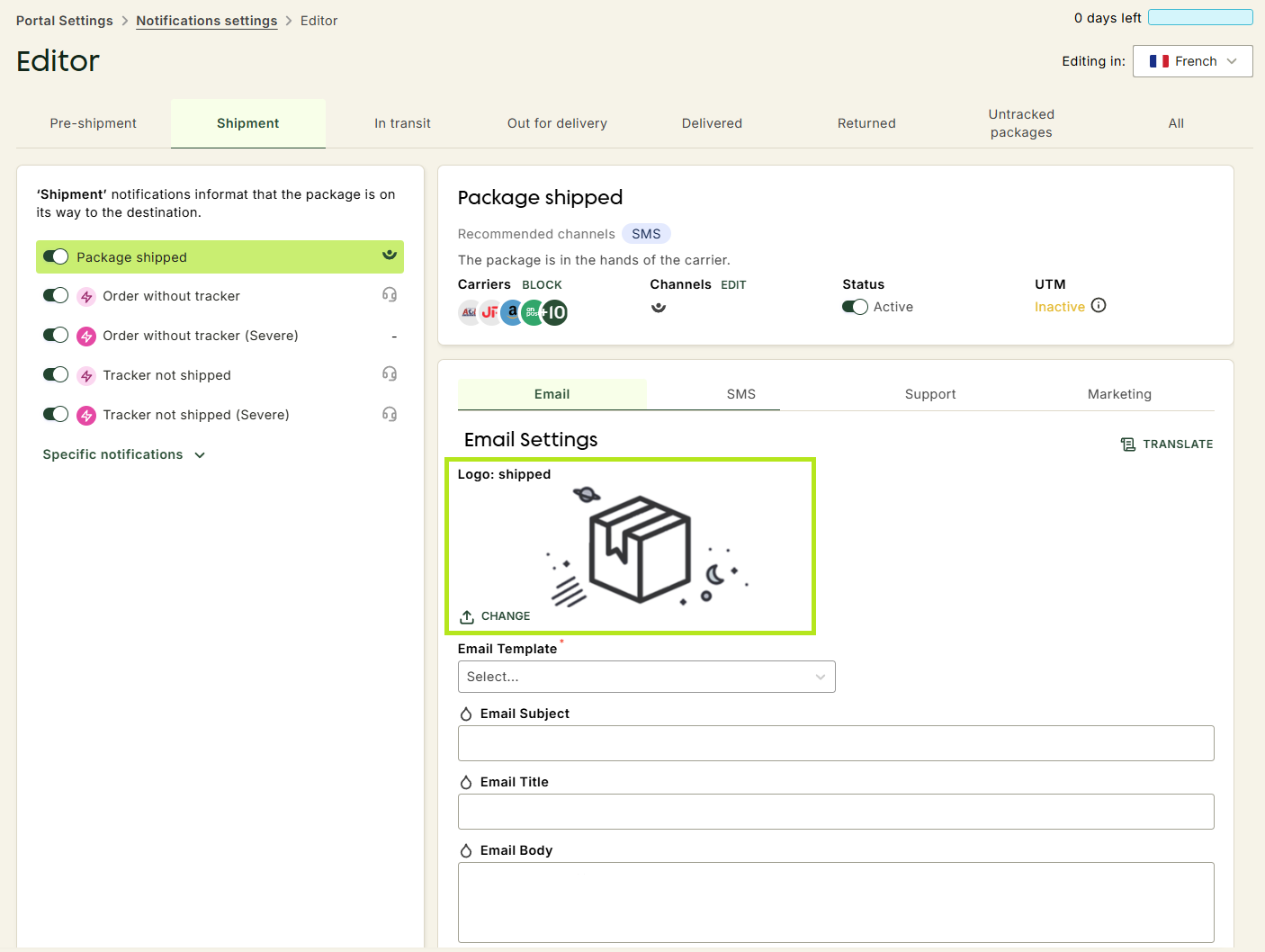
Notification asset
This asset is the main image of the notification. It can be changed from your general account settings.