How to upload files to SFTP
Overview
This page will guide you how to upload flat files to ZigZag SFTP. Flat files are uploaded to the FTP directory using an FTP client. Common options include WinSCP, CoreFTP, and FileZilla. In the example below, we will demonstrate the steps using FileZilla.
How to upload files to SFTP
Connecting to the server
- Install the FTP client.
- Upon starting the FTP client, enter Host, Username, Password and Port. These credentials should be provided to you by your ZigZag point of contact.

- Click the Quickconnect button to establish connection to the SFTP server.

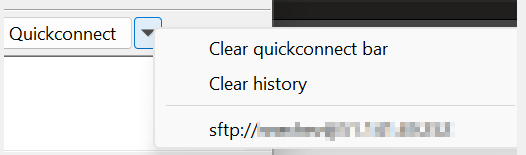
- After your first sign-in, the information for the connection is stored in the dropdown menu on the left of the Quickconnect button. To re-establish the connection, select the dropdown menu and select the user.



Navigating and uploading files
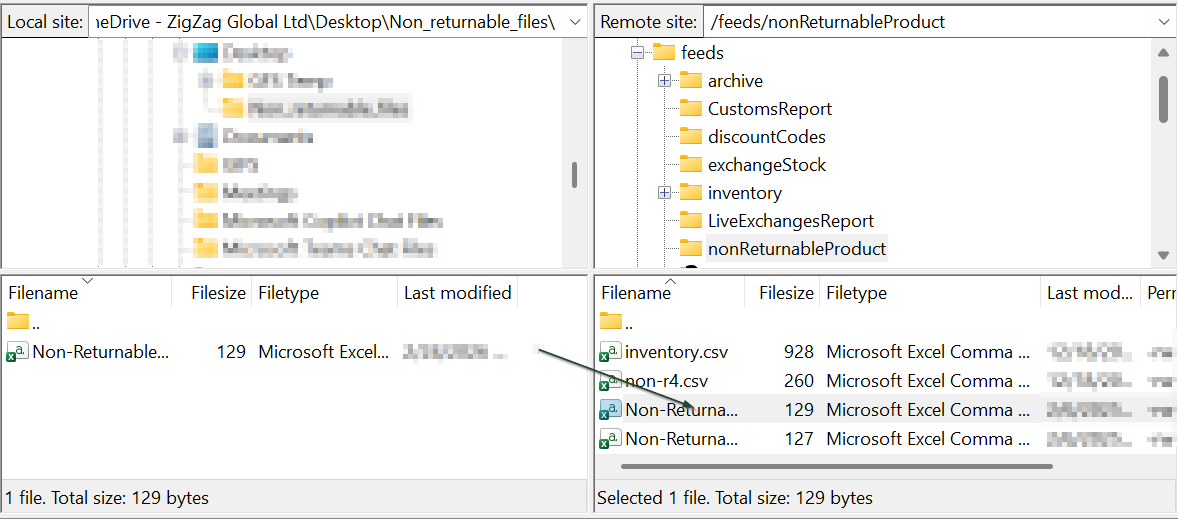
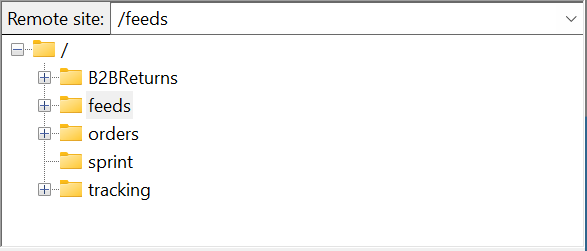
- You can navigate the remote site by using the right-hand side of the screen. The displayed directories are for your user only.

- Navigate to the necessary folder for the file you want to upload - for example if you want to upload a file for non-returnable products, navigate to /feeds/nonReturnableProduct folder.
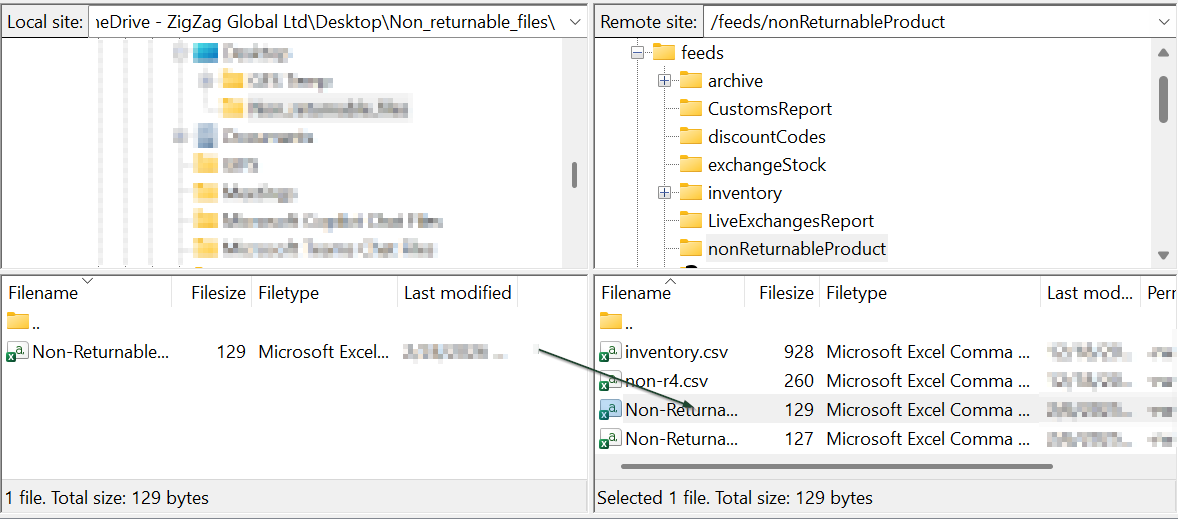
- To upload the files, drag and drop them directly in the folder as shown below.
For more information regarding flat file formatting, see Flat files section
- When the file transfer is completed, you can stop the connection by pressing the Disconnect from the currently visible server button or by closing the SFTP client.

