Smart States
Overview
ZigZag offers two types of notifications:
- Classic notifications - Carrier events are received by ZigZag, analysed, and relayed to your customers via email notifications.
- Smart State notifications - Smart States allow you to notify your customers and alert your support team when an expected event has NOT happened after a period of time that you define (i.e. package not yet delivered, package not yet shipped, no package attributed to an order, etc.). Their purpose is to reassure the end customer and alert your support team of something that may be going wrong.
Each Smart State has a "Severe" version, enabling a second notification to be sent in the event of extended delays.
How to configure Smart States
Step 1
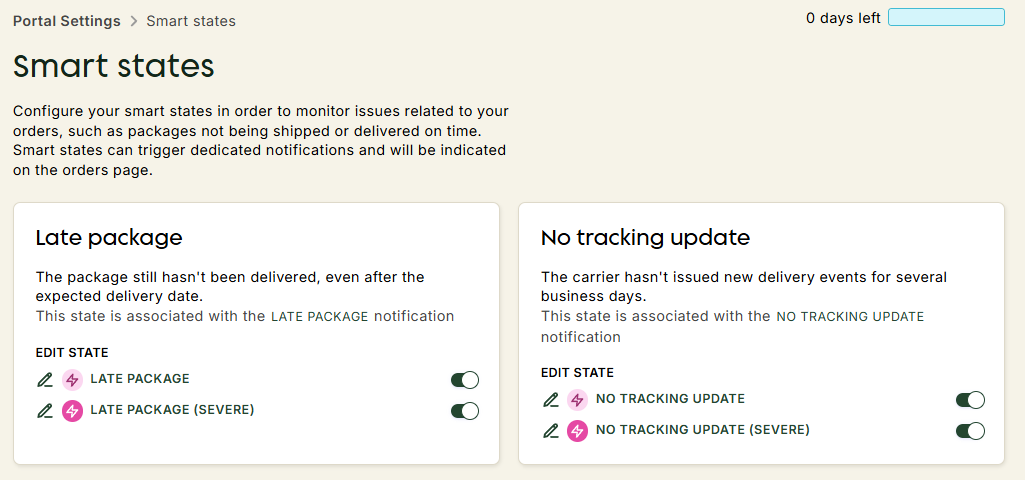
- Navigate to Portal Settings -> Smart States.
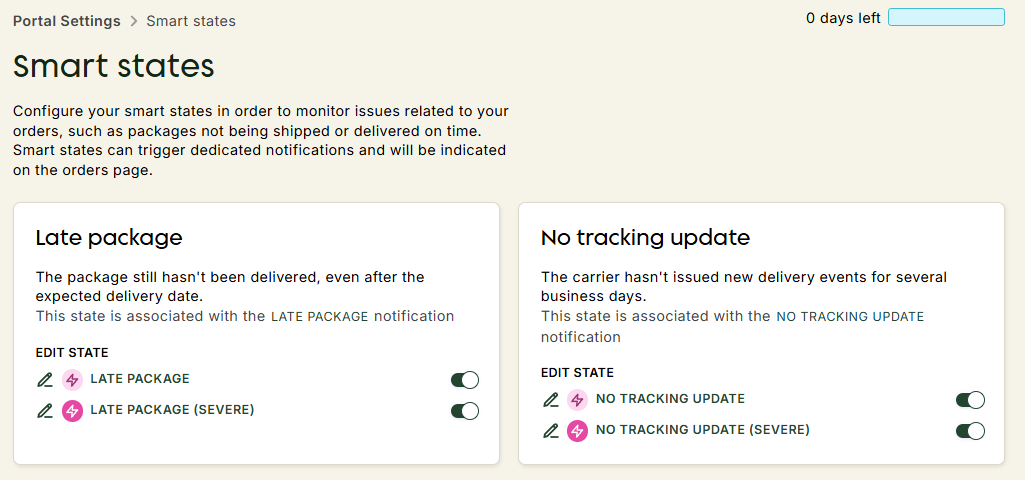
- Configure the settings for the chosen notification.
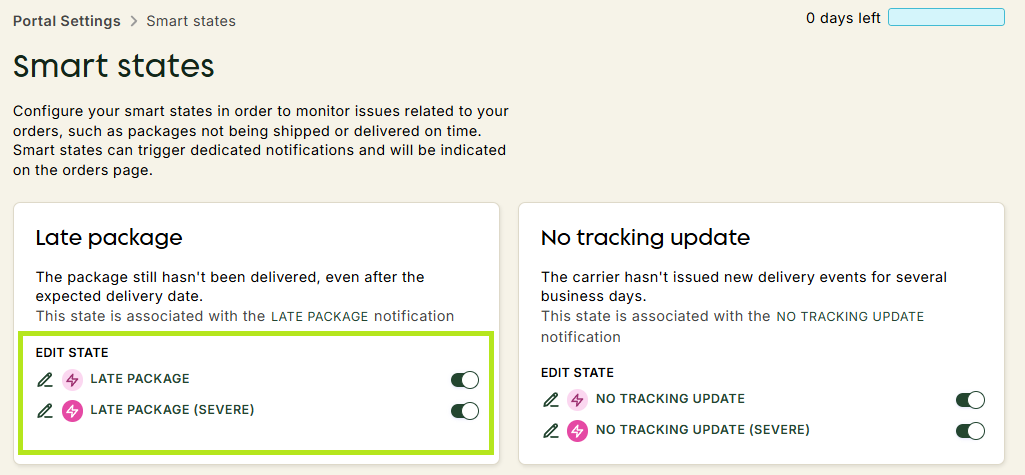
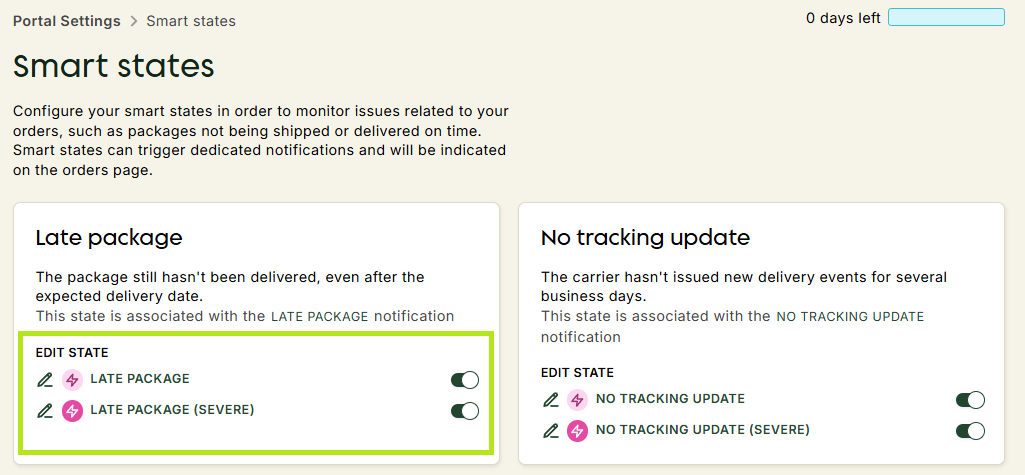
- Repeat this process for the Severe version (which allows you to trigger a second notification if nothing has happened by D+X).
Step 2
- Navigate to Portal Settings -> Notification Settings -> Editor.
- Activate the desired channels for each notification (email sent to the customer/email or alert sent to your support team).
For your customers - personalise email content to reassure your customers. For your support team - send succinct and complete information for greater efficiency.
Smart States trigger time
For each Smart State (standard and severe), you can define the time of day when the system checks whether the conditions for triggering the Smart State are met.
This trigger time uses the destination time zone of its source (i.e. tracker or order).
The destination time zone is determined as follows:
- For Smart States of a tracker - We use the time zone of the delivery address by default. We have the following folders in order of priority:
- Tracker warehouse time zone
- Default warehouse time zone
- Company time zone
- For Smart States of an order - We use the time zone of the delivery address by default. We have the following folders in order of priority:
- Default warehouse time zone
- Company time zone