How to customise your returns portal
Overview
Retailer Hub allows you to customise your returns portal based on your brand identity. You can manage your branding elements such as logo, favicon, and background image.
Note before you start
To manage your company's branding elements, you need to have a Manager role in Retailer Hub.
How to Customise Returns Portal
- Log in to Retailer Hub as a Manager.
- On the sidebar menu within the Settings section, click Portal Settings. A submenu appears.
- Click Personalisation. The Personalisation page appears on the right.
- Click Branding in the tab menu at the top of the Personalisation page.
- If you belong to more than one retailer, select the retailer from the Retailer dropdown menu whose branding elements you want to edit.
- Navigate to the Brand Assets section of the page.
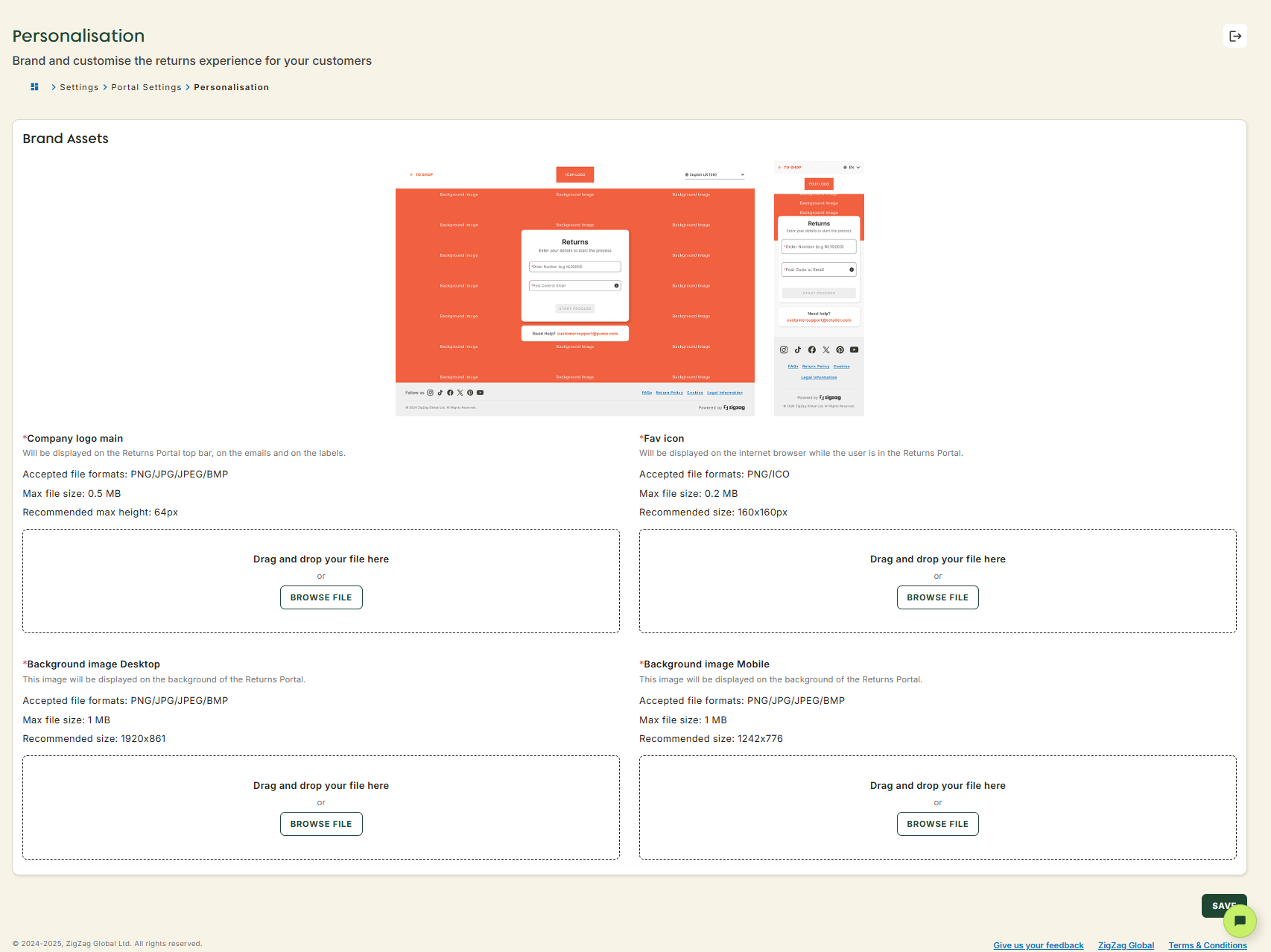
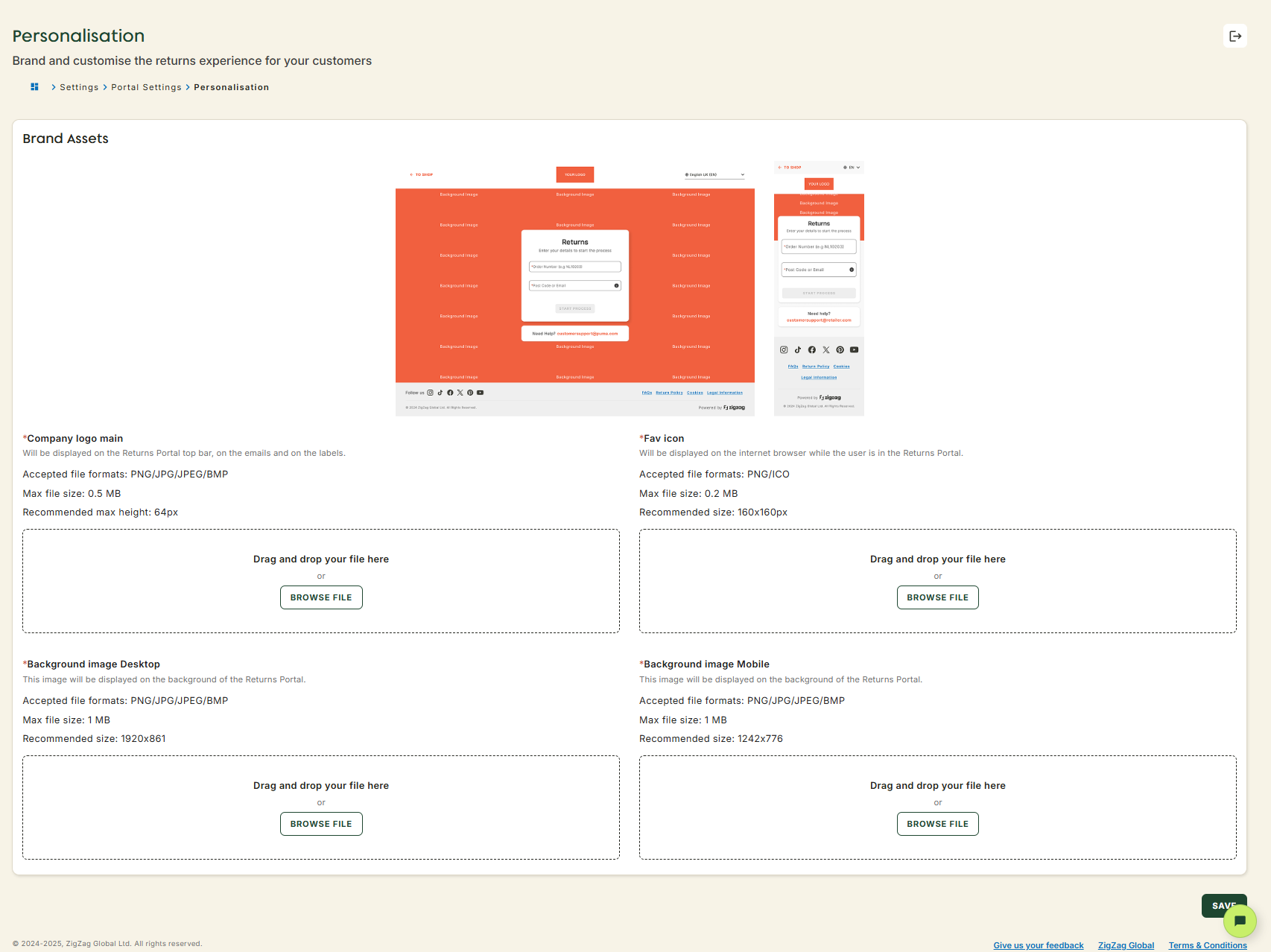
- In the Brand Assets section, you can edit the following branding elements:
- Company logo main – Upload logo image to be displayed on the returns portal's top bar, emails, and labels.
- Favicon – Upload favicon to be shown in the browser while customers use the returns portal.
- Background Image Desktop – Upload background image for the desktop view of the returns portal.
- Background Image Mobile – Upload background image for the mobile view of the returns portal.
- Click Save.